

What this workflow achieves
You end this workflow with a quotation that has been sent and either accepted or declined by the customer — the priced offer of record for the deal. An approved quotation is ready to:- convert to an order, carrying the customer, currency, every style line, every colorway, every size, and every unit price forward, and recording a link back to the source quotation; or
- generate a PI (when your administrator has enabled it), pre-filling a proforma invoice from the quotation for the customer to arrange payment; and
- carry the customer’s signed-back PI as an attachment on the quotation once it returns, so the original offer and the signed acceptance live on one record.
When to use it
- A customer has asked for a price on one or more and you need to put a formal offer in front of them.
- A customer has come back with a change after you sent a quote — open a revised version of the same quotation chain and send the new offer.
- A previous quotation was declined and now needs to be re-pitched with adjusted terms — revise to open a new version with the prior data as a starting point.
Prerequisites
- A customer record for the buyer. Your administrator manages the customer master.
- A style to quote — either an existing style master to link to, or a customer-facing style number and name to free-type on the line. Linking to a master is preferred so the offer ties to a real, reusable style record. See Styles.
- A cost sheet on each style you intend to quote from. The cost sheet is where factory cost, customer price, and margin are worked out per style; the quotation reads those customer-side numbers in as its unit prices. See Cost Sheet.
- Per-tenant lookup lists for season, origin, and payment terms — set up by your administrator. The quotation header picks from these lists.
- Quotation write permission, for the user creating, editing, sending, approving, rejecting, revising, or converting a quotation. Reads are open to any authenticated user in your tenant.
Roles involved
Users with quotation write permission open quotations, fill the header and the style lines, set unit prices, send the quotation, record the customer’s acceptance or declination, revise the offer when terms change, upload the customer’s signed-back PI, and convert the approved quotation into an order. The platform gates these actions by capability, not by job title — sales, merchandising, and administrator roles that carry the capability may all act on a quotation. Anyone authenticated to your tenant can open a saved quotation, read it, and see the offer it carries.Step-by-step
-
Open the Quotations module and start a new quotation. Open
Quotations and choose “Create quotation”. A new quotation opens in
Draft, ready to be filled in. The platform assigns the quotation
its
Quotation no.; you do not pick it.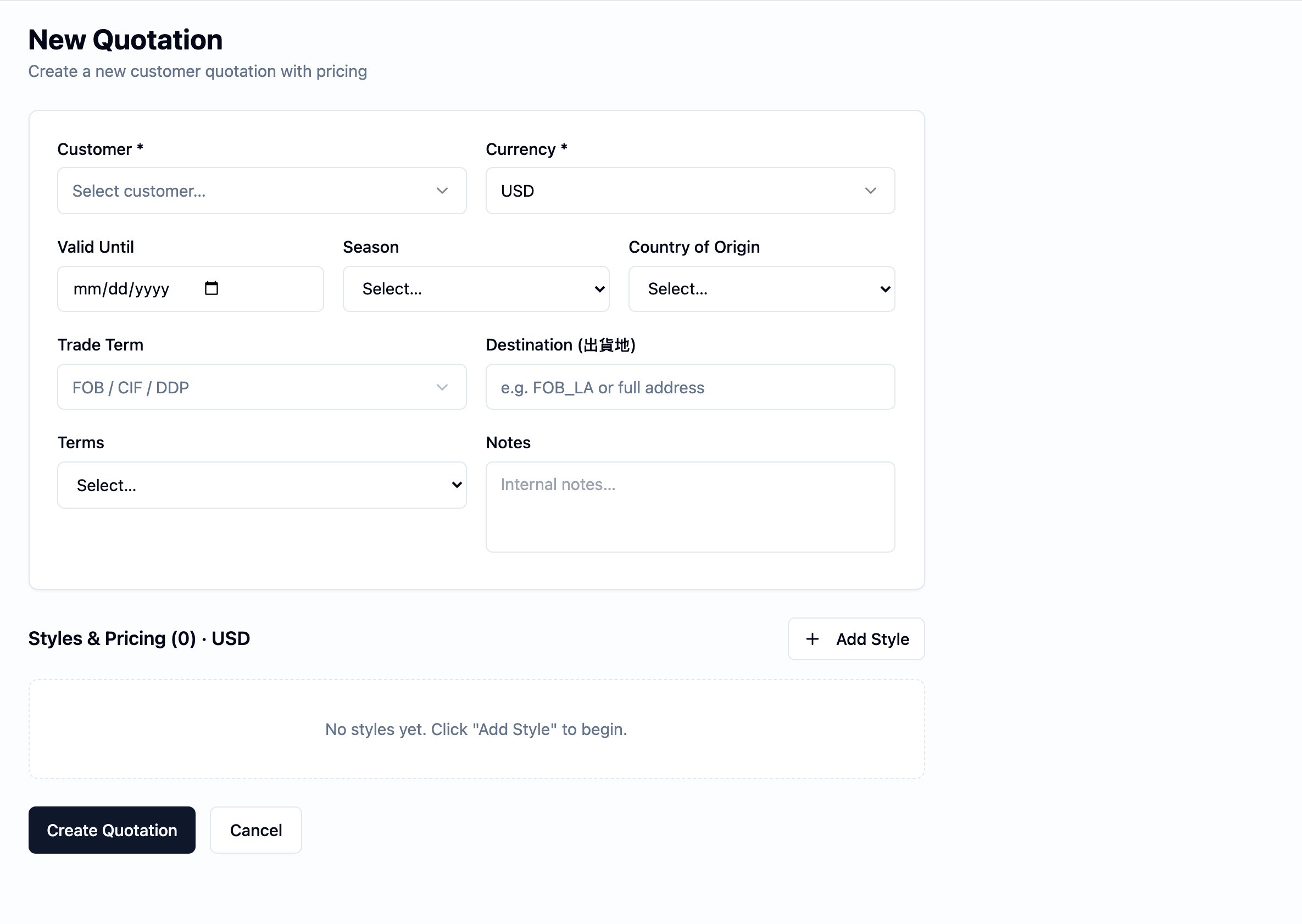
The New Quotation form — the empty create surface that covers steps 1 through 5: the header (customer, currency, validity, season, origin, trade term, destination, terms, notes) and the Styles & Pricing section the team builds the offer in.
-
Fill the header.
Customer— pick the buyer from the customer master.Currency— pick the currency the prices are quoted in. A quotation is one currency from end to end; an offer in another currency is a separate quotation.Validity date— set the expiry of the offer. Leave it blank when the offer has no fixed end.Season— pick the selling season the offer is for. Tenants typically configure the list to combine year and season on a single label (e.g.2026 S/S), so picking one entry carries the year and the season onto the document together.Origin— pick the country or region of origin (產地).Terms— pick the payment and commercial terms text that should print on the quotation.Notes— type any internal note that should appear as the “Remark” on the rendered document.
-
Add a style line. Add one block per style the quotation runs:
- Optionally pick the style master via
Style master No.to link the line to a real style record. Free-typed lines work too; linking is preferred so the offer ties to the style’s BOM, cost-sheet history, and downstream artifacts. - Fill
Style No.andStyle Name— the customer-facing style identity on this quote. - Optionally set
Fabric No.andSample Sizeas descriptive detail. - Optionally set
MOQ— the minimum order quantity the offer is conditional on for this style. Non-negative integer; leave blank when the line carries no minimum. Stays on the quotation line and is not propagated to the order on convert.
- Optionally pick the style master via
-
Add colorways, sizes, and prices. Under each style line, add one
row per colorway × size:
Colorway— the colorway name as it should appear on the quotation. Optionally add aColor code(typically a hex value).Size— the size label (e.g.S,M,38).Qty— the quantity quoted for this colorway × size.Unit price— the per-piece price in the quotation’s currency. Pricing is per-size — a single colorway can carry different prices across sizes.- The platform derives the
No. of Colorwayscount on the style line from the colorway names you enter, so it cannot drift from the data.
-
Review the offer. Walk the style lines, colorways, sizes, and
prices. The grand total is computed as the exact sum of every
quoted
Qty × Unit priceand shown on the quotation. The platform does not block a send for missing prices or empty styles — the merchandiser is the gate that decides the offer is ready.
A saved Draft quotation — the offer of record while the team is still building it: header summary at the top, the styles & pricing block with per-style totals, the Draft AI / Download Quotation / Mark Sent actions, and the Signed PI & Documents upload below.
- Download the quotation document. The quotation renders as a PDF carrying your tenant’s branding (logo, colors, seller block). Use the download to preview what the customer will see, and to send the quotation to the customer.
-
Send the quotation. Press “Send”. The quotation moves from
Draft to Sent; the platform stops accepting edits from this
point on. The way to change a sent quote is to revise it.
A Sent quotation — the platform refuses edits and exposes the customer-response actions instead: Reject, Approve, and Revise sit in the top right alongside Draft AI and Download Quotation.
-
Record the customer’s response.
- Approve — the customer has accepted the offer. The quotation moves to Approved. Convert to order, generate PI (when your administrator has enabled it), and revise are all available.
- Reject — the customer has declined. The quotation moves to Rejected. Revise is available; convert and PI generation are not.
An Approved quotation — the signed offer of record: the green Approved badge sits next to the document number, and the post-decision action set (Generate PI, Convert to Order) is now exposed alongside Draft AI and Download Quotation.
Revise an offer
If a sent, approved, or rejected quotation needs a change — a price the customer pushed back on, a quantity adjustment, a swapped colorway — open Revise. The platform marks the current quotation Superseded, opens a fresh Draft quotation on the same chain with the next version number, and deep-copies the header (customer, currency, validity, season, origin, terms, notes) and every style line and size from the prior version. The revised quotation receives its own freshQuotation no.;
the chain link to the prior row is preserved so the history of what was
offered at each round stays intact.
Edit the new version’s header, lines, or prices to reflect the change,
then send it again. The customer’s response on the new version is the
one that drives Approved or Rejected going forward; the prior
version stays as the historical record.
The AI cover note, if you had drafted one on the prior version, is
not copied — re-draft it on the new version when it is needed.
Generate a PI on Approved
Where your administrator has switched on quotation-to-PI on your tenant, Generate PI is available on an approved quotation. Generating a PI opens a new pre-filled from the quotation — line items, customer, currency, and terms carry forward — for the customer to arrange payment or open a letter of credit. The quotation’s status does not change: the quotation stays Approved, so it can still be converted to an order. When the customer signs and returns the PI, upload the signed-back PI against the quotation. PDF and JPG uploads are accepted. The signed copy now sits on the same record as the original offer and the PI it was generated from.Convert to an order
When the deal is ready to move from offer to commitment, convert to order on an approved quotation. A new opens, carrying the customer, the currency, every style line (with the link to its style master where the quote was linked), every colorway, every size, and every unit price forward. The new order keeps a link back to the source quotation; the quotation is marked Converted. From here the order is the live record of the deal — it picks up its own ship date, trade term, destination, and the rest of the order-specific terms there. The money side of the deal — the deposit, the shipment billing, the receipts, and the customer-facing settlement — runs from the order into the Finance module and onto the Statement of Account.Decision points
- Link the style master vs. free-type the line. Linking via
Style master No.ties the line to a real style record. Free-typing works when the line is a one-off, but linking is preferred so the offer ties to the style’s BOM, cost-sheet history, and downstream artifacts. - Send vs. revise. Once a quotation is sent, edits are refused. Revise to open a new version when the offer needs to change after send; do not look for an unlock on the sent row.
- Approve vs. reject vs. revise. From Sent, the customer’s response decides the next status. Revise is also available from Sent when the customer asks for a change before deciding — open the revised version, send it again, and let that version carry the final response.
- Convert to order vs. generate a PI. Both run from Approved. Convert to order opens the live order record the rest of the chain hangs off; generate PI opens a customer-facing payment document. Generating a PI does not block converting to an order — both can happen on the same quotation.
Business rules in play
These rules govern this workflow. They are documented once on the Quotation page; this workflow only summarizes.- A quotation is per-customer and per-currency. The customer and the currency are picked on the header and stay set across the lifecycle. See Business rules on the Quotation page.
- Edits are restricted to Draft. Header, line, colorway, size, and price edits all require the quotation to be in Draft. A request to write to a quotation in any other status is refused.
- Send locks the quotation from further edits. The way to change a sent quote is to revise.
- Only an Approved quotation may be converted to an order. Convert is refused on any other status, and a quotation already converted cannot be converted again.
- Revise opens a new version on the chain and supersedes the prior.
The new version receives a fresh
Quotation no.and a deep copy of every style line and size; the prior version is marked Superseded. - Generating a PI does not change the quotation’s status. The quotation stays Approved and can still convert to an order.
- The signed-back PI attaches to the quotation. Not to the order and not to the PI.
Dates set or affected
Validity date— set on the header by the user; optional. The expiry the customer reads off the document.Created— set by the platform when the quotation is opened. Prints on the quotation document as the issue date.Last updated— set by the platform on every write while the quotation is in Draft, and updated when the status changes.
Sent at, Approved at, Rejected at, or Converted at
date on the header — the visible signals for each transition are the
status itself and the Last updated timestamp on the row.
Validity date is not propagated to the order on convert; the
order carries its own Order date and Ship date.
What happens next
A signed offer is the bridge between sales and operations. From an approved quotation:- Convert to an order. The new order opens carrying the customer, the currency, every style line (with the style-master link where the quote was linked), every colorway, every size, and every unit price. The new order keeps a link back to the source quotation; the quotation is marked Converted. From the order the deal picks up ship date, trade term, destination, and the rest of its own terms — see Orders and the order lifecycle. The post-convert money path — deposits, shipment billing, receipts, and the customer-facing settlement — runs in the Finance module and rolls up onto the Statement of Account.
- Generate a PI for payment arrangement. When your administrator has enabled quotation-to-PI on your tenant, the approved quotation generates a proforma invoice pre-filled from the quote, which the customer uses to arrange payment or open a letter of credit. The quotation stays Approved while the PI is in play. See Documents and the conversion chain.
- Upload the customer’s signed-back PI. Attach the PDF or JPG of the signed copy to the quotation. The original offer, the PI generated from it, and the signed acceptance all live on one record.
Best practices
- Quote with the cost sheet open. The cost sheet is the costing tool; the quotation is the offer. Set the unit prices on the quote from the cost sheet’s customer-side numbers so the offer stays grounded in real margin. See Build the cost sheet.
- Link the style master on every line you can. Linking via
Style master No.ties the line to a real style record and keeps the rest of the chain — the BOM, the cost-sheet history, the downstream artifacts — easy to follow. - Set the
Validity datedeliberately. A clear expiry tells the customer when the offer holds and reminds your team when to refresh it. - Send only when the offer is complete. The platform does not block a send for missing prices or empty style blocks — the merchandiser is the gate. Walk the styles, colorways, sizes, and prices before pressing send.
- Revise — do not try to edit a sent quote. The platform refuses the edit, and the prior version is the record of what was actually offered.
- Upload the signed-back PI promptly. Keep the original offer, the PI generated from it, and the signed acceptance on one record.