

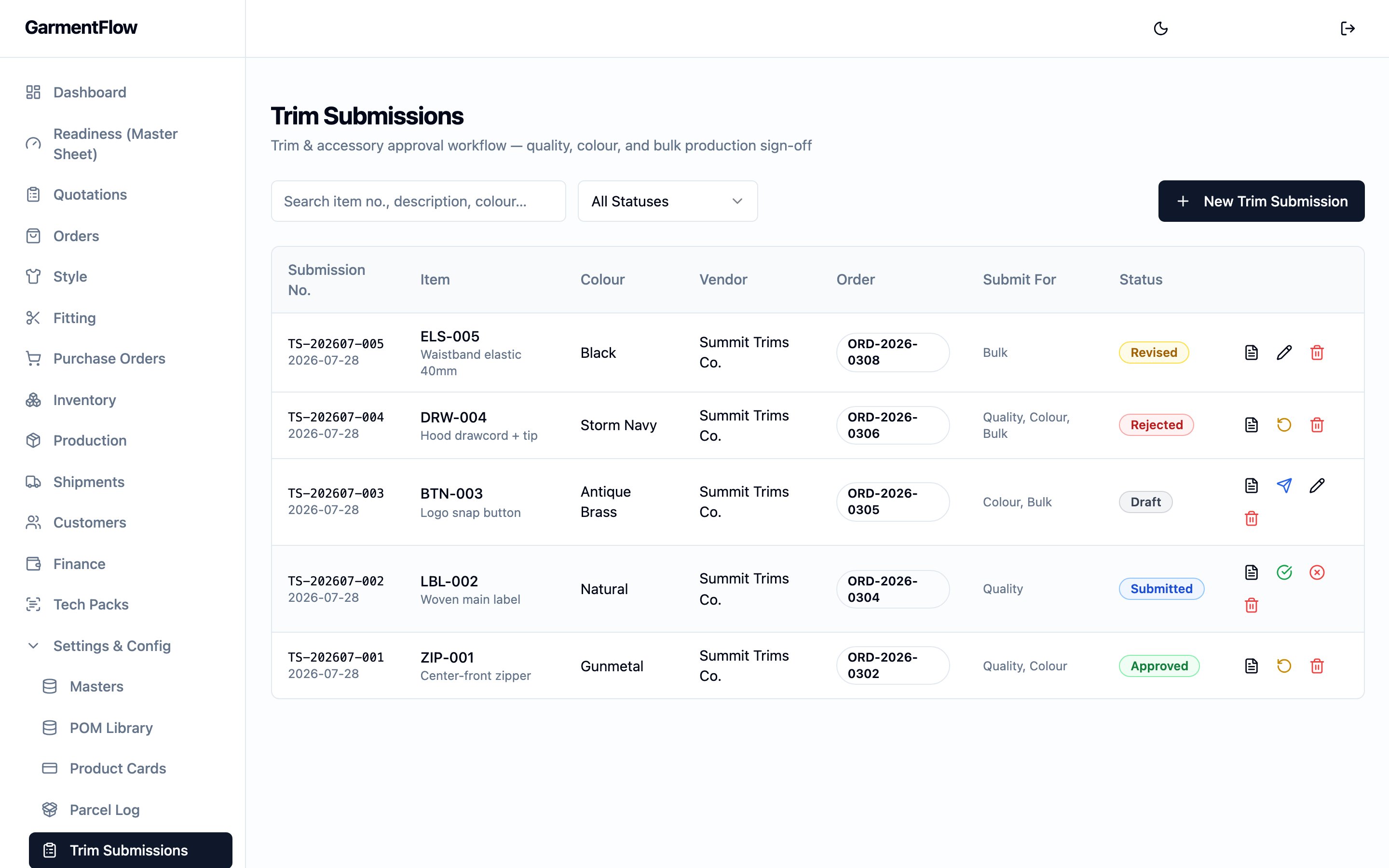
The Trim Submissions list — every approval round in the workspace, with the item, colour, vendor, order, submit-for intent, and current status at a glance.
What it is
A trim submission is the per-trim audit record of an approval round. It identifies the trim and its colour, the it was sent to, the and the round is for, and — first-class on the record — the related styles the same approval also covers. As the round progresses, the team Sends the submission, the recipient signs off or rejects it, and the team marks it Revised when a second round is prepared. The trim card PDF that prints from the submission carries the photos and the trim’s identity, so the printed sample card matches the workspace’s record. The page is reached from the sidebar’s Trim Submissions entry.Why it exists
A bulk trim purchase rarely happens before a sample of the trim has been sent to the customer (or to the development team) and signed off. The team needs to know which round each trim is on, whether the round was approved, why a round was rejected, which photos went with it, and which styles the approval covers. Tracking that on email leaves no audit trail and falls apart the moment one button covers a season’s worth of related styles. The trim submission consolidates the approval round into one record per trim, colour, and intent. It is the audit trail for trim approval — not the gate for the trim purchase. The submission documents what was sent, what came back, and on which styles the approval applies; the team raises the for the bulk trim on their own judgement, with the submission on file as the supporting record.When it is used
- Before a trim is committed to bulk, to send a sample of the trim out for quality, colour, or bulk sign-off — singly or in combination.
- When the recipient answers, to record the approval or rejection on the submission, with the rejection reason captured against the round.
- When a second round is needed, to mark the submission as revised and prepare the next iteration on the same record.
- At any point, to export the printable trim card PDF — the photos and identity laid out for the sample swatch that physically travels.
Dependencies
- A vendor — typically the accessory supplier the trim is going to. Optional on the record but expected in practice.
- An order and one of its styles the trim is for. Both optional on the record; setting them puts the submission in the order’s and style’s context.
- An optional accessory master — the canonical BOM trim record the submission is approving. When set, the submission reads the trim’s identity from the master so the same trim is referenced everywhere.
What depends on it
Nothing strictly downstream. The trim PO is not gated on an approved submission, and no manufacturing-order surface reads the submission. The submission is the paper trail: the workspace’s record of which approval round happened, when, on what trim, with what outcome. Surfaces that surround it read it, but none gate on it.- The BOM trim line’s approval history is read here — the submission is the per-trim record the BOM line points at when the team wants to see how the trim was signed off.
- The vendor detail surfaces a count of submissions sent to the vendor for context — same record, vendor-scoped.
Fields
The submission’s fields group by identity, the trim itself, linkage and context, the submission round, the approval intent, the outcome, the attachments, and free-text notes.Identity
Submission no.— the submission’s permanent business identifier. Assigned by the platform when the submission is created and never changes.
Trim
Item no.— the trim’s item number. Auto-fills from the linked accessory master if one is picked; editable on the submission.Description— what the trim is (button, woven label, drawcord, and so on). Auto-fills from the accessory master where set.Colour— the trim’s colour for this round. Each colour of the same trim is its own submission.Accessory master— the optional link back to the canonical BOM trim record on the workspace’s accessory master. When set, the trim’s identity reads from the master.
Linkage and context
Order— the optional order the submission is for.Style— the optional style on that order the submission belongs to.Vendor— the optional vendor the submission was sent to — typically the who would be filling the trim purchase. Picked from the Vendors directory.Related styles— a comma-delimited list of other styles the same approval round also covers. A trim approval is first-class multi-style: one round can carry across a season’s worth of related styles when the same trim runs on each. The list is recorded on the submission and reads back as the styles the round applies to.Brand— the customer brand the round is for. Optional, free text.Season— the selling season. Optional, free text.
Submission round
Date submitted— the date the round was sent out. Operator-set.Provider— the supplier’s name as it appears on the trim swatch itself. Captured for the audit trail because the swatch may name a sub-supplier distinct from the vendor on file.Contact person— the person at the supplier the team is working with on the round. Optional.
Approval intent
Three independent checkboxes — the team ticks any subset to record what the round is being submitted for.Submit for quality— the round is asking for sign-off on the trim’s quality.Submit for colour— the round is asking for sign-off on the colour match.Submit for bulk— the round is asking for sign-off on the trim being used in bulk.
Outcome
Approved at— the date the round was approved. Set when the team records the approval on the submission.Rejected reason— the reason the round was rejected, free text. Required when the submission is moved to Rejected.
Attachments
- Photos — multiple photo attachments per submission, each with a caption, sortable. The photos travel with the submission on the printable trim card PDF (see The trim card PDF below).
Notes
Remark— free-text note on the submission as a whole.
Business rules
- One submission per trim, colour, and intent. A different colour of the same trim is a separate submission; a separate round on the same trim and colour for a different intent (e.g. colour-only follow-up on a previously quality-approved trim) is a separate submission.
- A submission is not the gate for the trim PO. Raising the for bulk trim is not refused by the absence of an approved submission; the submission is the audit trail, not the gate. The team chooses whether to wait for sign-off before buying.
- A rejection requires a reason. Moving a submission to Rejected
without filling
Rejected reasonis refused — the reason is captured on the same write so the audit trail names why the round was rejected. - Revising starts a new round on the same record. Marking a submission as Revised signals the team is preparing a second iteration on the same submission. The team then resends; the prior outcome stays on the record’s history.
- Related styles carry the approval across a batch. Adding a style
to
Related stylesis the first-class way to say “this same trim approval also covers that style.” The submission documents the broader coverage; the styles themselves keep their own records of the trims they run. - Linkage is optional but recommended. Order, style, vendor, and accessory-master links are not refused if blank, but a submission with them filled in reads against the surrounding records (the BOM, the order, the vendor’s history) instead of standing alone.
Validations
Status and transitions
A trim submission moves through a five-status lifecycle, driven by action verbs on the submission’s row actions rather than direct status edits. The team Sends a draft round; the recipient signs off or rejects it; the team Marks as Revised to prepare a second iteration; the revised round is then sent again.- Draft — the submission is being built. The team is still entering the trim, the colour, the photos, and the linkage. The round has not been sent.
- Submitted — the round has been sent out. Awaiting a decision from the recipient.
- Approved — the recipient signed off the round. The team has the
audit record they need to proceed with bulk for this trim and colour
on this submission’s styles.
Approved atis set on the transition. - Rejected — the recipient rejected the round. The reason is captured
on
Rejected reasonon the same transition. - Revised — a second iteration is being prepared on the same submission, after either an approval or a rejection. The revised round is sent again, returning the submission to Submitted.
Transitions
The actions and the transitions they drive:- (created) → Draft.
- Draft → Submitted: the team chooses Send on the row to send the round out.
- Submitted → Approved: the team chooses Approve on the row,
recording the approval;
Approved atis set. - Submitted → Rejected: the team chooses Reject on the row,
recording the rejection with
Rejected reason. - Approved → Revised: the team chooses Mark as Revised to start a second iteration after a prior approval (e.g. a colour change on a previously approved trim).
- Rejected → Revised: the team chooses Mark as Revised to start the rework after a rejection.
- Revised → Submitted: the team chooses Send again to ship the revised round.
Date logic
The submission carries two business-meaningful dates plus the platform’s audit timestamps.Date submitted— the date the round was sent out. Operator-set on the round, typically the day Send is clicked.Approved at— the date the round was approved. Set by the platform on the Submitted → Approved transition. A re-approval on a re-sent revised round overwrites it; the prior value lives on the submission’s audit trail.
The trim card PDF
The submission exports a trim card PDF — a printable card carrying the trim’s identity (description, item number, colour) and its photos, formatted to travel with the physical swatch. The export is generated from the submission’s current fields and photos; re-exporting after an edit prints the latest content. The trim card is a print of the current submission record — it is not a converted document or a signed-off artifact. There is no signed copy upload back, no per-export lock, and the submission’s status is unchanged by the export. The team uses the PDF as the swatch tag and sends the physical sample to the recipient alongside it.Effect of changes
- Create a submission. A new submission is opened in Draft with the trim, colour, and linkage fields ready for entry. The team adds photos, ticks the approval intent, and prepares the round.
- Click “Send” on a draft (or revised) submission. The submission moves to Submitted and the team can record the recipient’s decision on it.
- Click “Approve” on a submitted (or revised-then-submitted)
submission. The submission moves to Approved and
Approved atis set. The round is on file as the audit record for this trim and colour on the submission’s styles. - Click “Reject” on a submitted submission. The team fills
Rejected reasonin the same write and the submission moves to Rejected. The reason stays on the record as the audit of why the round failed. - Click “Mark as Revised” on an approved or rejected submission. The submission moves to Revised, signalling that a second iteration is being prepared. The team edits the round (new photos, updated trim details), then clicks Send again to re-submit.
- Edit the trim, colour, linkage, photos, or related styles. The change saves to the submission. Re-export the trim card PDF to print the updated content.
- Add or reorder photos. The new photos and order are saved. The trim card PDF reads the current photos and order on the next export.
- Delete a submission. The submission is removed from the workspace. Use delete for a submission that was created in error; a submission that played out and reached a terminal state can be left on file as the audit trail.
Best practices
- Open the submission against the accessory master and the related styles you mean it to cover. The accessory-master link is what ties the submission back to the BOM trim line; the related-styles list is what makes one round cover a season’s worth of related styles instead of asking for a fresh round per style.
- Tick the approval intent before sending. Recording whether the round is for quality, colour, or bulk (or any combination) on the submission is what makes the audit trail readable later; ticking retrospectively works but leaves the trail thinner.
- Send through “Send” rather than editing the status by hand. The action verbs on the row are the documented path through the lifecycle and set the dates and validations that go with each transition.
- Capture the rejection reason in the recipient’s own words. A precise reason (“colour too warm against the body fabric”, “edge finish unraveled in laundering”) makes the next round productive in a way “rejected” does not.
- Mark as Revised before resending a second round. Reusing the same submission for a revised round keeps the trim, colour, and approval history on one record; opening a new submission for what is really a second iteration scatters the audit trail.
- Re-export the trim card PDF after edits. The PDF prints from the current record — an edit doesn’t update a previously printed swatch card.
Related pages
- BOM — the canonical material record the submission’s accessory-master link reads from.
- Vendors — the directory of accessory suppliers a submission is sent to.
- Samples and fitting — the per-style validation record the trim submission’s styles sit alongside.
- Production — the trim purchase order the submission supports.
- Orders — the order the submission’s style belongs to.