

Watch a cost sheet build itself from the BOM — supplier rates, unit conversions, and waste filled in automatically.
What this workflow achieves
You end this workflow with a saved, audience-approved cost-sheet version on the style: a factory side, a customer side, and a per-piece margin between them. The version is the price basis the quotation, proforma invoice, and order carry — and, when the version is tied to an order, the version that order’s pin advances onto.When to use it
- A style has its in place and needs its first cost-sheet version before quoting.
- The price basis has changed — a material is renegotiated, the customer multiplier has moved, a reorder needs a fresh build-up — and the next quotation or order needs a new version to point at.
- A sheet is partway through approval and the remaining audience is ready to sign off.
Prerequisites
- A style with a current BOM. The cost sheet is built by copying from the style’s BOM, so the style must have a BOM version in place. The BOM does not need to be approved — the Copy reads the current version regardless of its status.
- At least one approval audience enabled in your tenant. Your administrator configures which of the factory, customer, and internal audiences are in use. A new cost-sheet version cannot be created when none are enabled.
- Cost-sheet write permission, for the user creating the version, editing lines, running Copy from BOM, and approving or rejecting an audience. Reads and exports are open to any authenticated user in your tenant.
Roles involved
Users with cost-sheet write permission create cost-sheet versions, edit the header and lines, run Copy from BOM, and approve or reject an audience. The platform does not restrict the customer audience to sales users, or the internal audience to finance users — any user with cost-sheet approval permission may approve any audience. Anyone authenticated to your tenant can open a saved cost sheet, read it, and export the audience view they need.Step-by-step
-
Open the style’s Cost tab. Open the Styles module, open the
style, and go to the Cost tab. Existing versions appear in the
version list.
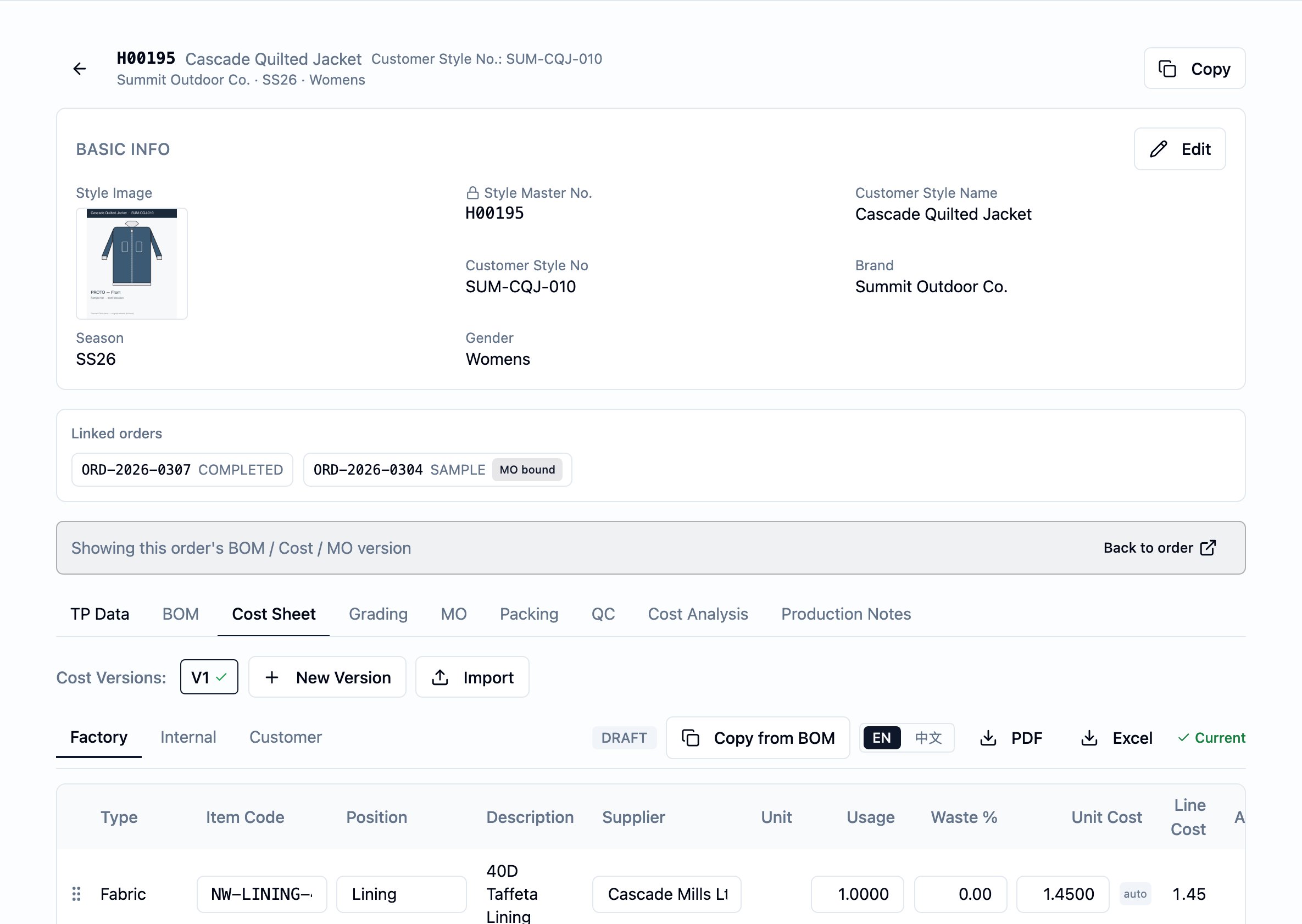
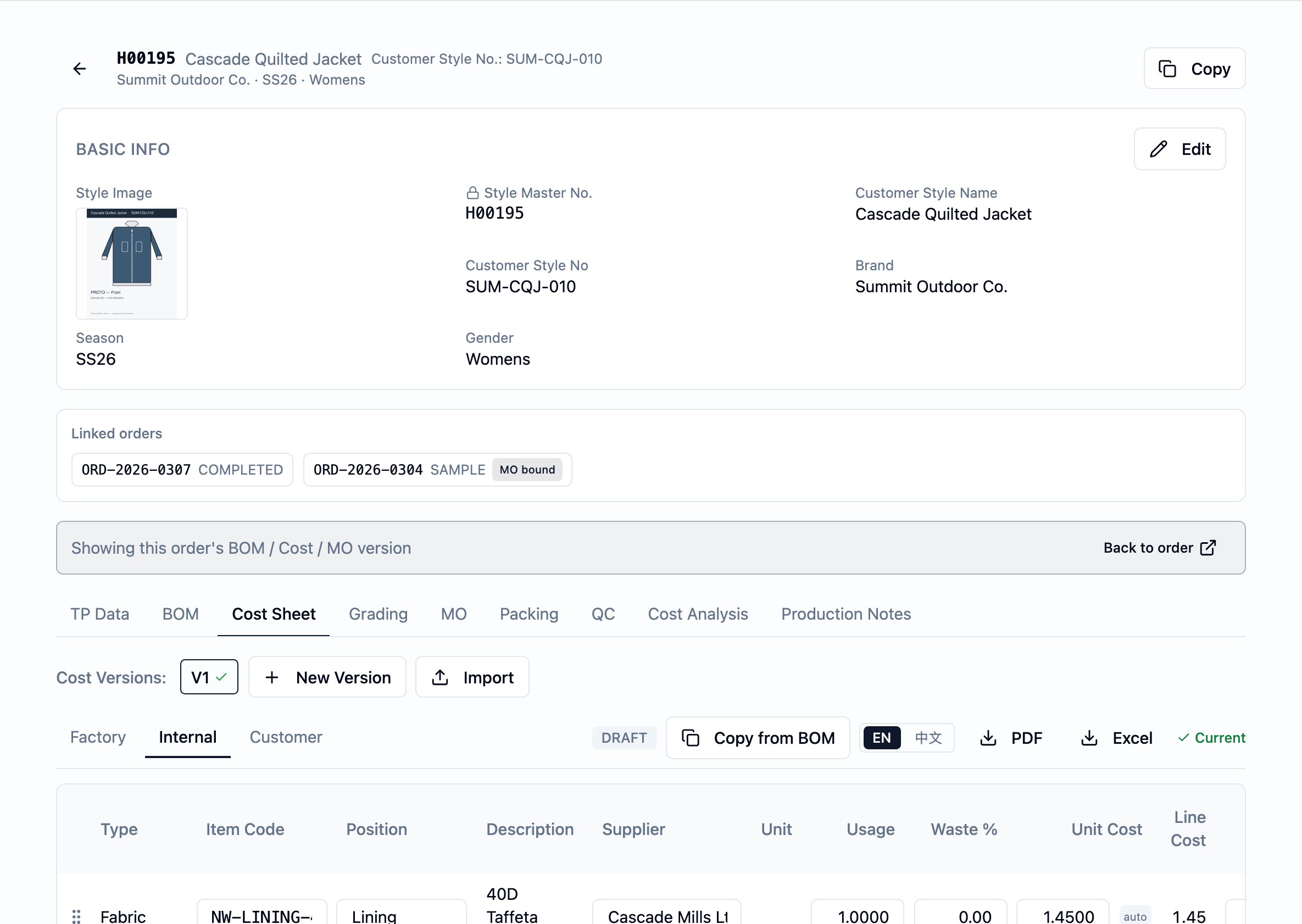
The Cost tab on a style — the version selector across the top, the Factory / Customer / Internal audience tab strip, the status pill, the EN / 中文 export toggle, the line table, and the per-sheet CM and Misc rows beneath.
- Mint a new cost-sheet version. Start a new version. It opens in Draft — full edit access — with one Pending approval row per enabled audience. If you are working inside an order at the time, the new version is tied to that order; otherwise it stays at style level.
-
Run Copy from BOM. With the new version open, press
“Copy from BOM”. The platform appends a cost line for each fabric and
accessory line on the style’s current BOM, capturing the
Item code,Position,Supplier,Unit(the report/quote unit),Usage,Unit cost (factory), andCustomer unit coston the cost line.Purchase unit— the unit you actually buy in, when it differs from the quote unit — is not seeded by Copy; fill it after Copy on the factory or internal view when it applies. From that moment on, the cost line is the source of truth for that material — later edits to the BOM line or to the underlying fabric or accessory master do not flow into the cost sheet. Re-running Copy is safe: lines already linked to a BOM line are left alone, and BOM lines added since the last run are seeded as new cost lines. CM and miscellaneous amounts are not copied; they sit on the header.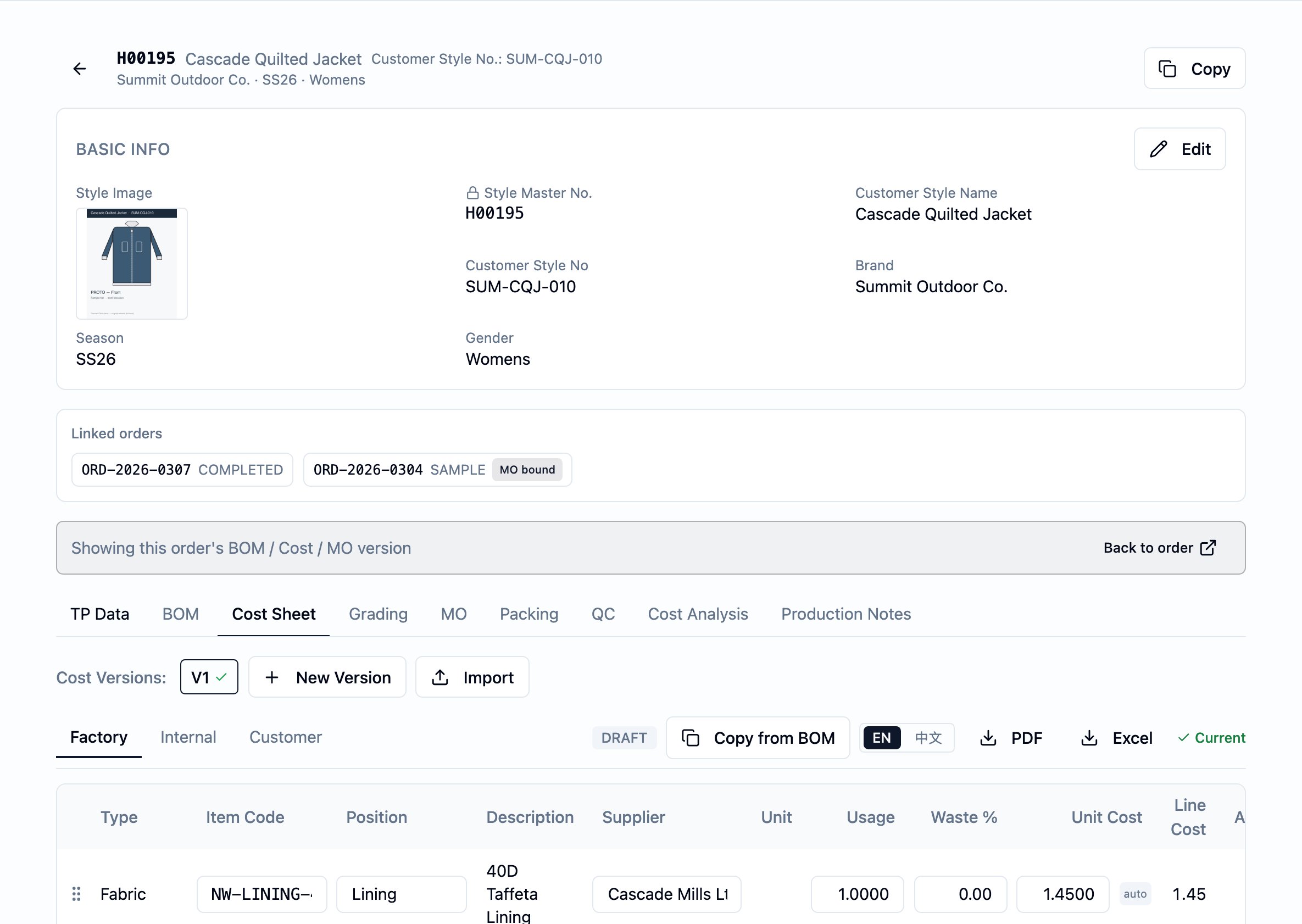
A draft cost-sheet version after Copy from BOM — the lines have been seeded from the BOM's fabric and accessory entries, the DRAFT pill is visible at the top, and every audience row at the bottom reads PENDING and offers Approve / Reject.
-
Set the per-line markup. For each line, choose one of two
modes:
- Multiplier mode — set a
Customer multiplier. The customer-side line cost is computed as the factory-side line cost multiplied by the value, and the line’sCustomer unit costshows the post-multiplier value — the factory unit cost times the multiplier. That is what the Cost tab displays and what the customer export quotes. - Manual mode — leave
Customer multiplierblank and fillUsage (customer)andCustomer unit costdirectly.
- Multiplier mode — set a
-
Fill the rest of the build-up. On each cost line, set
Waste %where it applies — Copy leaves it blank. On the header, set the per-pieceCM (factory)andCM (customer)and theMisc (factory)andMisc (customer)add-ons that apply to the whole sheet. Add anyNotesthat belong on the sheet. -
Review each audience’s view. The Cost tab’s audience tabs —
Factory, Customer, Internal — show different cuts of the
same sheet. The customer view shows
Item codeandPositionalong with the customer-side numbers; onlySupplierand the factory-side numbers are hidden from it. The customer export omits the sourcing columns entirely. The internal view shows both sides and the margin. Check each audience’s view shows what you want that side to see before sign-off.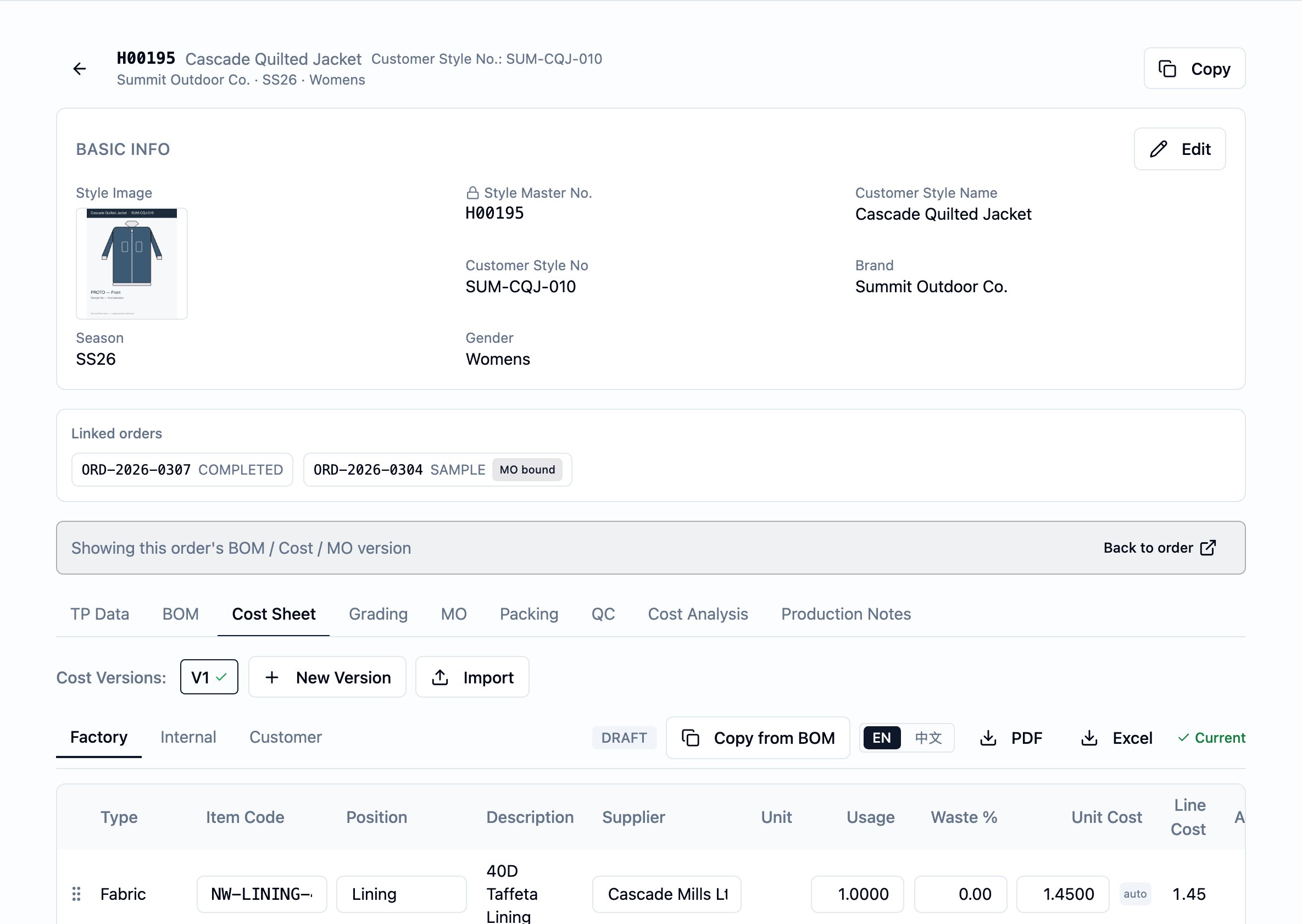
Factory audience on the approved Field Parka cost sheet — the factory-side build-up: Type, Item Code, Position, Description, Supplier, Unit, Purchase Unit, Usage, Waste %, Unit Cost. The bottom footer carries the per-audience APPROVED status for Factory, Internal, and Customer.
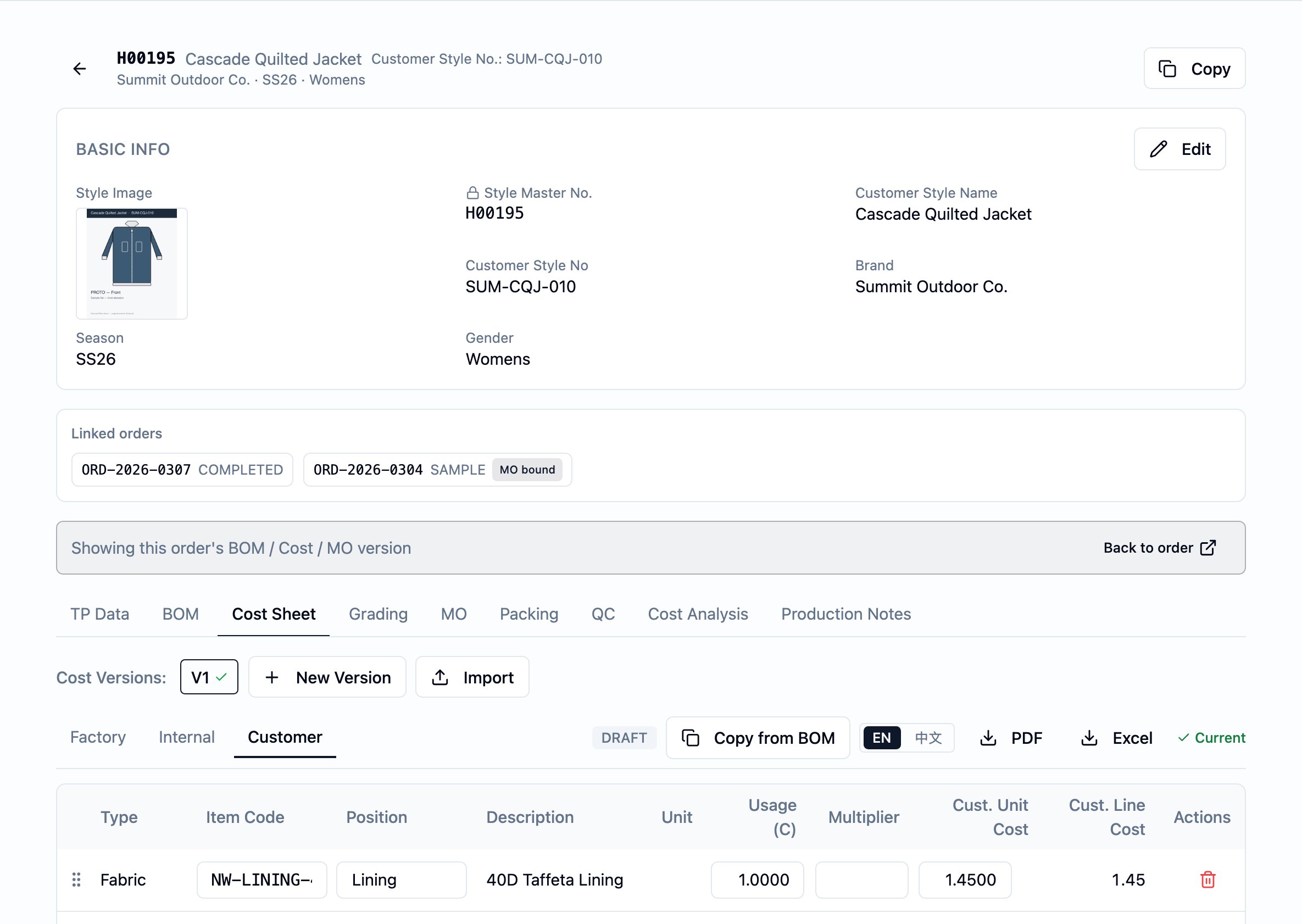
Customer audience on the same approved cost sheet — the customer-tailored view drops the Supplier column and the factory-side numbers, and shows the Customer Unit Cost and the per-line Customer Line Cost.
Internal audience on the same approved cost sheet — both factory and customer sides are visible, and the platform shows the per-line multiplier so the internal margin can be read directly.
- Approve per audience. When an audience is ready, approve its row. Each audience’s sign-off is independent — sales can approve the customer view while the factory side is still in negotiation. When the last audience approves, the header derives to Approved and edits are refused.
Reject and re-approve
If an audience is not ready to sign off, reject its row with a note explaining why. A rejection sends the header status back to Draft, no matter how many other audiences have already approved. Fix the build-up in Draft, then re-approve the rejected audience — the rejection’sRejected by, Rejected at, and Rejection note are cleared and
replaced by the new Approved by and Approved at. The user clearing
the rejection does not have to be the user who recorded it.
Decision points
- Multiplier mode vs. manual mode per line. Multiplier mode keeps the customer side in step with the factory side automatically — a factory cost renegotiation flows straight through to the customer line cost. Reach for manual mode only when the customer price is genuinely independent of the factory cost.
- Approve now vs. wait for the rest. The per-audience model lets one side sign off while another is still being worked. Approve the side that is ready; the sheet shows Partially approved until the last audience signs off.
- Reject vs. edit-in-place. Edits are restricted to Draft. If a sheet has already crossed into Partially approved or Approved and a value needs to change, either reject an audience (which sends the header back to Draft) or mint a new version — depending on whether the original change was a correction or a renegotiation.
- Style-level vs. tied to an order. A version created without an order context is style-level. A version created in an order context is tied to that order, and the order’s pin onto the cost sheet advances in lockstep when the version is created, marked current, or switched. Both can coexist on the same style.
Business rules in play
These rules govern this workflow. They are documented once on the Cost Sheet page; this workflow only summarizes.- The cost sheet’s “lock” works in three layers — values freeze on the cost line at Copy from BOM, Approved freezes the document from further edits, and the version locks to an order via the per-order pin. See the canonical Price-lock framing.
- Edits are restricted to Draft. Header changes, line add/edit/delete, reorder, and Copy from BOM all require the sheet to be in Draft.
- The header status is derived from the per-audience approval rows; you never set it directly. Any rejection sends the header back to Draft, regardless of how many other approvals stand.
- Approval is not gated by content. The platform does not refuse approval of a sheet with no lines, missing prices, or zero totals — approve when the build-up is ready.
- Copy from BOM seeds only fabric and accessory lines, skips lines already linked to a BOM line, and does not require an approved BOM.
Dates set or affected
Building a cost sheet sets no business dates of its own — no quote date, no effective-from, no expiry. The dates that bound a quote in business terms live on the upstream or proforma invoice. The sign-off trail lives on the per-audience approval rows:Approved at— set on an audience row at the moment the audience approves; cleared if that audience is later rejected.Rejected at— set on an audience row at the moment the audience rejects; cleared on re-approval.
Created and Last updated for reference. There are
no computed dates and no date-chain propagation from the cost sheet
outward.
What happens next
A saved, approved cost-sheet version is the price basis the rest of the commercial flow reads from:- The customer side of the sheet is the price basis the quotation, proforma invoice, and order carry.
- The audience-tailored PDF and Excel exports are ready to share — the factory export with sourcing columns, the customer export without, the internal export with both sides and the margin. The customer export is always in English (the same file can go to any customer regardless of who generated it) and its footer carries the customer’s own style number from the style record; the factory and internal exports can be downloaded with English or Chinese column labels — the labels switch, the values stay as entered. Export works on any status, so a Draft export is possible and is visibly labeled as such.
- The style’s Cost analysis view shows the per-piece revenue, cost, margin, and margin %, plus an order projection when an order is selected. It reads the current cost-sheet version, is internal only, and is not surfaced on any customer-facing document.
Best practices
- Start every version with Copy from BOM. The line identity stays consistent with the BOM, the sourcing fields come in correctly, and you skip the retyping.
- Prefer the customer multiplier over typing customer unit costs. Multiplier mode keeps the customer side in step with the factory side automatically; manual mode is for prices that move independently.
- Set
Waste %on every fabric line that needs it. Copy leaves it blank; the factory line cost stays empty until you fill it (or until you accept zero waste deliberately). - Use the header
CMandMiscadd-ons rather than ad-hoc lines. They are the per-sheet, per-piece amounts the math expects, and they keep the line list focused on materials. - Mint a new version for a renegotiation; do not try to edit an approved sheet. The platform refuses the edit, and the prior version is the audit trail for what an earlier quotation or order was built on.
- Approve per audience as each side is ready. Sales can approve the customer view while the factory side is still being negotiated; the sheet shows Partially approved until the last audience signs off.
- Reject with a clear note. The note is the record of what the next Draft pass has to address — write it for the person who will fix the sheet.