

What this workflow achieves
You end this workflow with a saved, approved BOM version on the style: a material list, with each line pointed at a fabric or accessory master, that the cost sheet copies from and that the platform reads to seed a draft for each vendor — each PO line carries the BOM line’s material, the resolved vendor, the order’s quantity for that line, and the unit price captured from the linked fabric or accessory master at approval. When the version is the first approval on the style and was created in an context, that order’s phase advances to Procurement the moment the BOM is approved.When to use it
- A style has been developed and needs its first BOM version before the cost sheet and the procurement side can start.
- The material list has changed — a fabric is swapped, a trim is added, a supplier is renegotiated — and a new version needs to be opened so the next cost-sheet revision and the next draft purchase orders pick it up.
- A BOM was approved earlier and now needs a correction — revert it to Draft, fix the lines, and approve again.
Prerequisites
- A style the BOM will belong to. Every BOM is one style’s BOM. See Develop a style.
- A fabric master record for each fabric line, and an accessory master record for each accessory line. Free-text lines are permitted, but a line without a linked master has no resolvable supplier and is dropped by draft purchase-order generation downstream. Your administrator manages the master records.
- BOM write permission, for the user opening a version, editing lines, or approving. Reads are open to any authenticated user in your tenant.
Roles involved
Users with BOM write permission open BOM versions, add and edit lines, link the fabric or accessory master on each line, and approve or revert a version. The platform gates write and approval actions by capability, not by job title — sales, merchandising, and administrator roles that carry the capability may all certify the BOM. Anyone authenticated to your tenant can open a saved BOM, read it, and see the material list it carries.Step-by-step
-
Open the style’s BOM tab. Open the Styles module, open the
style, and go to the BOM tab. Existing versions appear in the
version list. If you are already working inside an order at the time,
the new version is tied to that order; otherwise it stays at style level.
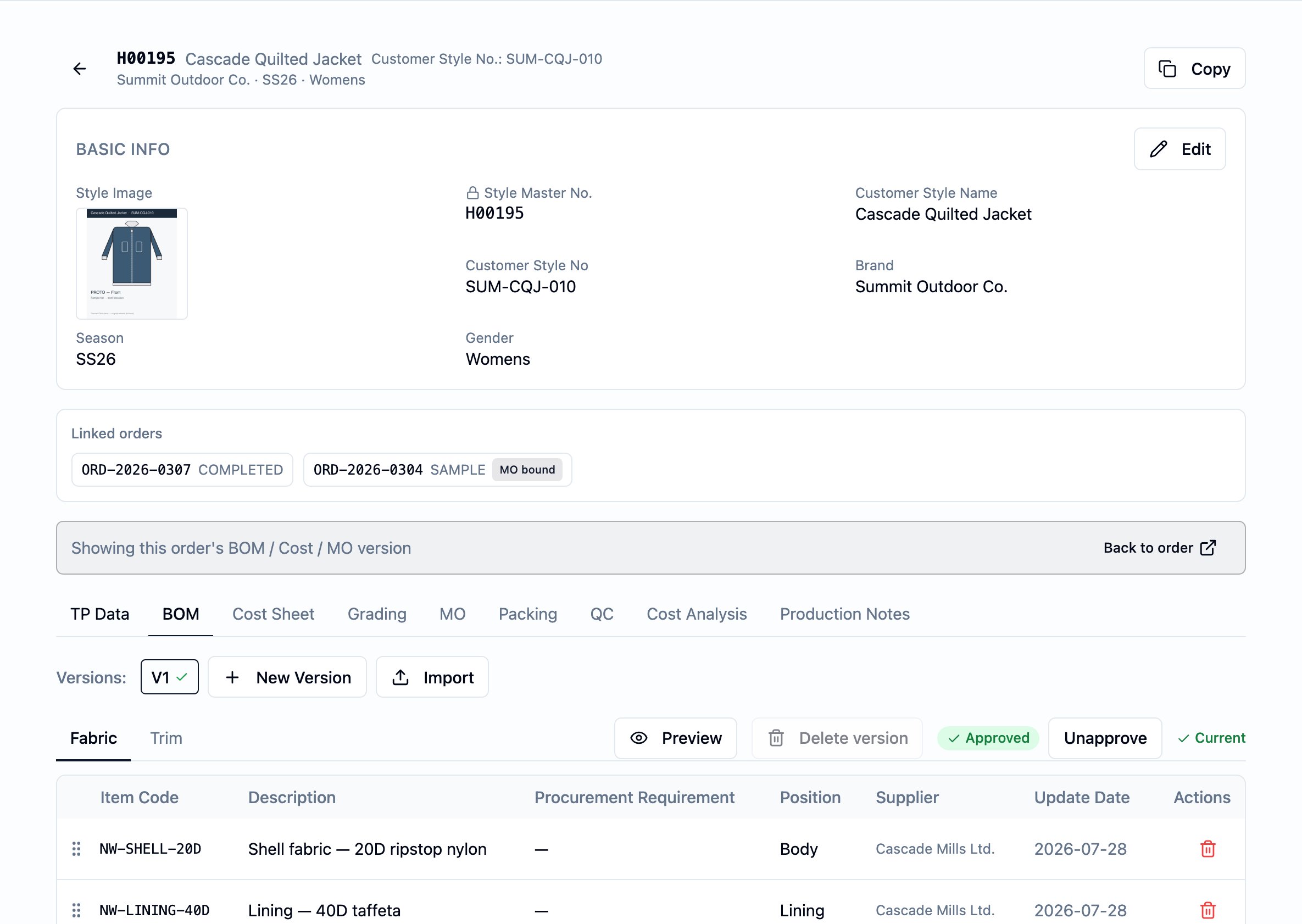
The BOM tab on a style — the version selector across the top, the fabric / trim sub-tab split, the line list, and the Approve / Current pills on the right (here, an approved v2 on Alpine Shell Jacket).
- Open a new BOM version. Start a new version. It opens in Draft with no lines, ready to be filled in.
-
Add a line. Add one row per material the piece carries:
- Pick the line’s
Type— fabric or accessory. The picker for the next field switches to match. - Pick the fabric master or the accessory master the line is built on. The supplier, lead time, and the master’s item number come from this record; the BOM line carries the link to the master, not a free-text copy.
- Fill in
Description. Lines without a linked master are allowed while you are drafting, but pick the master before approval. - Set
Qty per pieceandUnit— how much of the material one piece uses, in the unit the rest of the system reads (the unit defaults toPCS; change it on lines measured in yd, m, or another unit). The cost sheet copiesQty per piecein as the per-piece usage. - Optionally set
Position(where on the garment the material sits),Status, andProcurement requirementas free-text notes that travel with the line. - Optionally set
Item codeto override the master’s item number — use this when the style buys the material under a different code. - Optionally override
Vendoron the line — only when the line buys from a vendor other than the master’s default supplier. - Optionally add body colorways to the line by picking from the
style’s colorway list, and optionally set an
Accessory colornote (副料顏色) on accessory lines. Attach any line images the BOM needs to carry.
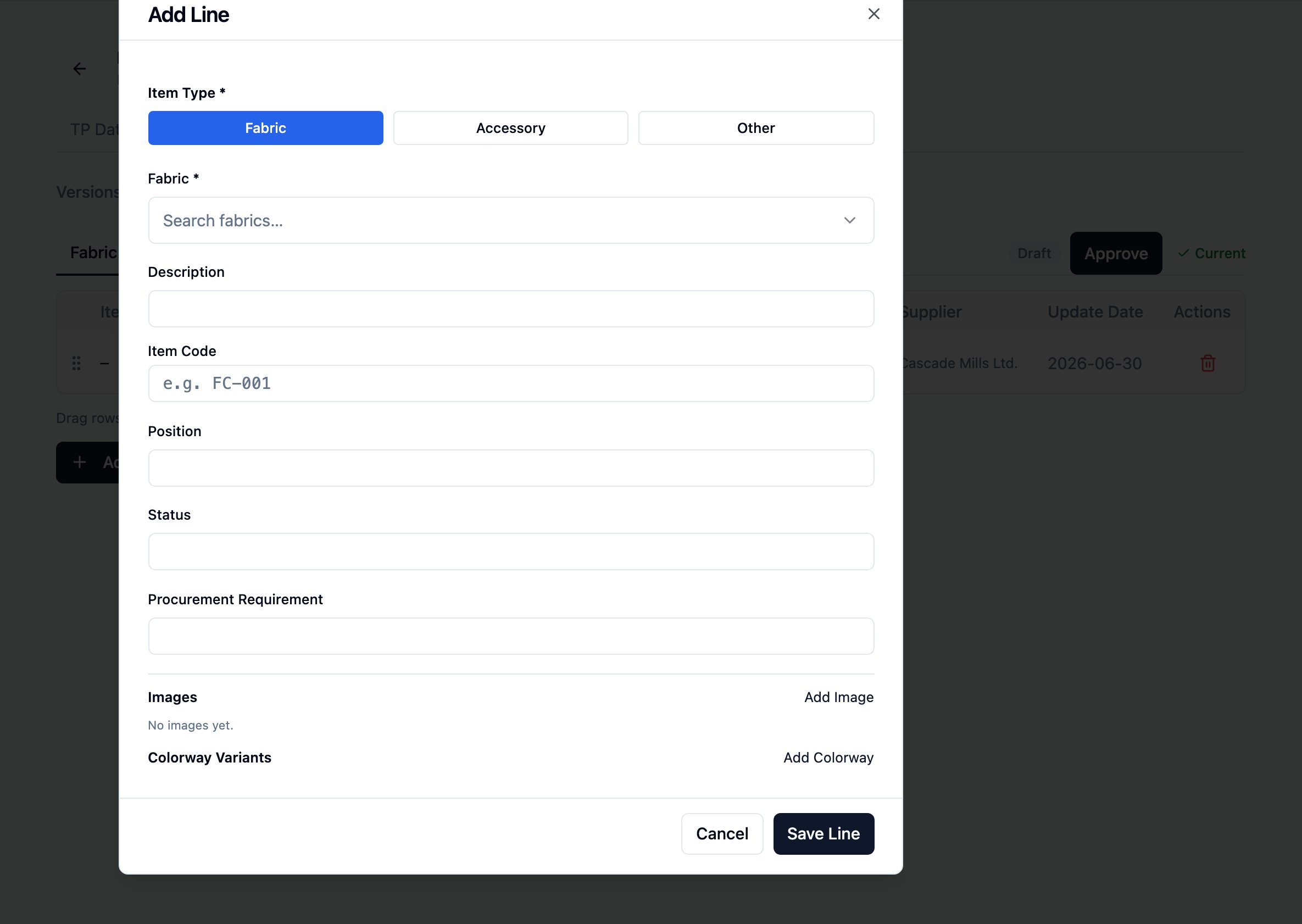
The Add Line dialog over the BOM tab — the per-line form the version picks up: type (Fabric / Accessory / Other), the master picker, description, item code, position, status, procurement requirement, line images, and colorway variants.
- Pick the line’s
- Add the rest of the lines, and reorder them. Add one row per material. Drag-and-drop the lines into the order the cost sheet and the downstream consumers should show them. The reorder is one-time per version — the order you set is the order everyone reads.
-
Review the list. Walk the lines and check the linked master, the
Qty per piece, the unit, and theVendorresolution on each. The platform does not block approval of a list that is missing materials, missing prices, or missing vendors — it is the merchandiser who decides the list is ready. -
Approve the version. Press “Approve”. The platform sets
Approved byandApproved at, writes a copy of each line’s live master identity (description, vendor name, category, lead time, item number) onto the line so the approved version stays valid even if the master changes later, and records the approval event.The downstream gates open from this point on: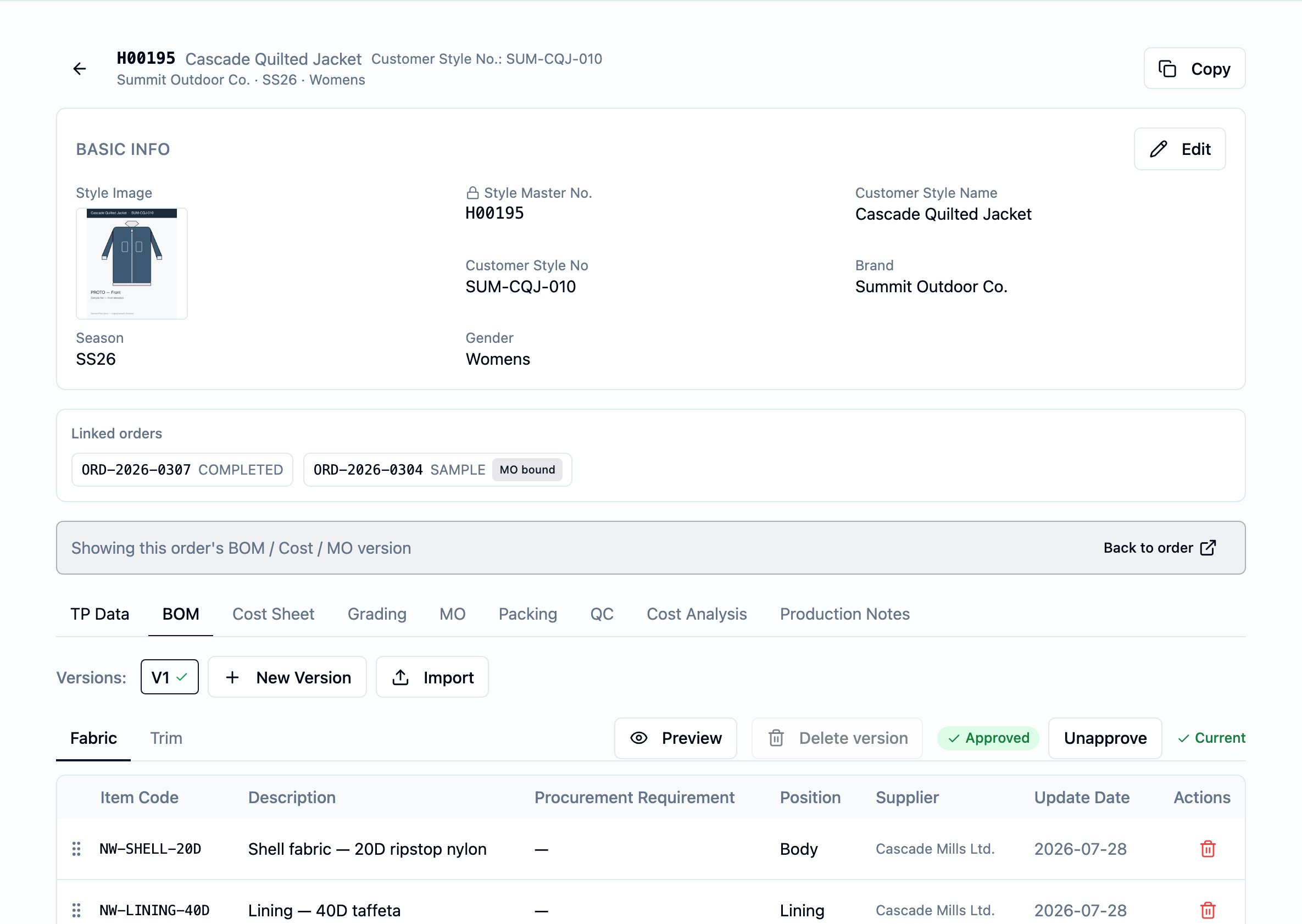
An approved BOM version on the workflow Field Parka — V1 carries an Approved pill, an Unapprove action, and a Current label, and the line table reads from the captured master identities frozen at approval.
- The cost sheet can run Copy from BOM to seed its fabric and accessory lines from this version.
- The platform can seed draft purchase orders against this version.
- The and the production-management preflight unlock the material side.
- On the first approval of a version that is tied to an order, the order’s phase advances to Procurement.
Revert and re-approve
If an approved version needs a correction, revert it to Draft. The platform clearsApproved by and Approved at, and the version is open for
edit again. Fix the lines and approve once more — the captured line copies
re-capture on the next approve.
Reverting does not rewind the downstream effects of the prior approval:
any draft purchase order that was already generated against the prior
approved snapshot stays, and the order phase that the first approval
advanced stays where it is.
Mint a new version instead
If the change is a material renegotiation rather than a correction — a new fabric, a new supplier, a different trim — open a new BOM version rather than reverting and re-approving. The prior version stays in history, readable for the order or cost-sheet version it was the basis for, and the new version takes over as current. See BOM, cost sheet, and artifact versions.Decision points
- Style-level vs. tied to an order. A version opened without an order context is style-level. A version opened in an order context is tied to that order, and the order’s pin onto the BOM advances in lockstep when the version is created, marked current, or switched. Both can coexist on the same style.
- Revert vs. mint a new version. Revert for a correction on the same version — the lines you have are still the right list. Mint a new version when the material list itself has changed; the old version is the audit trail for what an earlier cost sheet or order was built on.
- Pick the master vs. type a free-text line. Free-text works while you are drafting, but draft purchase-order generation downstream drops a line with no resolvable vendor. Pick the master before approval.
- Per-line
Vendoroverride vs. the master’s default. Use the override only when this line genuinely buys from a different supplier than the master’s default; otherwise let the master’s vendor stand.
Business rules in play
These rules govern this workflow. They are documented once on the BOM page; this workflow only summarizes.- A BOM version is one revision. Each new version is its own BOM — header plus its own lines — and starts in Draft. See Business rules on the BOM page.
- A line is either fabric or accessory. Each line picks one material from the corresponding master.
- Approval captures a copy of each line’s master identity. The captured copies (description, vendor name, category, lead time, item number) stay with the line for as long as the version stands. Editing the master later does not change them.
- Approval is per version, on the order it is tied to. Approving order A’s version does not approve order B’s, even on the same style.
- Reverting an approved version does not rewind downstream effects. Draft purchase orders already generated and order phases already advanced stay.
- Editing a line on an approved version is allowed, but the captured copies are not refreshed by the edit. Revert and re-approve, or mint a new version, to refresh them.
- A line without a linked master is dropped from draft purchase-order generation downstream, and reported as skipped.
Dates set or affected
Approving a BOM version setsApproved at on the version to the moment
of approval. Reverting clears it. There are no other business dates on the
BOM — no target date, no effective-from, no expiry. Dates that bound an
order in business terms live on the
order, not on the BOM.
The header carries Created and Last updated for reference; the Last
updated value is what the BOM tab labels “Update date”.
On the first approval of a version that is tied to an order, the order’s
phase advances from PO received to Procurement — see
Order lifecycle for the wider phase chain.
What happens next
A saved, approved BOM version is the precondition for the rest of the material side:- Build the cost sheet. Open a Draft cost-sheet version on the style and press Copy from BOM. Each fabric and accessory BOM line seeds one cost-sheet line, capturing the description, item code, position, supplier, unit, per-piece usage, and unit cost from the BOM line and its linked master. The cost line is the source of truth for that material on the sheet from that moment.
- Generate draft purchase orders. The approved BOM seeds a draft purchase order for each vendor. Each PO line carries the BOM line’s material, the resolved vendor, the order’s quantity for that line, and the unit price captured from the linked master at approval. A BOM line without a linked master carries no captured price; lines with no resolvable vendor are dropped and reported as skipped. The draft purchase orders are ready to review and issue from the Production side. See Production.
- Order phase advances on first approval. When the version is tied to an order and this is the first approval, the order’s phase advances to Procurement — the material side is signed off and the downstream readiness work unblocks.
Best practices
- Link a fabric or accessory master on every line before approval. A line without a linked master has no resolvable supplier and is dropped from draft purchase-order generation. Pick the master, even if the line is being added in a hurry.
- Set
Qty per piecedeliberately. The cost sheet copies it in as the per-piece usage, and a placeholder value follows you into costing. - Reorder the lines once on the version. The order you set is the order the cost sheet and the BOM tab show; the rest of the system reads from it.
- Approve only when the list is complete. The platform does not block approval of an incomplete BOM, so the merchandiser is the gate. Approve when the list is ready to defend.
- Mint a new version for a material change rather than editing the old one. Editing the lines on an approved version is allowed but the captured copies do not refresh on edit, and the old version is the audit trail for what an earlier cost sheet or order was built on.
- Use the per-line
Vendoroverride only when the line genuinely buys from a different supplier than the master’s default. One less moving part to reconcile later.