

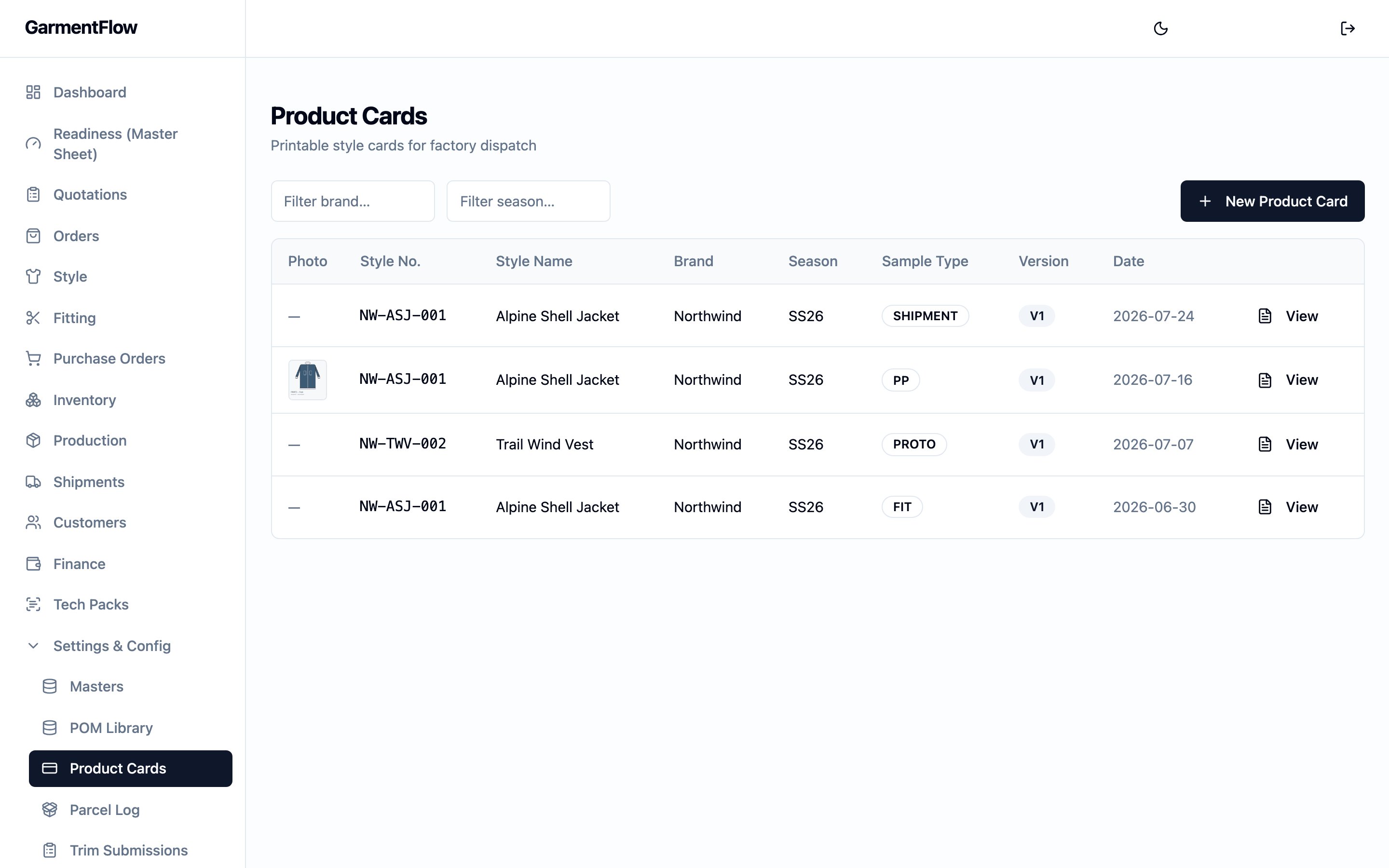
The Product Cards list — every sample tag the workspace has issued, with the linked style, brand, season, sample type, and date at a glance.
What it is
A product card is the sample tag record the team creates when a sample is about to travel. One card carries the linked order and style, the sample’s identity (sample type, size, colour, country of origin), three slots for the materials the prototype is in, a short note for any trim points, and a free remarks field. The card is the record; the four-up A4 PDF the card prints to is what physically attaches to the sample. The page is reached from the sidebar’s Product Cards entry. The list shows every card in the workspace; opening a row opens its detail.Why it exists
A sample spends weeks in motion — from the development bench to a fitting session, to a factory visit, to a salesperson’s bag, to a customer meeting. Along the way, the physical object loses every link to its order, style, and specification unless something physically labelled travels with it. The product card is that label: a printed tag that names the order and style, the sample type, the size and colour, and the materials the prototype was made in, so the team and the people who handle the sample downstream can identify it at a glance without opening the system. The card is not a workflow object — it carries no status, drives no downstream decision, and gates nothing. It is a piece of recordkeeping the team uses when it needs to put a sample in the world with its identity on it.When it is used
- Whenever a sample is about to travel. Create one card per (order × style × sample type / colourway) when the sample is being prepared for shipment, a factory visit, or a customer review.
- Whenever a sample needs to be reprinted. Open the card and re-export the PDF; the print reflects the card’s current fields.
Dependencies
- An order the sample belongs to. Required. The card is created against one of the order’s styles.
- A style under that order. Required. Picking the style auto-fills the card’s identity fields from the style record.
- A workspace whose administrator has chosen which fields the PDF prints, on Feature Settings → Product card PDF. The PDF layout is workspace-wide; product cards themselves are the list of cards that print to it.
What depends on it
Nothing. A product card is a leaf record — no purchase order, manufacturing order, factory order, or downstream surface reads from it. It is the printed tag and the workspace’s record that the tag exists.Fields
The card’s fields group by linkage, identity, sample identity, materials, and free text. The four-up PDF layout draws from these fields; which of them actually print, and in what order, is set by the administrator on Feature Settings → Product card PDF.Linkage
Order— the order the card is being created against. Required. Picked from the order picker; choosing an order populates the style picker with that order’s styles.Style— the style the card is for, picked from the linked order’s styles. Required. Selecting the style auto-fills the identity fields below.Sample— an optional link to one of the linked style’s fitting stages, for the round-trip back to the per-style validation record.
Identity
These auto-fill from the linked style when the style is picked, and remain editable on the card.Brand— the customer brand the style is being developed for.Style number— the customer-facing style number.Style name— the style’s name.Season— the selling season.Card date— the date written on the card. Defaults to today; editable.
Sample identity
Sample type— what kind of sample the card is for. Picked from a dropdown that names the common sample stages a team labels a sample by — prototype, a fit sample, a salesman sample, a pre-production sample, and similar. Pick the value on the dropdown that matches the sample being labelled.Size— the size the sample was made in.Colour— the colour of the sample.Country of origin— the country the sample was made in.
Materials
Three single-line slots for naming the materials the prototype is in. Each is free text, not linked to the fabric master — the card is a printed tag, not a structured material record. The slots auto-fill from the style’s BOM where available and stay editable on the card.Fabric A— first material slot.Fabric B— second material slot.Fabric C— third material slot.
Free text
Trim notes— short free-form note for any trim points worth carrying on the printed tag.Remarks— longer free-form note for anything else the team wants on the tag.
Business rules
- A product card is per (order × style). A card is created against one order and one of that order’s styles. To make a second card for a different sample of the same style (a different colourway, a different sample type), create another card.
- The PDF layout is workspace-wide, set in Feature Settings. Which fields the four-up A4 PDF prints, and in what order, is the administrator’s choice on Feature Settings → Product card PDF. Every card in the workspace prints to that layout; the card itself carries the values.
- The card is the record, not the gate. A product card has no status, no approval, and no downstream consumer. Creating, editing, deleting, or reprinting a card has no effect on any order, factory order, or manufacturing order in the workspace.
Status and transitions
A product card has no lifecycle. It is created, edited, reprinted, and deleted as a flat record. There are no statuses, no transitions, and no approvals.Effect of changes
- Create a card. A new card is saved against the linked order and style with the identity fields auto-filled from the style and the material slots auto-filled from the style’s BOM where available.
- Edit a card. The change is saved. Re-export the PDF to reflect the edit on the printed tag.
- Export the PDF. A four-up A4 PDF is generated from the card’s current fields, using the workspace’s Product card PDF layout. The export is a print of the current record — it does not lock the card.
- Delete a card. The card and its PDF history are removed. Use delete for a card that was created in error; a card that simply travelled with a sample and is no longer needed can be left on file.
Best practices
- Create the card against the order’s style picker, not by retyping the identity. Picking the style is what auto-fills the identity fields and the BOM-derived material slots, so the tag matches the order it came from.
- Reprint after editing. The PDF is generated from the card’s current fields — an edit doesn’t update an already-printed tag. Re-export to refresh the physical tag.
- Use the trim notes line for what the sample needs the handler to notice on the trim. A short pointer (“button colour is provisional”, “zipper TBC”) earns its place on a four-up tag; longer notes go in Remarks.
- Keep the materials short. The three material slots are single-line free text and print onto a tag — what the handler needs to read at a glance, not the full BOM line. The full material list lives on the BOM.
Related pages
- Samples and fitting — the per-style validation record the sample sits alongside.
- Order — the order the card is created against.
- Style — the style the card identifies.
- Feature settings — Product card PDF — the workspace-wide PDF layout the card prints to.
- BOM — the canonical record of the materials a style is made from.