

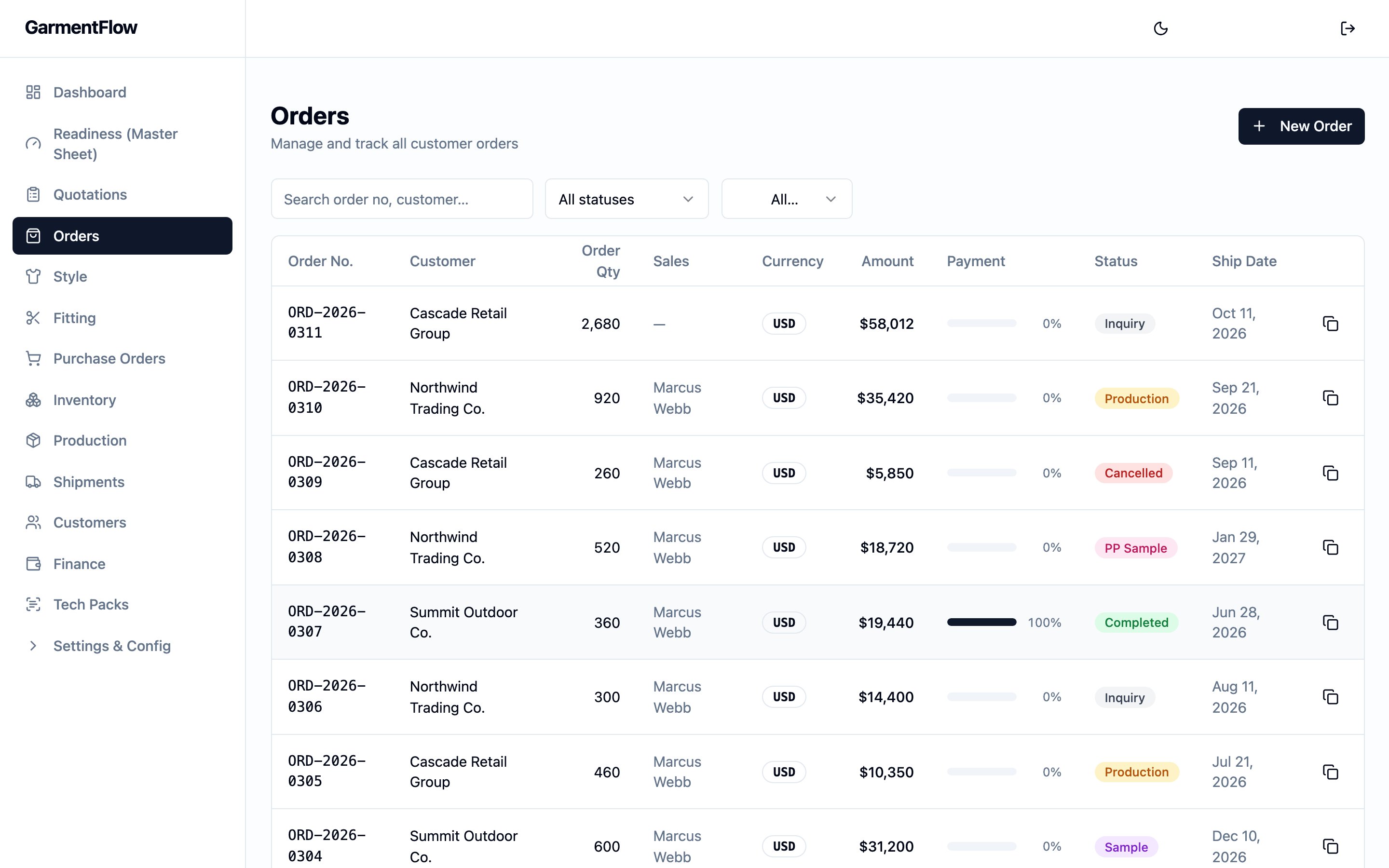
The Orders list — every order the team is working, with the payment-progress bar, status, and ship date in one row.
What it is
An order is per-customer, per-currency. One order is one customer’s deal in one currency, and it runs one or more style lines — each style line carries the colorways, sizes, quantities, and unit prices that together make up the order. The order is the hub, not a container for product specs. A style is the reusable product; the order runs the style for one customer commitment, and keeps the order-specific quantities, colorways, sizes, dates, and terms on top. The same style can run on many orders without losing its identity, and each order keeps its own pin onto the BOM, cost sheet, and MO versions it is working from. The order moves along two parallel lifecycle dimensions at once — a work phase spine that tracks the operational work, and a commercial status that tracks the deal itself. The two are tracked independently; the concept page is the canonical reference for how they relate.Why it exists
An order is the moment the deal stops being a conversation and starts being a commitment: styles, colorways, sizes, quantities, unit prices, currency, ship date, and trade terms all written down on one record everyone in the business can read. Sales, merchandising, production, purchasing, shipping, and finance all need a single anchor that says “this is what the customer bought, on which terms, for which delivery” — and the order is that anchor. Because the order runs the style rather than copying it, the platform can preserve the style’s reusable identity while still letting each order carry its own quantities, line-up, dates, and price basis. The per-order pin onto the style’s BOM, cost sheet, and MO versions is what makes one customer’s run unambiguous even when several customers buy the same style in the same season.When it is used
- When a customer commits to buy, opened from scratch with the customer, styles, colorways, sizes, quantities, prices, and ship date.
- When an approved quotation is converted — the new order opens carrying the quote’s customer, currency, style lines, colorways, sizes, and unit prices, with a back-link to the source quotation.
- When a previous order needs to be re-run, cloned to seed a fresh order from the same styles, colorways, and sizes.
- Throughout the deal, as the record sample, production, factory order, purchase order, shipment, invoice, and payment work all read from.
Dependencies
- A customer record for the buyer. Required on the order header and not editable after create. Your administrator manages the customer master.
- At least one style to run. A line links to a
style master via
Style master No.; the per-order line carries its own snapshot of the style’s customer-facing number, name, gender, finish, and fabric composition. - The relevant per-tenant lookup lists the header pulls from — currency, trade-term defaults, and destination options — set up by your administrator.
- An approved quotation when the order is being opened by convert. Direct create has no quotation prerequisite.
- Order write permission, for the user creating, editing, advancing a phase, or changing the commercial status. Clone is restricted to a separate capability (see business rules).
What depends on it
- The line-up of styles the order runs, and each line’s own pin onto the style’s BOM, cost sheet, and MO versions.
- The order’s and cost sheet — reached through the order’s pinned style version. The first BOM approval at version 1 automatically advances the order’s work phase to procurement (see order lifecycle).
- The issued for the order’s styles — one order can carry one or more MOs, each per-(order, style, MO version) and pinned to the order’s BOM, cost sheet, packing, and QC at issue.
- The raised against the order’s styles. One factory order can span several orders, so the order keeps a clear link to each factory order producing it.
- The raised through the factory order — material buying traces back through the factory order to the order it serves.
- The order’s production record. Opening it flips the order’s commercial status to production automatically (see order lifecycle). See Production.
- The order’s . A shipment going in transit automatically advances the order’s work phase to shipped. See Shipments.
- The order’s finance side — proforma invoice, deposit and balance invoices, the payment plan, and the customer receipts recorded against the order. The PI side automatically advances the order’s work phase to PI sent when a PI is created. See Finance.
- The order’s view, which layers on top of the work phase and tells you what inside each stage is still missing.
Fields
Group the order’s fields by purpose. The header carries identity, parties, commercial framing, dates, references, and notes; each style line carries one style the order runs, with its own colorways and sizes underneath.Header — identity
Order no.— the order’s permanent business identifier. Assigned by the platform when the order is created and never changes afterwards. The format is a tenant-configurable scheme your administrator sets up (a prefix plus a running serial); the platform falls back to a year-based serial when no tenant scheme is configured, or on a converted order.Custom order no.— an optional display override of the order number that prints on customer-facing exports of the order (such as the order-confirmation document). It does not replaceOrder no.as the identifier the platform indexes; it is what the customer reads on the document.Customer work-order no.— the customer’s own work-order reference for the deal. Optional. Pulled onto the factory order when the order is linked to one, prints on the order-confirmation document, and is one of the readiness checks for a complete order.
Header — parties
Customer— the buyer. Required. Picked from the customer master at create and cannot be changed afterwards — every reference downstream assumes the order’s customer is the one the deal was opened against.Brand— the customer’s brand the order is for. Optional. Filtered to the customer’s brands on the form.Assigned sales— the sales user the order is assigned to. Optional. The platform uses this to scope visibility for sales-role users: a sales user sees only the orders they are assigned to, while administrator, owner, finance, and merchandiser roles see every order in the tenant. On a converted order, the source quotation’s preparer is set as the new order’s assigned sales user.
Header — commercial framing
Currency— the order’s commercial currency. Required. One order is one currency from end to end; the unit prices on every line are in this currency.FX rate— the exchange rate used for the order’s reporting currency, captured by the platform when the order is created. The rate is read from your workspace’s page against theOrder date(or today, when no order date is set), and saved on the order from that moment on. The base currency is fixed at1.000000; any other currency uses the most recent rate on or before the lookup date. Updating a rate on FX Rates after the order is created does not change the rate saved on the order.Deposit %— the percentage of the order total the customer is expected to pay as a deposit. Set on the header; the platform pre-fills a tenant default and accepts any value from 0 to 100.Deposit amount— the deposit value in the order’s currency. Computed, not entered. The platform refreshes it fromOrder amountandDeposit %whenever the size grid or the deposit percentage changes.Order amount— the order’s total value in the order’s currency. Computed, not entered. The platform refreshes it from the sum ofQty × Unit priceacross every colorway × size on every style line, on the same write as any change to the size grid. A converted order also has this set explicitly from the source quotation’s pricing on convert.Trade term— the commercial term that governs delivery (e.g.FOB,CIF,DDP). Picked from the form’s defaults or typed in; auto-fills from the customer’s defaults when left blank on create.Destination— the shipping destination the trade term applies to: a port forFOBorCIF, a full delivery address forDDP. Auto-fills from the customer’s defaults when left blank on create. A new destination you type is saved to the tenant lookup for reuse.
Header — dates
Order date— the date the order is opened with the customer. Optional. Used to look up the order’sFX ratesnapshot at create.Ship date— the committed delivery date the customer expects goods to leave by. Optional but the date downstream scheduling counts back from. Editable after create.
Header — references
Season— the selling season the order belongs to. Free-text label.Quoted from— the back-link to the source when the order was opened by convert. Set by the platform on convert; not set on a direct-create or cloned order.
Header — notes
Notes— free text. Internal-facing.AI confirmation note— an optional cover note drafted with AI assistance, saved on the order for use on the order-confirmation email or document.AI payment note— an optional payment-reminder note drafted with AI assistance, saved on the order for use when chasing the deposit or balance.
Header — audit
Created,Last updated— set by the platform.
Style line — identity
Each style line is one style the order runs. The line links to the style master and carries its own snapshot of the style’s customer-facing details, plus the colorways and sizes underneath.Style master No.— the link to the master the order is running. Required. Picked from the style-master picker in the Add-Style step; selecting a master pulls the customer-facing style number, name, gender, finish, and fabric composition into the line as a snapshot, and links the line to the master so the order’s BOM, cost sheet, and MO work scopes to the right style record.Style No.— the customer-facing style number on this order line. Carried forward from the style master at create; can be edited on the line.Style Name— the style’s name on this order line. Carried forward from the style master at create.Fabric composition,Gender,Finish,Sample size— descriptive detail. Carried forward from the style master at create; the line keeps its own copy so a later edit to the master does not silently change the live order line.
Colorway × size — quantities and prices
Under each style line, the order carries one row per colorway × one size.Colorway— the colorway name on this order line. Picked from the style master’s defined colors at create.Color code— an optional colorway code, typically a hex value.Size— the size label for the row (e.g.S,M,38). Picked from the applied size template (such as standard apparel or numeric sizing).Qty— the quantity ordered for this colorway × size. Integer, zero or more.Unit price— the per-piece price for this colorway × size, in the order’sCurrency. Zero or more. Pricing is per-size — a single colorway can carry different prices across sizes.
Business rules
- One order is per-customer and per-currency. The customer and the currency are set on the header and stay set across the order’s lifecycle. A deal for a different customer, or in a different currency, is a separate order.
- The customer cannot be changed after create. The order’s customer is set at create and not editable afterwards; every downstream reference assumes the order belongs to that customer.
Order no.is assigned at create and never changes. A tenant numbering scheme assigns the number when the order is opened; a converted order’s number follows the same convention used by the system’s default order numbering rather than the tenant scheme.CurrencyandFX rateare captured at create. The exchange rate is read at create against theOrder date(or today, when no order date is set), and saved on the order. The order’s reporting math uses this saved rate.- The order’s totals are derived from the size grid, not entered.
Order amountis the sum ofQty × Unit priceacross every colorway × size on every style line.Deposit amountisOrder amount × Deposit % / 100. Both refresh on the same write as any change to the size grid or the deposit percentage; neither can be set directly. - An order starts in the inquiry work phase. Both direct create and clone open a fresh order in inquiry; a converted order takes its first work-phase advance when the team is ready. See order lifecycle for the spine of stages and how each advance is triggered.
- The work phase advances one stage at a time and does not rewind. Some advances are taken manually by the team; others happen automatically when the platform sees a triggering event (PI created, first BOM approval, pre-production sample approved, shipment in transit). The order lifecycle page is the canonical reference; the order page does not restate it.
- The commercial status follows a fixed transition matrix. From inquiry through quotation, confirmed, sample, pre-production sample, production, shipping, to completed or cancelled; only the moves the matrix allows are accepted. See order lifecycle. The one place the platform writes status itself is when an order’s production record is opened — the status flips to production in the same write.
- The two lifecycle dimensions do not gate each other. Phase advances do not touch the commercial status, and status transitions do not touch the phase; the team’s discipline keeps them aligned. See order lifecycle.
- Edits are refused on a terminal status. Once an order is completed or cancelled, header and line edits are refused; the record stays on file as the audit trail for the deal.
- A sales user sees only their own orders. Visibility for sales-role users is scoped to the orders they are the assigned sales on. The administrator, owner, finance, and merchandiser roles see every order in the tenant.
- Write actions are gated by capability. Creating, editing, advancing a phase, and changing the commercial status require order write permission. The order detail’s clone action is restricted to a separate capability — typically administrator or merchandiser — that your administrator configures.
- The order does not own its BOM, cost sheet, or MO. Those live on the style; each order keeps its own version pin onto the BOM, cost sheet, and MO versions it is working from. Opening a style “in the context of this order” scopes edits to that order’s version, never to another order running the same style.
- Orders are not deleted. There is no delete action on an order — the canonical way to stop work on a deal that is no longer happening is to move the commercial status to cancelled, which leaves the record on file. See order lifecycle.
Validations
Date logic
The order carries two business-meaningful dates and the platform’s audit timestamps.Order date— the date the order was opened with the customer. Set by the user on the header; optional. Used to look up theFX ratesnapshot at create, and printed on the order’s documents as the order’s date.Ship date— the committed delivery date the customer expects goods to leave by. Set by the user on the header; optional. The date the order’s upcoming-shipments report reads, the per-style sample-size auto-fill reads, and the order’s production schedule counts backward from to derive the milestone target dates (see Backward scheduling below). Editable after create.
Created— when the order was opened.Last updated— when the order was last written to.
Backward scheduling from the ship date
The order’s production schedule is computed backward fromShip date.
The platform reads your tenant’s configured lead-time offsets and works out
a target date for each production and material milestone so the shipment
lands on time. A typical chain counts back from the ship date through
inspection, materials received, documents issued, fabric shipped, and order
confirmation; the actual chain reflects the offsets your administrator has
set up, so it carries your own lead times rather than generic assumptions.
A milestone’s target date is the latest the step can happen and still hit
the ship date. The readiness engine
compares actual progress against these targets and flags anything slipping.
Status and transitions
An order moves along two parallel lifecycle dimensions at once — a work phase spine and a commercial status. The two are tracked independently; the concept page is the canonical reference for the mental model, the stages, the manual/automatic split on phase advances, and how the status matrix works. This page does not restate it. In summary:- Work phase — the operational spine, from inquiry through to shipped, advanced one stage at a time and never rewound. Some advances are taken manually by the team; others happen automatically when the platform sees a triggering event.
- Commercial status — the deal’s commercial label, from inquiry through confirmed and on to completed or cancelled. Set by the team on the order, except for one place the platform writes it itself: opening the order’s production record flips the status to production.
The Orders list page
The Orders module opens to a tenant-wide list of every order a sales user is assigned to (or, for administrator, owner, finance, and merchandiser roles, every order in the tenant — see business rule 11). The list is where new orders are opened from, and where the team scans across orders for status, money, and shipping. A New order action sits on the page header, top right — that is the single way the team starts a new order; the platform does not carry a global “new order” shortcut on the app header. The action takes you straight into the order create form. A filter strip across the top scopes the list byStatus, Currency,
Customer, and the assigned sales rep, with a debounced search box
that searches order number and customer name. A Clear filters
control resets the strip. Filter changes restart pagination.
The list shows one row per order with the columns:
- Order no. — the order’s permanent identifier.
- Customer — the buyer.
- Order qty — the total garment units on the order, summed across every colorway × size on every style line. The same total is what the order’s calculations roll up (see Calculations).
- Sales — the assigned sales user, if any.
- Currency — the order’s commercial currency.
- Amount — the order’s
Order amountin its own currency. - Payment progress — a horizontal received-vs-total bar showing what fraction of the order’s value the customer has paid; the percentage sits to the right of the bar. The receipts the bar reads are configured by your administrator on the order’s Receipts sub-tab. See Finance.
- Status — the order’s commercial status badge.
- Ship date — the order’s
Ship date. - A Clone action at the end of the row, gated by the clone capability (see business rule 12).
<receipts currency> → <order currency> so the reader sees which
two currencies are involved. The platform does not blend or
convert the two figures into a single percentage — multi-currency
figures stay separate on the order, in line with the platform’s wider
rule that captured currency stays captured. The receipts are still
recorded; only the percentage is suppressed until the team reads them
on the order’s Receipts sub-tab. See Finance.
The mobile view collapses each row into a single card with the same
fields stacked — order number and status on the first row, customer
and garment-unit total on the second, amount and currency on the third,
ship date and sales user on the fourth.
How the order detail page is organized
The order’s detail page groups the day-to-day work into four sections. Each section has its own set of sub-tabs that you switch between as the deal moves on.Overview
The default landing — the order at a glance, the readiness view, and the backward schedule.- Overview. Opens with a full-width Style Summary rollup of every style on the order at the top, followed by a header rollup of the order plus four summary cards covering the order’s money, shipments, and samples. See Style line-up on the Overview tab and Overview tab summary cards below.
- Readiness. A green / yellow / red snapshot that combines how long
the order has been in its current work phase, how close it is to the
Ship date, what milestones have not landed yet, and what risks have fired. Two clocks anchor it: a phase clock (time spent in the current phase) and a ship-date clock (time remaining to the committed ship date). The canonical model and the rule set behind it live on the readiness engine page. - Schedule. A backward-scheduled timeline anchored on the order’s
Ship date— once the BOM is approved, the platform draws the chain of milestone targets back from the ship date and tracks the team’s actual progress against each one. The lead-time offsets are tenant-configured, so the chain carries your own lead times rather than generic assumptions. See Backward scheduling from the ship date under Date logic and the readiness engine page for the canonical mechanism.
Style & Spec
Everything the team works on against the order’s style line-up.- Styles & SKUs. The order’s line-up — every style line, with its
colorways and sizes underneath. Adding a style line links it to a
style master by
Style master No.and pulls the customer-facing style number, name, gender, finish, and fabric composition in as a snapshot on the order line (see Fields). Each style line shows links that open the style in the context of this order: the platform reads the order’s pin and routes you to the order’s pinned , cost sheet, or version on the style page. The per-order BOM, cost-sheet, and MO work lives on the style page, not on the order detail. - Grading. The per-style size-and-tolerance reference for each style on the order — a per style with points of measurement down the rows and sizes across the columns, built from the workspace’s POM Library plus any one-off points added on the grid, finalised one version at a time. The deep behaviour lives on the Grading module page.
- Production Spec. The factory-facing production spec document for the order’s styles — the multi-page editor covering callouts, trim sections, packaging, accessories, measurements, and images. PDF export. The deep behaviour lives on a dedicated production-spec module page (in preparation).
- Product Cards. Per-style customer-facing single-page product cards — one per style or sample — capturing the brand, season, sample type, size, colorway, country of origin, fabric A and B, trim notes, remarks, and card date. Exportable as PDF.
- Style Summary. A single-page rollup of every style on the order into one table — style number, name, sex, sample size, factory, fabric, part, composition, finish, fabric price, and total quantity — with one column per colorway sized to the order’s widest style. Exportable as PDF or Excel. The same rollup also appears at the top of the Overview sub-tab (see Style line-up on the Overview tab).
- Samples. The order’s per-style samples — one card per lifecycle Sample that carries a link to this order, each with the sample’s style, current Fitting stage, and stage status across the seven stages. Two actions sit at the top: “Link sample” opens a picker (defaulted to the order’s customer) for an existing sample to attach to this order, and “New sample” opens the Fitting create form with this order pre-selected. A sample sits on at most one order — linking a sample already on another order asks to move it. This sub-tab does not drive the order’s advance to bulk production: that advance is fired by the linked Fitting’s pre-production approval, not by anything on this sub-tab. See samples and fitting for the per-style Fitting record, the linking rules, and the legacy Order Samples ledger; see order lifecycle for the work-phase advance.
Shipment & Documents
The order’s production and shipment legs, and the files attached to the deal.- Production. The order’s operational production record — opened once the order is ready to be worked on the floor. Opening it flips the order’s commercial status to production automatically (see order lifecycle). This is the operational production record on the order; it is distinct from the style-versioned manufacturing order (MO) — the multi-tab factory workbook the team issues against the order’s approved BOM, finalised grading, sample measurements, and attached brand-tab library items. See Build a manufacturing order (MO) and Production.
- Purchase Orders. Material purchase orders raised for the order — by fabric, trim, packaging, or other category — with each PO’s issued, partially-received, received, or cancelled status. PO lines link back to BOM lines via a picker. See Production.
- Subcontracts. The order’s — the outsourcing documents covering work sent to a factory. One factory order can span several orders; this sub-tab shows the factory orders that touch the current order. See Production.
- Shipments. Customer-facing shipments cut against the order, with each shipment’s planned status (planned, booked, in transit, delivered), transport mode, and per-size shipped quantities. A shipment going in transit automatically advances the order’s work phase to shipped. See Shipments.
- Outbound. A separate surface from Shipments — outbound
shipments cover the factory-to-warehouse legs (and any consolidation),
keyed on the factory, with planned and actual quantities split by
size. The order-level
Target ship date— an internal planning hint distinct from the customer’s committedShip date— is managed here. - Documents. The files attached to the order — order-confirmation document, factory contract, sample photos, or any other supporting file. Uploading an order-confirmation document also prompts the team to mark the order confirmed on the commercial status; see Create an order.
Finance & Communication
The order’s money and the order-scoped conversation.- Payment Plan. The order’s deposit and balance milestone plan — each row a milestone with its basis (percent or fixed amount), planned date, and notes. See Finance.
- Receipts. Your administrator may enable receipts tracking, which adds a Receipts sub-tab where the team records the customer’s payments against the order — and a payment progress bar on the Overview tab. The recorded receipts are what the progress bar reads. See Finance.
- Invoices. Invoice records for the order — deposit, shipment, final balance, credit note, adjustment, or sample — each with its draft, sent, partially-paid, paid, overdue, or cancelled status. Exportable as PDF per invoice. See Finance.
- AP Summary. A per-factory accounts-payable summary for the order — destinations, milestones, and amounts the order owes outward (the counterpart to the customer-facing Invoices sub-tab). Exportable as PDF. See Finance.
- Communication. The order’s internal-discussion and customer-correspondence thread, combining comments and documents in one timeline.
Style line-up on the Overview tab
The Overview sub-tab opens with the order’s full Style Summary rollup at the top — the same single-page table that lives under Style & Spec → Style Summary, rendered full-width so the team can read the order’s whole line-up before scanning the cards below. The table has one row per style line and the following columns:- Fixed columns: No., Photo, Style No., Style Name, Sex, Sample Size, Factory, Fabric, Part, Composition, Finish, Fabric Price, Total Qty.
- A repeating Colorway column for each colorway position, sized to the widest style on the order. Each colorway cell shows the colour image (when uploaded), the colour code or name, the Pantone code (when set), and the colorway’s quantity for that style.
- A trailing Ex-Fty Date column for each style’s ex-factory date.
- A TOTAL footer row summing the order’s units.
Overview tab summary cards
Below the line-up, the Overview sub-tab carries four summary cards alongside the page header rollup.- Order Details. A read-only rollup of the order’s header — order date, ship date, season, currency, FX rate, deposit percentage, deposit amount, and customer — plus the back-link to the source quotation when the order was opened by convert, and any header notes.
- Payment Summary. A header-level quick-glance of the order’s money — the order total and the deposit due. The live figures for what has been invoiced, what the customer has paid, and what is still outstanding live on the Invoices and Receipts sub-tabs and on the payment progress bar; see Finance.
- Shipment Progress. A shipped-versus-ordered progress bar across the whole order, with each shipment’s number and status under the bar. See Shipments.
- Sample Status. A per-order rollup of the order’s linked lifecycle Samples — one row per sample carrying a link to this order, with the sample’s current Fitting stage and stage status. See Samples and fitting.
Calculations
The order’s math is computed at write time from the size grid and the deposit percentage. Both numbers are saved on the order so reporting can read them directly. Per colorway × size cell:- Line value =
Qty × Unit price. Empty when either input is unset.
Order amount= sum of every colorway × size’sLine valueacross every style line on the order.Deposit amount=Order amount × Deposit % / 100, rounded to the currency’s smallest unit.
Deposit amount also refreshes whenever Deposit % changes.
The reporting layer also reads the order’s saved FX rate to translate the
order’s totals into the reporting currency where needed; the rate itself is
captured at create from the FX Rates page against
Order date.
Effect of changes
- Convert a quotation to an order. A new order opens carrying the
source quotation’s customer, currency, style lines (linked to their style
masters where the quote was linked), colorways, sizes, and unit prices.
The order’s
FX rateis captured at convert against the order’sOrder date.Order amountandDeposit amountare set from the quote’s pricing. The new order’sQuoted fromcarries the back-link, and the source quotation is marked Converted. The order opens in the inquiry commercial status; its work phase begins when the team takes the first advance. - Direct-create an order. A new order opens in the inquiry status
and the inquiry work phase, with the
Order no.assigned by your tenant’s numbering scheme and theFX ratecaptured at create. - Clone an existing order. A fresh order opens in inquiry on both
dimensions, with the source order’s styles, colorways, and sizes copied
in, quantities reset to zero, and a fresh
Order no.. Whether the source order’s BOM and cost-sheet versions are cloned alongside is set by your administrator on the tenant. Samples, factory orders, purchase orders, shipments, invoices, and the source order’s payment plan are not cloned. - Edit a size cell (qty or unit price).
Order amountandDeposit amountrefresh on the same write. - Add or remove a colorway, size, or style line. Same as a size-cell edit — the order’s totals refresh on the same write.
- Edit
Deposit %.Deposit amountrefreshes on the same write;Order amountis unaffected. - Edit the trade term or destination. The new values apply to documents and shipments raised from this point on; the platform saves a freshly-typed destination to the tenant lookup so the same value is one pick on the next order.
- Edit
Ship date. The backward-scheduled milestone target dates recompute against the new ship date. - Advance the work phase. The order moves to the next stage on the spine and the readiness view re-evaluates what is now in scope for that stage. The advance leaves the commercial status alone. See order lifecycle.
- Change the commercial status. The order’s label updates and any downstream surface that filters by status re-evaluates. The work phase is unaffected. See order lifecycle.
- Cancel the order (status → cancelled). Header and line edits are refused from this point on. The record stays on file with a clear label that nothing further should be done against it; downstream documents that already reference the order continue to read from it.
- Mark the order complete (status → completed). Header and line edits are refused from this point on. The order is the closed audit record of the deal.
Best practices
- Open every order against a real customer and a real style master. The customer cannot be changed after create, and the per-order line carries much more weight when it is linked to a style — the line’s pin onto the BOM, cost sheet, and MO versions, the readiness view, and the production hand-off all read off that link.
- Convert approved quotations rather than retyping. The convert path carries the customer, currency, styles, colorways, sizes, and unit prices forward in one step and leaves a clean back-link to the source quote.
- Approve the BOM and finalise the grading before issuing the MO. The MO workbook renders only from an approved BOM and a finalised grading; leaving either in draft leaves the matching tab header-only on the file the factory receives. See Build a manufacturing order (MO).
- Set the
Ship dateas accurately as you can. It is the date the backward-scheduled production timeline counts back from, so an optimistic ship date pulls every milestone with it. - Set the trade term and destination together. The destination depends
on the trade term — a port for
FOBorCIF, a full delivery address forDDP— and the customer’s defaults pre-fill where you leave them blank. - Cancel rather than try to delete. Orders cannot be removed once opened; cancellation leaves a clear, auditable record that the deal is off and stops further work without breaking downstream references.