

What this workflow achieves
A factory document is spec × commitment. The specification lives on the tech pack that seeded the ; the commitment lives on the and the that binds the style to that order. Until this workflow, nothing produced a single printable package containing both. The work-order PDF does — one document a cutting-room supervisor can hold.When to use it
- The order is confirmed and the MO is bound to it. You need the factory-facing document for the run.
- An earlier work order needs to be re-issued. A confirmed QC check changed, a quantity moved, a pack’s page trim was adjusted — regenerate the PDF and hand the new one to the factory.
Prerequisites
- A tech-pack-originated style. The style must have been created from a tech pack. A style built by hand does not carry a source pack to compose the body from.
- An order-bound MO version. The MO must be bound to an order. An MO opened on a style with no order renders the workbook as header-only and does not qualify for the work-order PDF either — see Build a manufacturing order (MO) for the binding.
- The Tech Packs capability enabled on your account. The PDF action is visible on the MO tab only when the style qualifies.
Roles involved
The order team or production coordinator generates the work order in the ordinary course of releasing a run. The trim over the pack’s own pages (section 2 below) is set once per pack by whoever prints the first work order that uses it; every later work order using the same pack reuses that setting.Step-by-step
1. Open the MO tab
From the order, open the style line, then the MO tab. Pick the MO version the factory should work to. The Download PDF action appears next to the existing Download Excel action when the MO qualifies (order-bound, style originated from a tech pack).2. Confirm the pack’s page trim
Every work-order generation opens the trim dialog over a live preview of the pack’s pages, pre-filled with the pack’s saved answer: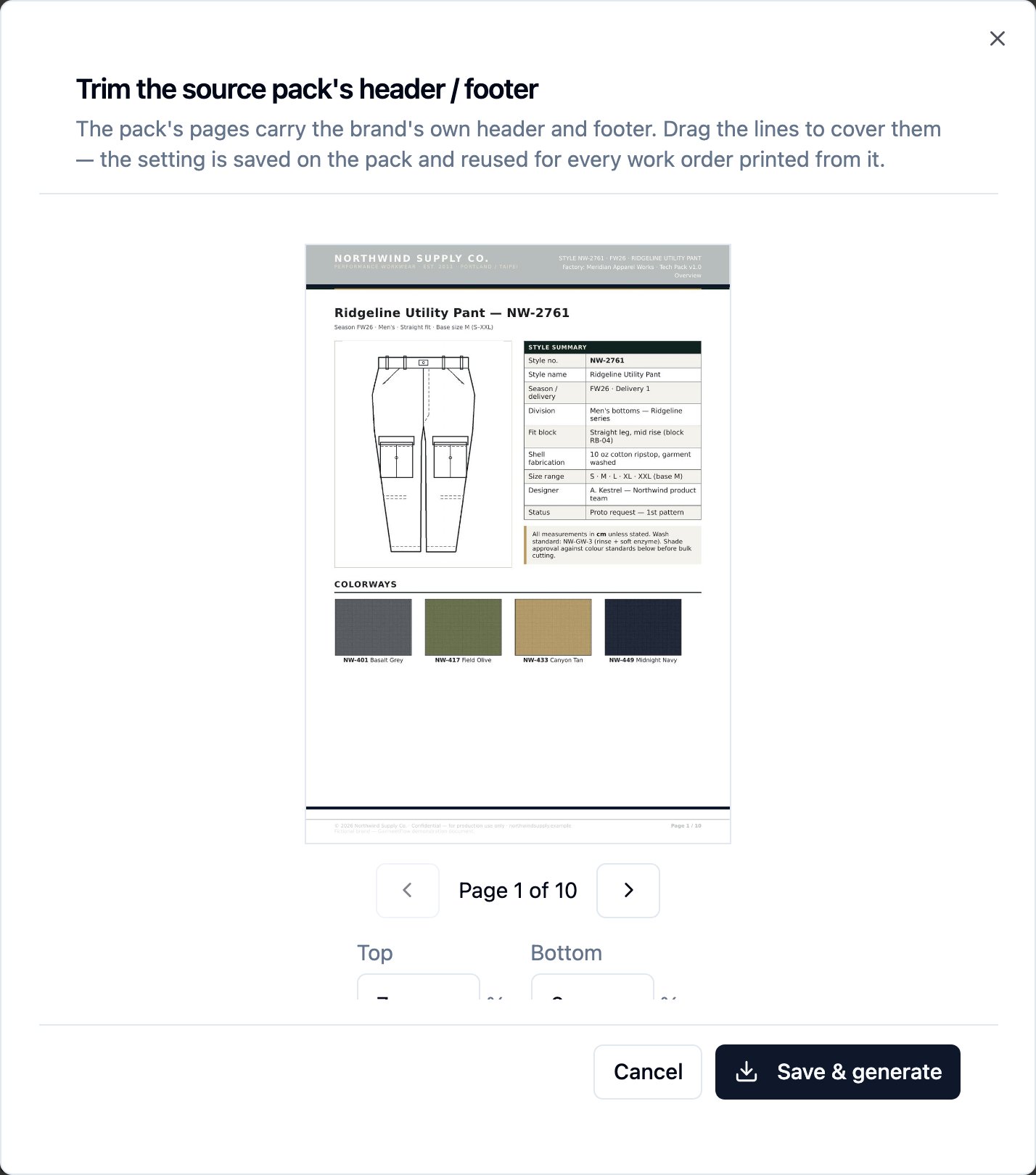
The trim dialog — opened over a live preview of the pack's current page, with Top and Bottom lines drawn over it and a page-switch below so the reader can check the trim on later pages before committing.
- Two adjustable lines, Top and Bottom, drawn over the current page. Drag them, or type a percentage into each field.
- Up to 25% of the page height each. A value out of range is refused rather than clamped, so the printed document never differs from what you saw.
- Page-switch buttons let you check the trim on later pages of the pack, since a header band shifts on some layouts.
- Save & generate stores the two numbers on the pack and produces the PDF in one action.
.tpv pack has no page renders to trim — its body is generated from
data — so the dialog opens with an empty preview and a note explaining
there is nothing to trim.
3. Print or hand off
The PDF downloads. What it contains:- The cover.
- The order header band — style, order number, brand, factory, delivery date, total quantity. The band is written in your language (English, 繁體中文, or 简体中文) so the factory reads it in the language the team uses.
- The per-colorway × per-size quantity matrix for the order.
- The destinations the run is going to.
- The confirmed QC checklist for the style, grouped by category (measurements, construction, labels, packaging, folding, materials).
- The body.
- Every page of the source tech pack, in the pack’s order, with the header band re-drawn on top and the brand’s own header/footer cropped away per the trim you set.
- For a
.tpvpack, the body is generated from the pack’s data (there are no renders to compose over).
Decision points
- The work-order PDF is the printable factory document; the Excel is the workbook. Produce both when the factory expects both. They read the same confirmed data and always agree — pick per your factory’s practice, not per which one is “right”.
- Regenerate for a change, do not edit the PDF. Every regeneration reflects current confirmed data. A change to the confirmed QC checklist, the order quantities, the destinations, or the pack’s trim is picked up the next time you download the PDF.
Business rules in play
Documented once on the canonical pages; this workflow summarises.- The document is a pure function of state that already exists. Nothing is stored between generations. Regeneration reflects current data; there is no separate artifact to keep in sync.
- The Excel and the PDF always agree. Both are generated from the same confirmed data on the MO. If you have changed the MO’s binding — for example, opened a new version — both artifacts follow.
- The stored pack renders are never modified. The trim is applied at composition time only, so every other reader of the pack’s pages sees them as stored.
- The trim is a per-pack setting. Set it once from the work-order generate flow; every order that prints the same pack reuses it. The trim is not applied to the pack-page attachments on the style’s Packing and Production Notes tabs — those show the pages untrimmed.
What happens next
- Print the PDF and hand it to the factory — the document a cutting floor works from.
- Print the workbook too, if the factory works from both. The 8-tab Excel is unchanged by this workflow — see Build a manufacturing order (MO).
- Regenerate when anything moves. A change to the QC checklist, the order quantities, the destinations, or the pack trim is one download away from a fresh PDF that reflects it.
Best practices
- Set the trim on the first work order for a pack, deliberately. The answer serves every later order that prints the same pack, so a minute’s care here saves the second and third readers reopening the dialog.
- Keep the two artifacts together when a factory reads both. Print the Excel workbook and the PDF for the same MO version — they are the same story in two shapes.
- Do not treat the PDF as an archive. Every regeneration replaces it with what the state currently says. The record of what a factory was handed lives on the run itself, not on a saved copy of the PDF.