> ## Documentation Index
> Fetch the complete documentation index at: https://docs.garmentflow.ai/llms.txt
> Use this file to discover all available pages before exploring further.
# Style
> The reusable product master record in GarmentFlow — the place a design lives, with the artifacts that say how it's made and costed, for every order it ever sells across.
A [style](/reference/glossary#style)
is the canonical home for one apparel design and everything that describes
how it's made and costed. Build it once, then run it across as many orders
as the design sells across.
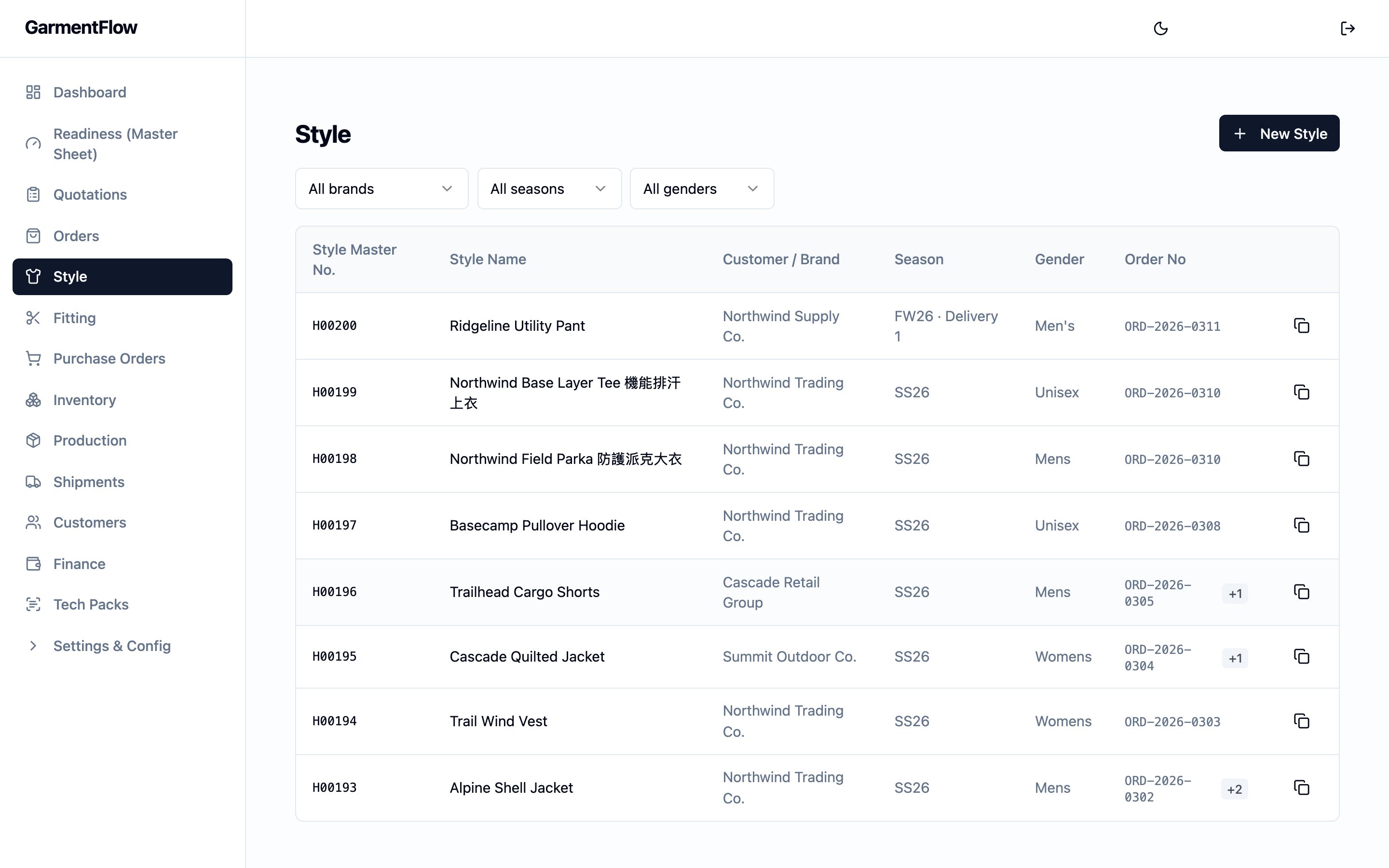 ## What it is
A style is a tenant-level product record for a single apparel design — a
men's polo for SS27, a winter parka, a kids' tee — kept in one place and
reused across orders, seasons, and customers. The style carries the
design's commercial identity (its name, the
[Customer](/reference/glossary#customer)
the design was developed for, season, gender,
[colorways](/reference/glossary#colorway),
thumbnail) and **owns** the artifacts that define it:
A style can be created by hand, from an order, or by injecting a
[tech pack](/modules/tech-packs) a brand has sent — the injection path seeds
the style's identity, colorways, BOM, size specification, images, and QC
checklist from the confirmed pack in one action.
* its [BOM](/reference/glossary#bom-bill-of-materials),
* its [cost sheet](/reference/glossary#cost-sheet),
* its tech-pack files,
* and its other production artifacts:
[manufacturing orders](/reference/glossary#mo-manufacturing-order),
packing, QC, and the cost-analysis view.
Each artifact lives on the style in its own version history, so the style
keeps moving forward without losing what an earlier order was built from.
For the model behind this, see
[the style-centric model](/concepts/style-centric-model) and
[BOM, cost sheet, and artifact versions](/concepts/bom-cost-sheet-artifact-versions).
## Why it exists
Apparel is a reuse business. A design sells across seasons and customers;
the BOM and cost sheet built for it should travel with the design, not be
rebuilt per order. The style is the place that holds the design's
identity and the artifacts that define it, so the work done once pays off
every time the design is ordered again. It is also the place a reader,
costing manager, or factory coordinator turns to find a design's truth —
its current BOM, its current price build-up, its history — without
chasing it through orders.
## When it is used
* **At design intake.** Create a style when you start work on a new
design.
* **During development.** Edit the style's BOM, cost sheet, and tech-pack
files as the design takes shape.
* **At order entry.** Link a style into the orders that sell it. One
style supports many orders.
* **In production.** Manufacturing orders, factory orders, and packing
and QC artifacts all reference the style.
* **On reorder.** Open the existing style instead of creating a new one —
that's the point of the model.
### The canonical create path: master-first
The clean way to set a design up is **master-first**: open the
**Styles** module, choose "Create style", and fill in the style on its
own. Link it to an order later, when there is one. This keeps the style
reusable and lets you build the BOM and cost sheet without an order yet
in the system.
### Alternative: from an order
If you are already inside an order that needs a brand-new design, you
can open the style create form with that order pre-selected. The style
is created the same way as master-first, **and** it appears in that
order's style line-up immediately so the order team can fill in the
colors, sizes, and quantities for that order. For the order-side
details, see the [Orders module guide](/modules/orders).
### Alternative: from a tech pack
If a brand has sent you a tech pack for a new design, upload it in
[Tech Packs](/modules/tech-packs), review the proposed identity,
colorways, BOM, size specification, images, and QC checks on the review
screen, and inject. The injection creates a working style with all of
the pack's confirmed content in one action — no re-key. See
[Import a tech pack](/modules/import-a-tech-pack). The Tech Packs
capability is optional — your administrator may enable it on
[Feature settings](/admin/feature-settings), and it is available on
certain plans.
### The style hero
Every style carries a single **hero image** — the main photo shown in
lists, pickers, and reports across the workspace. When a style is
created from a tech pack, you pick the hero on the review screen; the
largest image on the first page of the pack is proposed. When a style
is created another way, upload the hero from the style detail. The
existing thumbnail behavior described under `Style thumbnail` below is
the same field.
## Dependencies
* A Customer record — optional, but typically set on create so the
style carries the buyer it was developed for.
* An [order](/reference/glossary#order) —
optional; only needed when you create the style from an order context.
* A tenant-level numbering scheme for style numbers — administrators
configure this when the tenant is set up.
## What depends on it
* BOM versions for the style.
* Cost-sheet versions for the style.
* Tech-pack files and other production artifacts (manufacturing orders,
packing, QC, cost analysis) attached to the style.
* Every order that runs the style — and through those orders, the
manufacturing orders, factory orders, purchase orders, samples,
fittings, shipments, and invoices that reference it.
* The [readiness engine](/reference/glossary#readiness-engine)
resolves the BOM and cost-sheet versions through the style.
## Fields
### Identity
* `Style number` — the style's unique identifier in your tenant. It is
assigned by the platform on create, using your tenant's configured
numbering scheme, and it cannot be edited afterward. Use it to find
and reference the style across the system.
### Commercial
* `Style name` — the design's name. **Required.**
* `Customer style no.` — the buyer's own style number for the design.
Optional.
* `Customer style name` — the buyer's own name for the design.
Optional.
* `Season` — the selling season the design is developed for. Optional;
chosen from your tenant's configured list.
* `Gender` — the audience the design is cut for. Optional; chosen from
your tenant's configured list.
* `Colorway` (legacy free-text label) — an optional free-text colorway
label kept for backward compatibility. The structured colorway list
(below), filled in from the tenant colour palette, is what the BOM and
order line-ups read.
`Customer style no.` and `Customer style name` are stored in uppercase —
the form upper-cases what you type so the values line up consistently
across the system.
### Customer
* `Customer` — the brand or buyer the design was developed for. Optional;
chosen from your customer records. When you link a customer, the
customer's name is captured on the style and stays visible on the
style row, picker lists, and reports — even if the customer record is
later removed. See "Effect of changes" for the unlink behavior.
### Order link
* `Order` — an optional link to an order, used when you create the
style from inside an order. Setting it on create adds the style to
that order's style line-up so the order team can fill in colors,
sizes, and quantities. The order link is captured on the style for
reference; the order itself remains the place those line-up details
live.
### Visual
* `Style thumbnail` — the small image used to identify the style in
lists and pickers. Accepted formats: JPG, PNG, TIF; up to 25 MB. A
**TIF** upload is converted to a PNG preview when it lands so the
browser can render it everywhere the thumbnail appears; JPG and PNG
uploads are kept as they are.
### Colorways (structured)
A style carries a structured list of colorways. Each colorway has a
name, an optional code, a hex value, an optional Pantone reference, a
display order, and an optional per-colorway thumbnail. The BOM and
order line-ups read from this list, so adding colorways here makes
them available downstream.
You set the colorways on the **Create style** form using the **Colorways**
picker, which shows your tenant's
[shared colour palette](/admin/master-catalogs#colors) as chips: pick the
ones the design will run in, or use the inline **+ Add colour** affordance
to add a new colour to the palette and select it on the style in one
motion. Picking from the palette keeps "Navy" and "Navy" the same colour
across every style and order that names it.
After the style is created, the **Colorways** card on the style detail page
is the editor for the structured list. That card carries the per-colorway
detail the palette does not — hex, Pantone, display order, and the
per-colorway thumbnail — and takes those fields by hand rather than through
the palette picker. Reordering and per-colorway image upload happen here.
New colour selection onto the style is done from the palette picker;
per-colorway finishing detail is done from the card.
### Audit
* `Created`, `Last updated` — set by the system. Shown on the style
for reference.
## Tabs seeded from a tech pack
When a style is created from a tech pack, three of its tabs carry
content the pack contributed:
* **QC tab** — the confirmed
[QC checklist](/reference/glossary#qc-checklist)
from the pack lands here at injection, grouped by category
(measurements, construction, labels, packaging, folding, materials).
The imported checklist is **read-only on the QC tab** — the rows are
what your reviewer approved, and a second editor is a second place to
diverge from them. The rest of the QC record (report uploads, notes,
dropdown selections) is edited normally.
* **Packing tab** — pack pages classified as **packaging** or **folding**
attach here as page-render images, in a thumbnail gallery you can
open at full size.
* **Production Notes** — pack pages classified as **stitching**, **inside
details**, **design details**, **fabric map**, **artwork**, or
**label placement** attach here as filename links, each captioned
with its section and page number.
A style not originated from a pack simply has no imported checklist
heading and no pack-page attachments — the tabs behave the same, they
just carry only what was added on them directly.
## Business rules
1. **A style number is assigned on create and never edited.** The
platform generates the number when the style is created, so two
styles in your tenant can never share one.
2. **A style number is unique within your tenant.**
3. **A style can exist with or without an order link.** Linking is
optional. A linked style is still a tenant-level master — no order
owns it.
4. **Creating a style with an order link adds it to that order's
line-up.** The order team then fills in the colors, sizes, and
quantities for that order. Re-linking the same style to the same
order does not add a duplicate line.
5. **A style is reused across many orders.** Each order keeps its own
working pin onto the
[artifact versions](/reference/glossary#artifact-version)
of the style's BOM, cost sheet, and manufacturing order — so two
orders on the same style never disturb each other. See
[BOM, cost sheet, and artifact versions](/concepts/bom-cost-sheet-artifact-versions).
6. **A linked Customer must belong to your tenant.** Same for a linked
order.
7. **The Customer's name is captured on the style at link time.**
Renaming the customer record later does not change what shows on the
style.
8. **Cover image format and size are limited.** JPG, PNG, or TIF, up
to 25 MB.
9. **Creating, editing, and uploading on a style are restricted.**
Users with style-management permission perform these actions; reads
are open to authenticated users in your tenant.
## Validations
| When | Check | What happens if it fails |
| ------------------------ | ------------------------------------------------ | ------------------------------------------------------------------------ |
| Create a style | `Style name` is filled in | The save is rejected as a missing-name error. |
| Create a style | `Customer`, if chosen, belongs to your tenant | The save is rejected with a "customer not found in this tenant" message. |
| Create a style | `Order`, if chosen, belongs to your tenant | The save is rejected with an "order not found in this tenant" message. |
| Add or edit a colorway | Colorway `name` is filled in | The save is rejected. |
| Reorder colorways | The reorder list matches the current set exactly | The reorder is rejected. |
| Upload `Style thumbnail` | File is JPG, PNG, or TIF | Other types are rejected with a type message. |
| Upload `Style thumbnail` | File is 25 MB or smaller | Larger files are rejected with a size message. |
| Upload a colorway image | Same type and size rules as the cover image | Same rejection messages. |
| Open a style | The style belongs to your tenant | A style outside your tenant returns "not found". |
There are no further save-time validations on the style row itself, and
no transition validations — a style has no status to transition.
## Date logic
A style carries **no business dates of its own** — no target ship date,
no season-start date, no quote date. Only the `Created` and
`Last updated` timestamps — set by the system — are shown on the style.
Dates a reader might think of as belonging to the style actually live
elsewhere and should be read there:
* The order linked to the style carries the customer-facing dates
(order date, target ship date, ship date). See
[Order lifecycle](/concepts/order-lifecycle).
* The BOM carries an approval timestamp on each approved version.
* The readiness engine derives milestone dates from the production work
in flight.
## Status and transitions
A style has **no status of its own.** Once created, it simply exists.
State that a reader might call "the style's status" lives on its child
artifacts and on the linked order:
* A BOM version is **Draft** or **Approved**. See the
[BOM page](/modules/bom).
* A cost-sheet version is **Draft**, **Partially approved**, or
**Approved**. See the [Cost Sheet page](/modules/cost-sheet).
* The order linked to the style follows the
[order lifecycle](/concepts/order-lifecycle).
A style cannot be deleted by an end user. Removing a style happens only
when the tenant itself is removed — there is no delete option in the
product.
## Calculations
The style record itself has **no calculated fields.**
The style detail page exposes a **Cost analysis** view that summarizes
the current cost-sheet version's per-piece margin and (when an order is
selected) projects it across that order's ordered quantity for the
style. The math lives on the cost sheet — see the
[Cost Sheet page](/modules/cost-sheet) for the calculation rules.
## Effect of changes
* **Editing a style's header fields after create.** Not exposed. The
style's commercial fields (style name, customer style number and
name, season, gender, customer, order link) are effectively fixed at
create. Re-uploading the thumbnail is the only post-create edit on
the style master.
* **Re-uploading the cover image.** Replaces the style's thumbnail
going forward. Existing per-order copies of the style keep the
thumbnail they had when the order's line-up was set up.
* **Editing the style's per-order details from an order.** The order's
style line-up has its own editor for order-specific fields (style
number for that order, fabric composition, sample size, fabric
price, finish, gender for that order's run). Those edits stay on
the order; they do not change the style master.
* **Switching the current BOM or cost-sheet version on the style.**
Re-pins the artifact version. When the version is tied to a
specific order, that order's pin advances in lockstep, and
downstream readiness gates re-read the new current version. See
[BOM, cost sheet, and artifact versions](/concepts/bom-cost-sheet-artifact-versions).
* **Removing the linked Customer record.** Clears the Customer link
on the style. The customer name captured at create stays visible on
the style — intentionally, so the style keeps a readable identity
for the buyer it was developed for.
* **Deleting the linked order.** Clears the order link on the style.
The style's line in that order's line-up went with the order
itself.
## Best practices
* **Create the style first; link an order to it later.** Master-first
keeps the design reusable across the orders it will sell across.
* **Set the Customer at create.** The customer name on the style is
captured the moment you link, and it stays visible even if the
customer record is later removed — so set the right one up front.
* **Pick colorways from the shared palette, not the legacy free-text
label.** The structured list — filled in from the
[tenant colour palette](/admin/master-catalogs#colors) — is what the
BOM and order line-ups read, and picking from the palette keeps
duplicates from drifting into your colour list as styles multiply.
* **Upload a clear thumbnail.** Lists and pickers across GarmentFlow
use it, in your team's eye-line every day.
* **Reorder colorways with intent.** The order in the structured
list is what the BOM and order line-ups show; put the lead colorway
first.
* **If you create the style from an order to save a step**, remember
to finish the order's line-up details (colors, sizes, quantities)
in the order itself — that's where order-side details live.
## Related pages
* [The style-centric model](/concepts/style-centric-model)
* [Style vs. order vs. MO](/concepts/style-vs-order-vs-mo)
* [BOM, cost sheet, and artifact versions](/concepts/bom-cost-sheet-artifact-versions)
* [BOM](/modules/bom)
* [Cost Sheet](/modules/cost-sheet)
* [Orders](/modules/orders)
* [PMS Templates](/admin/pms-templates) — the workspace's library of
factory Excel templates the Style MO create wizard picks from.
* [Tech Packs](/modules/tech-packs) — the receiving side for a brand's
authored pack; the injection creates a style with its BOM, size
specification, images, and QC checklist in one action.
* [Import a tech pack](/modules/import-a-tech-pack) — upload, review,
confirm, inject.
## What it is
A style is a tenant-level product record for a single apparel design — a
men's polo for SS27, a winter parka, a kids' tee — kept in one place and
reused across orders, seasons, and customers. The style carries the
design's commercial identity (its name, the
[Customer](/reference/glossary#customer)
the design was developed for, season, gender,
[colorways](/reference/glossary#colorway),
thumbnail) and **owns** the artifacts that define it:
A style can be created by hand, from an order, or by injecting a
[tech pack](/modules/tech-packs) a brand has sent — the injection path seeds
the style's identity, colorways, BOM, size specification, images, and QC
checklist from the confirmed pack in one action.
* its [BOM](/reference/glossary#bom-bill-of-materials),
* its [cost sheet](/reference/glossary#cost-sheet),
* its tech-pack files,
* and its other production artifacts:
[manufacturing orders](/reference/glossary#mo-manufacturing-order),
packing, QC, and the cost-analysis view.
Each artifact lives on the style in its own version history, so the style
keeps moving forward without losing what an earlier order was built from.
For the model behind this, see
[the style-centric model](/concepts/style-centric-model) and
[BOM, cost sheet, and artifact versions](/concepts/bom-cost-sheet-artifact-versions).
## Why it exists
Apparel is a reuse business. A design sells across seasons and customers;
the BOM and cost sheet built for it should travel with the design, not be
rebuilt per order. The style is the place that holds the design's
identity and the artifacts that define it, so the work done once pays off
every time the design is ordered again. It is also the place a reader,
costing manager, or factory coordinator turns to find a design's truth —
its current BOM, its current price build-up, its history — without
chasing it through orders.
## When it is used
* **At design intake.** Create a style when you start work on a new
design.
* **During development.** Edit the style's BOM, cost sheet, and tech-pack
files as the design takes shape.
* **At order entry.** Link a style into the orders that sell it. One
style supports many orders.
* **In production.** Manufacturing orders, factory orders, and packing
and QC artifacts all reference the style.
* **On reorder.** Open the existing style instead of creating a new one —
that's the point of the model.
### The canonical create path: master-first
The clean way to set a design up is **master-first**: open the
**Styles** module, choose "Create style", and fill in the style on its
own. Link it to an order later, when there is one. This keeps the style
reusable and lets you build the BOM and cost sheet without an order yet
in the system.
### Alternative: from an order
If you are already inside an order that needs a brand-new design, you
can open the style create form with that order pre-selected. The style
is created the same way as master-first, **and** it appears in that
order's style line-up immediately so the order team can fill in the
colors, sizes, and quantities for that order. For the order-side
details, see the [Orders module guide](/modules/orders).
### Alternative: from a tech pack
If a brand has sent you a tech pack for a new design, upload it in
[Tech Packs](/modules/tech-packs), review the proposed identity,
colorways, BOM, size specification, images, and QC checks on the review
screen, and inject. The injection creates a working style with all of
the pack's confirmed content in one action — no re-key. See
[Import a tech pack](/modules/import-a-tech-pack). The Tech Packs
capability is optional — your administrator may enable it on
[Feature settings](/admin/feature-settings), and it is available on
certain plans.
### The style hero
Every style carries a single **hero image** — the main photo shown in
lists, pickers, and reports across the workspace. When a style is
created from a tech pack, you pick the hero on the review screen; the
largest image on the first page of the pack is proposed. When a style
is created another way, upload the hero from the style detail. The
existing thumbnail behavior described under `Style thumbnail` below is
the same field.
## Dependencies
* A Customer record — optional, but typically set on create so the
style carries the buyer it was developed for.
* An [order](/reference/glossary#order) —
optional; only needed when you create the style from an order context.
* A tenant-level numbering scheme for style numbers — administrators
configure this when the tenant is set up.
## What depends on it
* BOM versions for the style.
* Cost-sheet versions for the style.
* Tech-pack files and other production artifacts (manufacturing orders,
packing, QC, cost analysis) attached to the style.
* Every order that runs the style — and through those orders, the
manufacturing orders, factory orders, purchase orders, samples,
fittings, shipments, and invoices that reference it.
* The [readiness engine](/reference/glossary#readiness-engine)
resolves the BOM and cost-sheet versions through the style.
## Fields
### Identity
* `Style number` — the style's unique identifier in your tenant. It is
assigned by the platform on create, using your tenant's configured
numbering scheme, and it cannot be edited afterward. Use it to find
and reference the style across the system.
### Commercial
* `Style name` — the design's name. **Required.**
* `Customer style no.` — the buyer's own style number for the design.
Optional.
* `Customer style name` — the buyer's own name for the design.
Optional.
* `Season` — the selling season the design is developed for. Optional;
chosen from your tenant's configured list.
* `Gender` — the audience the design is cut for. Optional; chosen from
your tenant's configured list.
* `Colorway` (legacy free-text label) — an optional free-text colorway
label kept for backward compatibility. The structured colorway list
(below), filled in from the tenant colour palette, is what the BOM and
order line-ups read.
`Customer style no.` and `Customer style name` are stored in uppercase —
the form upper-cases what you type so the values line up consistently
across the system.
### Customer
* `Customer` — the brand or buyer the design was developed for. Optional;
chosen from your customer records. When you link a customer, the
customer's name is captured on the style and stays visible on the
style row, picker lists, and reports — even if the customer record is
later removed. See "Effect of changes" for the unlink behavior.
### Order link
* `Order` — an optional link to an order, used when you create the
style from inside an order. Setting it on create adds the style to
that order's style line-up so the order team can fill in colors,
sizes, and quantities. The order link is captured on the style for
reference; the order itself remains the place those line-up details
live.
### Visual
* `Style thumbnail` — the small image used to identify the style in
lists and pickers. Accepted formats: JPG, PNG, TIF; up to 25 MB. A
**TIF** upload is converted to a PNG preview when it lands so the
browser can render it everywhere the thumbnail appears; JPG and PNG
uploads are kept as they are.
### Colorways (structured)
A style carries a structured list of colorways. Each colorway has a
name, an optional code, a hex value, an optional Pantone reference, a
display order, and an optional per-colorway thumbnail. The BOM and
order line-ups read from this list, so adding colorways here makes
them available downstream.
You set the colorways on the **Create style** form using the **Colorways**
picker, which shows your tenant's
[shared colour palette](/admin/master-catalogs#colors) as chips: pick the
ones the design will run in, or use the inline **+ Add colour** affordance
to add a new colour to the palette and select it on the style in one
motion. Picking from the palette keeps "Navy" and "Navy" the same colour
across every style and order that names it.
After the style is created, the **Colorways** card on the style detail page
is the editor for the structured list. That card carries the per-colorway
detail the palette does not — hex, Pantone, display order, and the
per-colorway thumbnail — and takes those fields by hand rather than through
the palette picker. Reordering and per-colorway image upload happen here.
New colour selection onto the style is done from the palette picker;
per-colorway finishing detail is done from the card.
### Audit
* `Created`, `Last updated` — set by the system. Shown on the style
for reference.
## Tabs seeded from a tech pack
When a style is created from a tech pack, three of its tabs carry
content the pack contributed:
* **QC tab** — the confirmed
[QC checklist](/reference/glossary#qc-checklist)
from the pack lands here at injection, grouped by category
(measurements, construction, labels, packaging, folding, materials).
The imported checklist is **read-only on the QC tab** — the rows are
what your reviewer approved, and a second editor is a second place to
diverge from them. The rest of the QC record (report uploads, notes,
dropdown selections) is edited normally.
* **Packing tab** — pack pages classified as **packaging** or **folding**
attach here as page-render images, in a thumbnail gallery you can
open at full size.
* **Production Notes** — pack pages classified as **stitching**, **inside
details**, **design details**, **fabric map**, **artwork**, or
**label placement** attach here as filename links, each captioned
with its section and page number.
A style not originated from a pack simply has no imported checklist
heading and no pack-page attachments — the tabs behave the same, they
just carry only what was added on them directly.
## Business rules
1. **A style number is assigned on create and never edited.** The
platform generates the number when the style is created, so two
styles in your tenant can never share one.
2. **A style number is unique within your tenant.**
3. **A style can exist with or without an order link.** Linking is
optional. A linked style is still a tenant-level master — no order
owns it.
4. **Creating a style with an order link adds it to that order's
line-up.** The order team then fills in the colors, sizes, and
quantities for that order. Re-linking the same style to the same
order does not add a duplicate line.
5. **A style is reused across many orders.** Each order keeps its own
working pin onto the
[artifact versions](/reference/glossary#artifact-version)
of the style's BOM, cost sheet, and manufacturing order — so two
orders on the same style never disturb each other. See
[BOM, cost sheet, and artifact versions](/concepts/bom-cost-sheet-artifact-versions).
6. **A linked Customer must belong to your tenant.** Same for a linked
order.
7. **The Customer's name is captured on the style at link time.**
Renaming the customer record later does not change what shows on the
style.
8. **Cover image format and size are limited.** JPG, PNG, or TIF, up
to 25 MB.
9. **Creating, editing, and uploading on a style are restricted.**
Users with style-management permission perform these actions; reads
are open to authenticated users in your tenant.
## Validations
| When | Check | What happens if it fails |
| ------------------------ | ------------------------------------------------ | ------------------------------------------------------------------------ |
| Create a style | `Style name` is filled in | The save is rejected as a missing-name error. |
| Create a style | `Customer`, if chosen, belongs to your tenant | The save is rejected with a "customer not found in this tenant" message. |
| Create a style | `Order`, if chosen, belongs to your tenant | The save is rejected with an "order not found in this tenant" message. |
| Add or edit a colorway | Colorway `name` is filled in | The save is rejected. |
| Reorder colorways | The reorder list matches the current set exactly | The reorder is rejected. |
| Upload `Style thumbnail` | File is JPG, PNG, or TIF | Other types are rejected with a type message. |
| Upload `Style thumbnail` | File is 25 MB or smaller | Larger files are rejected with a size message. |
| Upload a colorway image | Same type and size rules as the cover image | Same rejection messages. |
| Open a style | The style belongs to your tenant | A style outside your tenant returns "not found". |
There are no further save-time validations on the style row itself, and
no transition validations — a style has no status to transition.
## Date logic
A style carries **no business dates of its own** — no target ship date,
no season-start date, no quote date. Only the `Created` and
`Last updated` timestamps — set by the system — are shown on the style.
Dates a reader might think of as belonging to the style actually live
elsewhere and should be read there:
* The order linked to the style carries the customer-facing dates
(order date, target ship date, ship date). See
[Order lifecycle](/concepts/order-lifecycle).
* The BOM carries an approval timestamp on each approved version.
* The readiness engine derives milestone dates from the production work
in flight.
## Status and transitions
A style has **no status of its own.** Once created, it simply exists.
State that a reader might call "the style's status" lives on its child
artifacts and on the linked order:
* A BOM version is **Draft** or **Approved**. See the
[BOM page](/modules/bom).
* A cost-sheet version is **Draft**, **Partially approved**, or
**Approved**. See the [Cost Sheet page](/modules/cost-sheet).
* The order linked to the style follows the
[order lifecycle](/concepts/order-lifecycle).
A style cannot be deleted by an end user. Removing a style happens only
when the tenant itself is removed — there is no delete option in the
product.
## Calculations
The style record itself has **no calculated fields.**
The style detail page exposes a **Cost analysis** view that summarizes
the current cost-sheet version's per-piece margin and (when an order is
selected) projects it across that order's ordered quantity for the
style. The math lives on the cost sheet — see the
[Cost Sheet page](/modules/cost-sheet) for the calculation rules.
## Effect of changes
* **Editing a style's header fields after create.** Not exposed. The
style's commercial fields (style name, customer style number and
name, season, gender, customer, order link) are effectively fixed at
create. Re-uploading the thumbnail is the only post-create edit on
the style master.
* **Re-uploading the cover image.** Replaces the style's thumbnail
going forward. Existing per-order copies of the style keep the
thumbnail they had when the order's line-up was set up.
* **Editing the style's per-order details from an order.** The order's
style line-up has its own editor for order-specific fields (style
number for that order, fabric composition, sample size, fabric
price, finish, gender for that order's run). Those edits stay on
the order; they do not change the style master.
* **Switching the current BOM or cost-sheet version on the style.**
Re-pins the artifact version. When the version is tied to a
specific order, that order's pin advances in lockstep, and
downstream readiness gates re-read the new current version. See
[BOM, cost sheet, and artifact versions](/concepts/bom-cost-sheet-artifact-versions).
* **Removing the linked Customer record.** Clears the Customer link
on the style. The customer name captured at create stays visible on
the style — intentionally, so the style keeps a readable identity
for the buyer it was developed for.
* **Deleting the linked order.** Clears the order link on the style.
The style's line in that order's line-up went with the order
itself.
## Best practices
* **Create the style first; link an order to it later.** Master-first
keeps the design reusable across the orders it will sell across.
* **Set the Customer at create.** The customer name on the style is
captured the moment you link, and it stays visible even if the
customer record is later removed — so set the right one up front.
* **Pick colorways from the shared palette, not the legacy free-text
label.** The structured list — filled in from the
[tenant colour palette](/admin/master-catalogs#colors) — is what the
BOM and order line-ups read, and picking from the palette keeps
duplicates from drifting into your colour list as styles multiply.
* **Upload a clear thumbnail.** Lists and pickers across GarmentFlow
use it, in your team's eye-line every day.
* **Reorder colorways with intent.** The order in the structured
list is what the BOM and order line-ups show; put the lead colorway
first.
* **If you create the style from an order to save a step**, remember
to finish the order's line-up details (colors, sizes, quantities)
in the order itself — that's where order-side details live.
## Related pages
* [The style-centric model](/concepts/style-centric-model)
* [Style vs. order vs. MO](/concepts/style-vs-order-vs-mo)
* [BOM, cost sheet, and artifact versions](/concepts/bom-cost-sheet-artifact-versions)
* [BOM](/modules/bom)
* [Cost Sheet](/modules/cost-sheet)
* [Orders](/modules/orders)
* [PMS Templates](/admin/pms-templates) — the workspace's library of
factory Excel templates the Style MO create wizard picks from.
* [Tech Packs](/modules/tech-packs) — the receiving side for a brand's
authored pack; the injection creates a style with its BOM, size
specification, images, and QC checklist in one action.
* [Import a tech pack](/modules/import-a-tech-pack) — upload, review,
confirm, inject.