> ## Documentation Index
> Fetch the complete documentation index at: https://docs.garmentflow.ai/llms.txt
> Use this file to discover all available pages before exploring further.
# Shipments
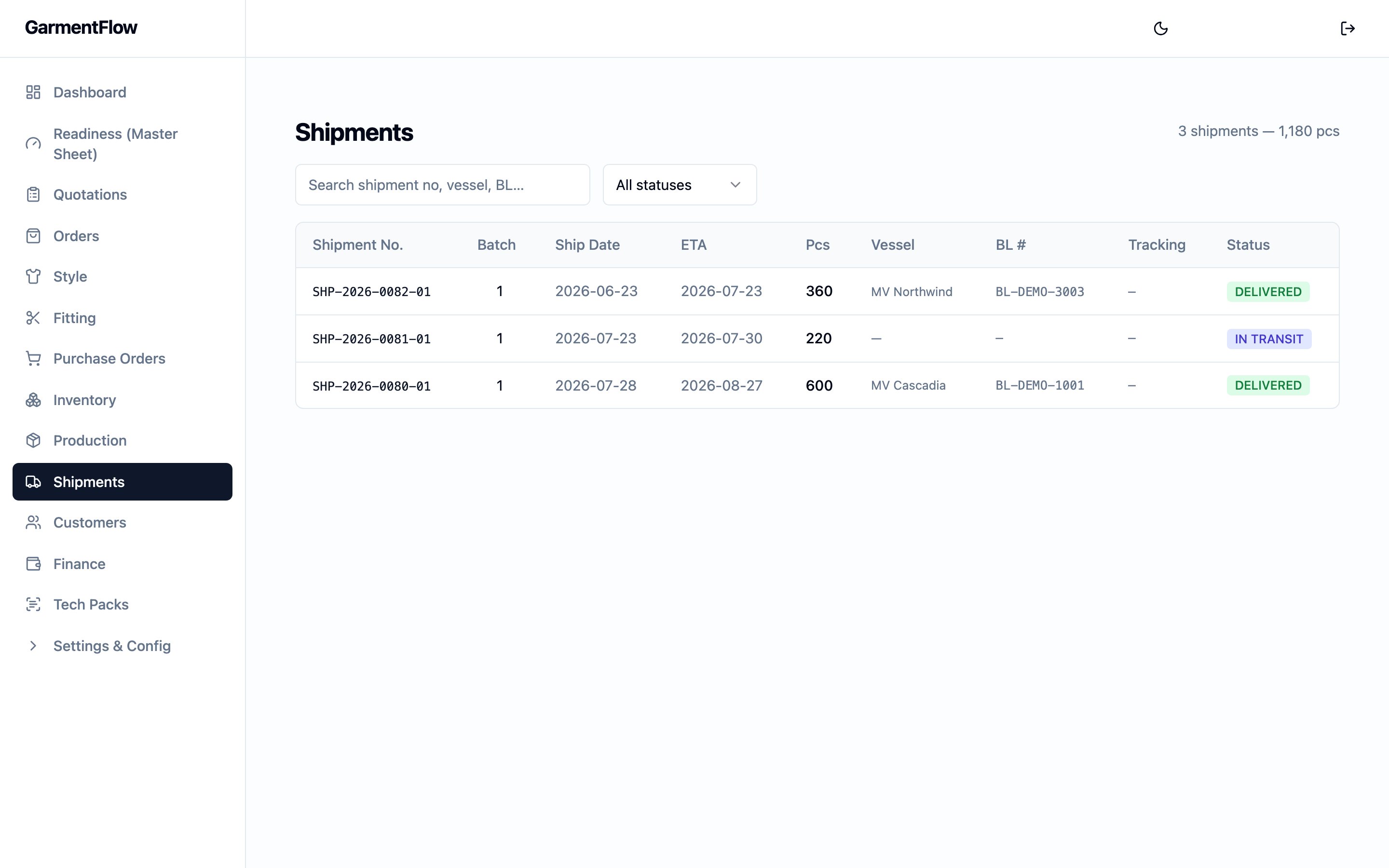
> Two shipment records that work together — the per-leg outbound record that draws the finished-goods record down, and the customer-facing commercial shipment that carries the logistics.
The **Shipments** module is where the order's outbound side is worked: the
per-leg record that draws down the finished-goods record on the platform, and
the customer-facing commercial shipment that carries the vessel, the bill of
lading, and the link to the commercial invoice.
 ## The platform is a system of record
GarmentFlow tracks shipment positions on paper. The platform does **not**
observe physical movement, does not know where goods physically are, and does
not control who picks them up or where they go. Every "shipment" on the
platform is a record the team writes; every "movement" is a book entry.
This frame governs how to read every record on the page. When the page says
*"the outbound leg draws the finished-goods record down,"* what happens on
the platform is the record falls. What happens off the platform — whether
goods left a factory, sat in a yard, or arrived with a customer — is the
team's own business. The platform watches the team type a date, not a truck
roll across a dock.
## Two records, two jobs
The module carries **two distinct records** that often live side by side on
the same customer order. Keep the distinction.
* **Outbound shipment** — the per-leg outbound record on the order. One per
distinct (customer order × ship-to) on a factory order, auto-seeded when
the factory order is issued. The record the team works as the leg moves
from being noted as planned to being noted as shipped; the record whose
shipped status draws the finished-goods record down.
* **Commercial shipment** — the customer-facing commercial document for the
batch. Carries the vessel or flight, the bill of lading or air waybill,
the carrier, the tracking number, and the link to the order's
**commercial invoice** for the batch. Created by hand from the order's
**Shipments** sub-tab once the team is ready to book the carrier.
The two records are not the same thing. The outbound shipment is the
operational record of the leg; the commercial shipment is the document the
customer reads. They surface on different sub-tabs on the order — the
**Shipments** sub-tab for the commercial shipment, the **Outbound**
sub-tab for the outbound shipment — and behave differently on every
dimension below. See [Orders](/modules/orders) for how the order detail's
sub-tabs are laid out.
## Outbound shipment — the per-leg record
The **outbound shipment** is the per-leg outbound record on the order. Each
one covers a single (customer order × ship-to) on a single factory order;
the record carries the vendor, the dates, and the per-line planned and
actual quantities. The team works it from the order detail's **Outbound**
sub-tab.
### Where it comes from
Outbound shipments are normally **auto-seeded** when an upstream factory
order is issued. The first time a factory order moves from **Draft** to
**Issued**, the platform creates **one draft outbound shipment per distinct
(customer order × ship-to)** on the factory order — with one line per
(order × style × ship-to) carried over from the factory-order lines.
Retention rows on the factory order are excluded from the seed; they are
worked separately. The seeding rule is documented end-to-end on
[Production — Issuing seeds the outbound skeleton](/modules/production#issuing-seeds-the-outbound-skeleton);
this page describes the outcome the team sees.
Re-issuing a factory order does not duplicate the legs — the seeding
respects the (factory order × order × ship-to) grain, so a re-issue lands
on the existing drafts rather than creating new ones.
### The manual-add path
The Outbound sub-tab also lets the team **add a leg by hand**, for one-off
legs not covered by the factory-order seeding. Use the **Add** button at
the top of the sub-tab: pick the vendor and save. The hand-added leg lands
as a draft with no ship-to text, then takes lines and quantities as the
team fills them in.
A hand-added leg behaves identically to an auto-seeded one once it carries
lines: same statuses, same dates, same effect on the finished-goods record
when it is marked shipped. The path exists for legs that arise outside the
factory-order skeleton — a one-off sample-batch leg, an after-the-fact
correction, a leg the team wants on the record before the factory order it
belongs to is built.
### Dates
Each leg carries three dates the team works against. None of them are
computed by the platform; the team enters them as the leg progresses.
* `Expected ship date` — the date the team expects the leg to ship. Editable
on both **Draft** and **Shipped**. No side effects on its own.
* `Actual ship date` — the date the leg actually shipped. **Setting it on a
draft leg moves the leg to Shipped** in the same write and records the
outbound issue that draws the finished-goods record down (see *Effect of
marking a leg shipped* below). Clearing it on a Shipped leg is refused —
the team uses **Unlock** instead, which reverses the recorded issue and
returns the leg to **Draft**.
* `Received date` — the date the team noted the leg as received, for
example when the customer confirms delivery against the carrier's proof
of delivery. Editable on both **Draft** and **Shipped**. **It is a
tracking field only:** setting it has no effect on the leg, the order,
the commercial shipment, or the finished-goods record. The team records
the date for their own audit; the platform shows it back.
### Status
An outbound shipment has only **two statuses**: a draft pair, no further
states. The team does not promote the leg through a multi-step lifecycle
the way the commercial shipment goes.
* **Draft** — the leg is being worked. Vendor, lines, and dates are
editable. Auto-seeded legs land here; hand-added legs land here.
* **Shipped** — the leg has been marked shipped by recording an
`Actual ship date`. The leg's lines, vendor, and ship-to are then frozen.
The team can still edit `Expected ship date`, `Received date`, and notes.
Moving a leg from **Draft** to **Shipped** is **set by recording the
`Actual ship date`** — not by a separate status control. The platform reads
the date and flips the leg in the same write. Unlocking a Shipped leg
returns it to Draft and reverses the finished-goods record draw-down.
### Effect of marking a leg shipped
When a draft outbound shipment is marked shipped — by recording its
`Actual ship date` — the platform records an **outbound issue against the
finished-goods record** for every line on the leg. The finished-goods
record falls by the line's actual quantity for the line's style; when the
line carries a **per-size split**, the issue is recorded per size and the
finished-goods record falls per size.
The record being drawn down is the same finished-goods record the
**Production** hub's
[finished-goods stock view](/modules/production#balance-views) reads off.
The companion record — the receipt of finished goods coming back from the
factory, which the team books on the **Subcontracting** tab — is what
brings that record up. Together the receipt side and the outbound side
keep the finished-goods record net-correct.
Unlocking a Shipped leg writes a **compensating return** on the
finished-goods record, so the record returns to where it was before the
leg was marked shipped. The original outbound issue stays on the record as
audit, the compensating return offsets it, and the net is zero.
### Per-size split on a line
A line on an outbound shipment can optionally carry a **per-size split**.
When the team enters the per-size quantities under a line, the line's
**actual quantity is set from the sum of the split** — the split is the
entry, and the total reads off it. The finished-goods record is then drawn
down **per size** when the leg is marked shipped, so the per-size
finished-goods record stays correct down to each size.
A line without a split records the outbound issue against the style as a
whole.
### Lines and over-allocation
Each outbound shipment line corresponds to one leaf line on the upstream
factory order — one style going to one ship-to. The line carries a
`Planned qty` and an `Actual qty`. The team is **not blocked** if the
planned quantities on the legs add up to more than the factory order's
quantity for the leaf; the line shows a soft over-allocated warning so the
team can spot the mismatch, but the save is allowed. Production can carry
small overages, and the platform leaves the call to the team.
### Lifecycle
* **Delete** is allowed only on **Draft** legs. A Shipped leg cannot be
deleted; the team **unlocks** it first (which reverses the
finished-goods record draw-down) and then deletes the Draft.
* **Edit the vendor or the lines** is allowed only on **Draft** legs. A
Shipped leg's vendor and lines are frozen.
* **A factory-order leaf with outbound shipment lines on it cannot be
deleted** — the platform refuses the delete so out-shipped history can't
silently drop. Cancel the upstream factory order instead.
### Where it lives
Outbound shipments live on the order detail's **Outbound** sub-tab — one
card per leg, each showing the vendor, the three dates, the lines with
their planned and actual quantities, and the **Unlock** control on Shipped
legs. They do not appear on the **Production** hub's outbound view (which
shows the commercial shipment list — see the next section).
## Commercial shipment — the customer-facing document
The **commercial shipment** is the customer-facing commercial document for
a batch of the order's goods. It carries the vessel or flight, the bill of
lading or air waybill, the carrier, the tracking number, the batch label
the team writes onto the documents, and the link to the
[shipment](/reference/glossary#shipment)'s
commercial invoice. The team works it from the order detail's **Shipments**
sub-tab.
### When the team creates one
A commercial shipment is **always created by hand**. There is no
auto-seeding the way the outbound shipment has — when the team is ready to
book the carrier for a batch, they open the **Shipments** sub-tab on the
order, click **Add Shipment**, and fill in the logistics. The platform
assigns the shipment its **Shipment no.** automatically — a year-stamped
auto-assigned identifier with a per-batch suffix — so the number is
guaranteed unique without the team typing it.
### Status
A commercial shipment moves through four statuses, set by the team as the
batch moves through booking and delivery.
* **Planned** — the team's planning record. The carrier and the dates can
still be worked.
* **Booked** — the batch has been booked with the carrier.
* **In transit** — the batch has been recorded as shipped. **Setting this
status advances the order's work phase** from **Bulk production** to
**Shipped** (see [order lifecycle](/concepts/order-lifecycle)). This is
the only status whose change moves the order forward on the work-phase
spine.
* **Delivered** — the batch has been recorded as delivered to the customer.
The four-status flow runs **Planned → Booked → In transit → Delivered**.
The team advances the status as the batch progresses; there is no
auto-progression.
### What the first commercial shipment does to the order
The first commercial shipment the team adds against an order in the
**production** commercial status also **flips the order's commercial
status to shipping** — the platform writes the change itself in the same
write that creates the shipment. The order's two-dimensional lifecycle
distinguishes the **commercial status** (where the deal is) from the
**work phase** (where the work is); the commercial-status flip on first
shipment is the deal moving forward, and the **in transit** work-phase
advance described above is the work moving forward. The two changes are
independent and may happen at different times. See
[order lifecycle](/concepts/order-lifecycle).
A subsequent shipment on the same order does not re-flip the commercial
status; only the first one does.
### Fields
Group the commercial shipment's fields by purpose.
#### Identity
* `Shipment no.` — the shipment's permanent business identifier. Assigned
by the platform when the shipment is created and never changes.
* `Batch no.` — the per-order shipment count, set by the platform from
the number of existing shipments on the order. The first shipment on an
order is batch 1; the second is batch 2; and so on.
#### Logistics
* `Shipping mode` — the transport mode. The picker offers sea, air,
express, DHL, and FedEx; the value drives nothing in the platform, but
it prints on the documents and the team filters by it on the global
list.
* `Vessel name` / `Vessel flight` — the vessel or flight identifier the
batch is on.
* `BL number` — the bill of lading number for sea shipments.
* `AWB no.` — the air waybill number for air shipments.
* `Tracking number` — the carrier's tracking number, optional and
free-text.
* `Shipment batch` — the human-readable batch label the team writes onto
the documents, free-text. Distinct from `Batch no.`, which is the
numeric per-order count.
* `Account party` — the account party named on the bill of lading or air
waybill, free-text.
#### Dates
* `Ship date` — the planned ship date for the batch.
* `ETA date` — the expected time of arrival, customer-side.
* `ETD date` — the expected time of departure.
* `ETC date` — the expected time of completion.
All four dates are user-set on create and edit. None of them are computed
or propagated by the platform.
#### Destination
* `Destination` — the destination this batch is going to. **Defaults to
the order's destination** at create; editable per shipment, so a batch
going to a different destination from the order's default can carry its
own. The platform saves a freshly-typed destination to the tenant
destination lookup, so the same value is one pick on the next shipment.
* `Notes` — free-text notes on the shipment.
### Lines — per-size shipped quantities
Each commercial shipment carries one line per size shipped on the batch.
Each line records the `Qty shipped` for the size; the per-size shipped
quantities drive the order's **Shipment Progress** card on the
[Order Overview](/modules/orders#overview-tab-summary-cards) and the
shipped-versus-ordered rollup on the order's size grid.
**Over-shipping is refused.** Saving a line whose `Qty shipped` would push
the size's cumulative shipped total above the size's ordered quantity is
rejected; the platform names the offending sizes on the rejection so the
team can correct. The guard reads the cumulative shipped total across
every commercial shipment on the order, not just the current one.
**Deleting a line returns the per-size shipped quantity** to where it was
before the line was added — the order's progress reads back down to match.
### Shipment-detail sheet
Each commercial shipment also exposes a **shipment-detail sheet** — a
per-style, per-colour list of the goods on the batch, with six size
columns (XS, S, M, L, XL, XXL) and one row per style × colour. The team
can edit the detail rows directly on the shipment card; the sheet is
exportable as a spreadsheet with the order, style, colour, country,
purchase-order number, the six size columns, the total, and the logistics
fields (shipping mode, air waybill, ETD, ETC, ETA) on each row.
The shipment-detail sheet is a **separate surface from the per-size
lines** described above — the two are not synchronised, by design. The
per-size lines drive the order's shipped-versus-ordered rollup; the
detail-sheet drives the packing spreadsheet the team sends to the customer
or to the freight forwarder. The team fills both when both are needed.
### Per-destination packing list
A commercial shipment can split into **multiple destinations** when one
batch ships to several receivers. Each destination carries its own name,
address, country, and contact, plus its own per-size quantity rollup. The
**packing list PDF** can be generated against the shipment as a whole or
against any one destination — useful when each receiver needs its own
packing slip on its own copy.
### Commercial invoice
A commercial shipment is the **anchor for the shipment-type commercial
invoice** on the order. The team raises the invoice from the order's
**Invoices** sub-tab against the shipment; the invoice picks up the
shipment's per-size lines, the order's customer and currency, and offsets
the order's deposit against the shipment's portion of the order value.
The full behaviour of the invoice — invoice types, deposit offset, status
lifecycle — lives on the [Finance module guide](/modules/finance).
An outbound shipment is **not** the anchor for an invoice; only the
commercial shipment is.
### Lifecycle
* **Delete** is allowed only on **Planned** or **Booked** shipments. A
shipment that has moved to **In transit** or **Delivered** cannot be
deleted; this protects the order-phase advance the **In transit**
transition fired from being unwound. Deleting a Planned or Booked
shipment returns its per-size shipped quantities to the order.
* **Edit** is allowed throughout the lifecycle — the logistics fields, the
dates, the destination, and the lines all stay editable. The four
statuses gate **delete**, not edit.
### Where it lives
The same commercial shipment is reachable from three places:
* The order detail's **Shipments** sub-tab — the per-order view, with the
full per-shipment card, the per-size editor, the shipment-detail sheet,
and the per-destination packing list controls.
* The global **Shipments** list reachable from the main navigation — every
commercial shipment across the tenant, with column-level filters on the
carrier fields, the status, and the dates. Used when the team is
working a shipping queue across orders.
* The **Production** hub's **Subcontracting** tab — the same global list,
embedded inside the hub for the floor's outbound view. The list shown
there is the commercial-shipment list, not the per-leg outbound
shipments described above.
The per-leg outbound shipments only appear on the order detail's
**Outbound** sub-tab; the commercial shipments appear on the three
surfaces above.
## How the two records relate
The two records work the same (customer order × ship-to) leg from two
angles. The outbound shipment is the operational record of the leg — the
record whose shipped status draws the finished-goods record down. The
commercial shipment is the customer-facing document for the leg — the
record that carries the carrier, the bill of lading, and the invoice.
The team works them on different sub-tabs because they are different
records with different lives:
* The outbound shipment is **auto-seeded** from a factory order; the
commercial shipment is **always added by hand**.
* The outbound shipment moves through **Draft → Shipped**; the commercial
shipment moves through **Planned → Booked → In transit → Delivered**.
* The outbound shipment **draws the finished-goods record down**; the
commercial shipment **advances the order's work phase to Shipped** and
**flips the order's commercial status to Shipping** on the first one.
* The outbound shipment carries no commercial document; the commercial
shipment carries the **packing list**, the **shipment-detail sheet
export**, and the **commercial invoice** anchor.
The team typically fills the outbound shipment first — as the factory's
leg is worked — and creates the commercial shipment later, when the
carrier is booked. Nothing on the platform forces an order between the
two; either record can exist without the other on the same order.
## Numbering
* **Outbound shipments** use a **per-order count** — the first outbound
shipment on an order is shipment 1, the second is shipment 2, and so
on. The number is set by the platform on create and does not change.
* **Commercial shipments** use an **auto-assigned year-stamped
identifier** with a per-batch suffix that counts within the order. The
number is set by the platform on create and does not change. The
`Batch no.` field on the same shipment is the per-order batch count
(1, 2, 3 …) that the team reads on the card; the suffix in the
identifier and the `Batch no.` field hold the same number.
Both numbers are assigned on create and never edited.
## Best practices
* **Let the auto-seeded outbound legs do the work.** Issuing a factory
order sets up the outbound legs the team will work; treat the **Add**
button on the Outbound sub-tab as the one-off path, not the default
one.
* **Record `Actual ship date` only when the leg has truly shipped.** The
date is the trigger that draws the finished-goods record down — if the
leg is delayed, leave the date blank and the leg in Draft.
* **Use `Unlock` rather than delete-and-recreate** if a leg was marked
shipped by mistake. Unlock reverses the finished-goods record
draw-down cleanly; delete-and-recreate is refused on Shipped legs
anyway, and unlock is the path the platform supports.
* **Set the commercial shipment's `Destination` deliberately.** Editing
it overrides the order's default destination for this batch only —
useful when a batch is going to a different port from the order's
default. The destination on the commercial shipment is what prints on
the packing list.
* **Cap the per-size lines at the ordered quantity.** The over-ship
guard refuses a save that would push the cumulative shipped total
above the ordered quantity for a size — split the batch across two
shipments if the team needs to record short and long shipments
separately.
* **Use the shipment-detail sheet for the packing spreadsheet, the
per-size lines for the order's progress.** The two surfaces are not
synchronised; fill both when the order needs both, and treat each as
what it is.
## Related pages
* [Orders](/modules/orders) — the order detail's **Shipments** and
**Outbound** sub-tabs and where the two records live on the order.
* [Production — Issuing seeds the outbound skeleton](/modules/production#issuing-seeds-the-outbound-skeleton) —
the factory-order side that seeds the outbound shipments.
* [Production — The inventory ledger](/modules/production#the-inventory-ledger) —
the finished-goods record the outbound shipment draws down, and the
receipt-of-finished-goods side that brings it back up.
* [Order lifecycle](/concepts/order-lifecycle) — the work-phase advance
the commercial shipment fires, and the commercial-status flip on the
first shipment.
* [Finance](/modules/finance) — the commercial invoice the commercial
shipment anchors.
## The platform is a system of record
GarmentFlow tracks shipment positions on paper. The platform does **not**
observe physical movement, does not know where goods physically are, and does
not control who picks them up or where they go. Every "shipment" on the
platform is a record the team writes; every "movement" is a book entry.
This frame governs how to read every record on the page. When the page says
*"the outbound leg draws the finished-goods record down,"* what happens on
the platform is the record falls. What happens off the platform — whether
goods left a factory, sat in a yard, or arrived with a customer — is the
team's own business. The platform watches the team type a date, not a truck
roll across a dock.
## Two records, two jobs
The module carries **two distinct records** that often live side by side on
the same customer order. Keep the distinction.
* **Outbound shipment** — the per-leg outbound record on the order. One per
distinct (customer order × ship-to) on a factory order, auto-seeded when
the factory order is issued. The record the team works as the leg moves
from being noted as planned to being noted as shipped; the record whose
shipped status draws the finished-goods record down.
* **Commercial shipment** — the customer-facing commercial document for the
batch. Carries the vessel or flight, the bill of lading or air waybill,
the carrier, the tracking number, and the link to the order's
**commercial invoice** for the batch. Created by hand from the order's
**Shipments** sub-tab once the team is ready to book the carrier.
The two records are not the same thing. The outbound shipment is the
operational record of the leg; the commercial shipment is the document the
customer reads. They surface on different sub-tabs on the order — the
**Shipments** sub-tab for the commercial shipment, the **Outbound**
sub-tab for the outbound shipment — and behave differently on every
dimension below. See [Orders](/modules/orders) for how the order detail's
sub-tabs are laid out.
## Outbound shipment — the per-leg record
The **outbound shipment** is the per-leg outbound record on the order. Each
one covers a single (customer order × ship-to) on a single factory order;
the record carries the vendor, the dates, and the per-line planned and
actual quantities. The team works it from the order detail's **Outbound**
sub-tab.
### Where it comes from
Outbound shipments are normally **auto-seeded** when an upstream factory
order is issued. The first time a factory order moves from **Draft** to
**Issued**, the platform creates **one draft outbound shipment per distinct
(customer order × ship-to)** on the factory order — with one line per
(order × style × ship-to) carried over from the factory-order lines.
Retention rows on the factory order are excluded from the seed; they are
worked separately. The seeding rule is documented end-to-end on
[Production — Issuing seeds the outbound skeleton](/modules/production#issuing-seeds-the-outbound-skeleton);
this page describes the outcome the team sees.
Re-issuing a factory order does not duplicate the legs — the seeding
respects the (factory order × order × ship-to) grain, so a re-issue lands
on the existing drafts rather than creating new ones.
### The manual-add path
The Outbound sub-tab also lets the team **add a leg by hand**, for one-off
legs not covered by the factory-order seeding. Use the **Add** button at
the top of the sub-tab: pick the vendor and save. The hand-added leg lands
as a draft with no ship-to text, then takes lines and quantities as the
team fills them in.
A hand-added leg behaves identically to an auto-seeded one once it carries
lines: same statuses, same dates, same effect on the finished-goods record
when it is marked shipped. The path exists for legs that arise outside the
factory-order skeleton — a one-off sample-batch leg, an after-the-fact
correction, a leg the team wants on the record before the factory order it
belongs to is built.
### Dates
Each leg carries three dates the team works against. None of them are
computed by the platform; the team enters them as the leg progresses.
* `Expected ship date` — the date the team expects the leg to ship. Editable
on both **Draft** and **Shipped**. No side effects on its own.
* `Actual ship date` — the date the leg actually shipped. **Setting it on a
draft leg moves the leg to Shipped** in the same write and records the
outbound issue that draws the finished-goods record down (see *Effect of
marking a leg shipped* below). Clearing it on a Shipped leg is refused —
the team uses **Unlock** instead, which reverses the recorded issue and
returns the leg to **Draft**.
* `Received date` — the date the team noted the leg as received, for
example when the customer confirms delivery against the carrier's proof
of delivery. Editable on both **Draft** and **Shipped**. **It is a
tracking field only:** setting it has no effect on the leg, the order,
the commercial shipment, or the finished-goods record. The team records
the date for their own audit; the platform shows it back.
### Status
An outbound shipment has only **two statuses**: a draft pair, no further
states. The team does not promote the leg through a multi-step lifecycle
the way the commercial shipment goes.
* **Draft** — the leg is being worked. Vendor, lines, and dates are
editable. Auto-seeded legs land here; hand-added legs land here.
* **Shipped** — the leg has been marked shipped by recording an
`Actual ship date`. The leg's lines, vendor, and ship-to are then frozen.
The team can still edit `Expected ship date`, `Received date`, and notes.
Moving a leg from **Draft** to **Shipped** is **set by recording the
`Actual ship date`** — not by a separate status control. The platform reads
the date and flips the leg in the same write. Unlocking a Shipped leg
returns it to Draft and reverses the finished-goods record draw-down.
### Effect of marking a leg shipped
When a draft outbound shipment is marked shipped — by recording its
`Actual ship date` — the platform records an **outbound issue against the
finished-goods record** for every line on the leg. The finished-goods
record falls by the line's actual quantity for the line's style; when the
line carries a **per-size split**, the issue is recorded per size and the
finished-goods record falls per size.
The record being drawn down is the same finished-goods record the
**Production** hub's
[finished-goods stock view](/modules/production#balance-views) reads off.
The companion record — the receipt of finished goods coming back from the
factory, which the team books on the **Subcontracting** tab — is what
brings that record up. Together the receipt side and the outbound side
keep the finished-goods record net-correct.
Unlocking a Shipped leg writes a **compensating return** on the
finished-goods record, so the record returns to where it was before the
leg was marked shipped. The original outbound issue stays on the record as
audit, the compensating return offsets it, and the net is zero.
### Per-size split on a line
A line on an outbound shipment can optionally carry a **per-size split**.
When the team enters the per-size quantities under a line, the line's
**actual quantity is set from the sum of the split** — the split is the
entry, and the total reads off it. The finished-goods record is then drawn
down **per size** when the leg is marked shipped, so the per-size
finished-goods record stays correct down to each size.
A line without a split records the outbound issue against the style as a
whole.
### Lines and over-allocation
Each outbound shipment line corresponds to one leaf line on the upstream
factory order — one style going to one ship-to. The line carries a
`Planned qty` and an `Actual qty`. The team is **not blocked** if the
planned quantities on the legs add up to more than the factory order's
quantity for the leaf; the line shows a soft over-allocated warning so the
team can spot the mismatch, but the save is allowed. Production can carry
small overages, and the platform leaves the call to the team.
### Lifecycle
* **Delete** is allowed only on **Draft** legs. A Shipped leg cannot be
deleted; the team **unlocks** it first (which reverses the
finished-goods record draw-down) and then deletes the Draft.
* **Edit the vendor or the lines** is allowed only on **Draft** legs. A
Shipped leg's vendor and lines are frozen.
* **A factory-order leaf with outbound shipment lines on it cannot be
deleted** — the platform refuses the delete so out-shipped history can't
silently drop. Cancel the upstream factory order instead.
### Where it lives
Outbound shipments live on the order detail's **Outbound** sub-tab — one
card per leg, each showing the vendor, the three dates, the lines with
their planned and actual quantities, and the **Unlock** control on Shipped
legs. They do not appear on the **Production** hub's outbound view (which
shows the commercial shipment list — see the next section).
## Commercial shipment — the customer-facing document
The **commercial shipment** is the customer-facing commercial document for
a batch of the order's goods. It carries the vessel or flight, the bill of
lading or air waybill, the carrier, the tracking number, the batch label
the team writes onto the documents, and the link to the
[shipment](/reference/glossary#shipment)'s
commercial invoice. The team works it from the order detail's **Shipments**
sub-tab.
### When the team creates one
A commercial shipment is **always created by hand**. There is no
auto-seeding the way the outbound shipment has — when the team is ready to
book the carrier for a batch, they open the **Shipments** sub-tab on the
order, click **Add Shipment**, and fill in the logistics. The platform
assigns the shipment its **Shipment no.** automatically — a year-stamped
auto-assigned identifier with a per-batch suffix — so the number is
guaranteed unique without the team typing it.
### Status
A commercial shipment moves through four statuses, set by the team as the
batch moves through booking and delivery.
* **Planned** — the team's planning record. The carrier and the dates can
still be worked.
* **Booked** — the batch has been booked with the carrier.
* **In transit** — the batch has been recorded as shipped. **Setting this
status advances the order's work phase** from **Bulk production** to
**Shipped** (see [order lifecycle](/concepts/order-lifecycle)). This is
the only status whose change moves the order forward on the work-phase
spine.
* **Delivered** — the batch has been recorded as delivered to the customer.
The four-status flow runs **Planned → Booked → In transit → Delivered**.
The team advances the status as the batch progresses; there is no
auto-progression.
### What the first commercial shipment does to the order
The first commercial shipment the team adds against an order in the
**production** commercial status also **flips the order's commercial
status to shipping** — the platform writes the change itself in the same
write that creates the shipment. The order's two-dimensional lifecycle
distinguishes the **commercial status** (where the deal is) from the
**work phase** (where the work is); the commercial-status flip on first
shipment is the deal moving forward, and the **in transit** work-phase
advance described above is the work moving forward. The two changes are
independent and may happen at different times. See
[order lifecycle](/concepts/order-lifecycle).
A subsequent shipment on the same order does not re-flip the commercial
status; only the first one does.
### Fields
Group the commercial shipment's fields by purpose.
#### Identity
* `Shipment no.` — the shipment's permanent business identifier. Assigned
by the platform when the shipment is created and never changes.
* `Batch no.` — the per-order shipment count, set by the platform from
the number of existing shipments on the order. The first shipment on an
order is batch 1; the second is batch 2; and so on.
#### Logistics
* `Shipping mode` — the transport mode. The picker offers sea, air,
express, DHL, and FedEx; the value drives nothing in the platform, but
it prints on the documents and the team filters by it on the global
list.
* `Vessel name` / `Vessel flight` — the vessel or flight identifier the
batch is on.
* `BL number` — the bill of lading number for sea shipments.
* `AWB no.` — the air waybill number for air shipments.
* `Tracking number` — the carrier's tracking number, optional and
free-text.
* `Shipment batch` — the human-readable batch label the team writes onto
the documents, free-text. Distinct from `Batch no.`, which is the
numeric per-order count.
* `Account party` — the account party named on the bill of lading or air
waybill, free-text.
#### Dates
* `Ship date` — the planned ship date for the batch.
* `ETA date` — the expected time of arrival, customer-side.
* `ETD date` — the expected time of departure.
* `ETC date` — the expected time of completion.
All four dates are user-set on create and edit. None of them are computed
or propagated by the platform.
#### Destination
* `Destination` — the destination this batch is going to. **Defaults to
the order's destination** at create; editable per shipment, so a batch
going to a different destination from the order's default can carry its
own. The platform saves a freshly-typed destination to the tenant
destination lookup, so the same value is one pick on the next shipment.
* `Notes` — free-text notes on the shipment.
### Lines — per-size shipped quantities
Each commercial shipment carries one line per size shipped on the batch.
Each line records the `Qty shipped` for the size; the per-size shipped
quantities drive the order's **Shipment Progress** card on the
[Order Overview](/modules/orders#overview-tab-summary-cards) and the
shipped-versus-ordered rollup on the order's size grid.
**Over-shipping is refused.** Saving a line whose `Qty shipped` would push
the size's cumulative shipped total above the size's ordered quantity is
rejected; the platform names the offending sizes on the rejection so the
team can correct. The guard reads the cumulative shipped total across
every commercial shipment on the order, not just the current one.
**Deleting a line returns the per-size shipped quantity** to where it was
before the line was added — the order's progress reads back down to match.
### Shipment-detail sheet
Each commercial shipment also exposes a **shipment-detail sheet** — a
per-style, per-colour list of the goods on the batch, with six size
columns (XS, S, M, L, XL, XXL) and one row per style × colour. The team
can edit the detail rows directly on the shipment card; the sheet is
exportable as a spreadsheet with the order, style, colour, country,
purchase-order number, the six size columns, the total, and the logistics
fields (shipping mode, air waybill, ETD, ETC, ETA) on each row.
The shipment-detail sheet is a **separate surface from the per-size
lines** described above — the two are not synchronised, by design. The
per-size lines drive the order's shipped-versus-ordered rollup; the
detail-sheet drives the packing spreadsheet the team sends to the customer
or to the freight forwarder. The team fills both when both are needed.
### Per-destination packing list
A commercial shipment can split into **multiple destinations** when one
batch ships to several receivers. Each destination carries its own name,
address, country, and contact, plus its own per-size quantity rollup. The
**packing list PDF** can be generated against the shipment as a whole or
against any one destination — useful when each receiver needs its own
packing slip on its own copy.
### Commercial invoice
A commercial shipment is the **anchor for the shipment-type commercial
invoice** on the order. The team raises the invoice from the order's
**Invoices** sub-tab against the shipment; the invoice picks up the
shipment's per-size lines, the order's customer and currency, and offsets
the order's deposit against the shipment's portion of the order value.
The full behaviour of the invoice — invoice types, deposit offset, status
lifecycle — lives on the [Finance module guide](/modules/finance).
An outbound shipment is **not** the anchor for an invoice; only the
commercial shipment is.
### Lifecycle
* **Delete** is allowed only on **Planned** or **Booked** shipments. A
shipment that has moved to **In transit** or **Delivered** cannot be
deleted; this protects the order-phase advance the **In transit**
transition fired from being unwound. Deleting a Planned or Booked
shipment returns its per-size shipped quantities to the order.
* **Edit** is allowed throughout the lifecycle — the logistics fields, the
dates, the destination, and the lines all stay editable. The four
statuses gate **delete**, not edit.
### Where it lives
The same commercial shipment is reachable from three places:
* The order detail's **Shipments** sub-tab — the per-order view, with the
full per-shipment card, the per-size editor, the shipment-detail sheet,
and the per-destination packing list controls.
* The global **Shipments** list reachable from the main navigation — every
commercial shipment across the tenant, with column-level filters on the
carrier fields, the status, and the dates. Used when the team is
working a shipping queue across orders.
* The **Production** hub's **Subcontracting** tab — the same global list,
embedded inside the hub for the floor's outbound view. The list shown
there is the commercial-shipment list, not the per-leg outbound
shipments described above.
The per-leg outbound shipments only appear on the order detail's
**Outbound** sub-tab; the commercial shipments appear on the three
surfaces above.
## How the two records relate
The two records work the same (customer order × ship-to) leg from two
angles. The outbound shipment is the operational record of the leg — the
record whose shipped status draws the finished-goods record down. The
commercial shipment is the customer-facing document for the leg — the
record that carries the carrier, the bill of lading, and the invoice.
The team works them on different sub-tabs because they are different
records with different lives:
* The outbound shipment is **auto-seeded** from a factory order; the
commercial shipment is **always added by hand**.
* The outbound shipment moves through **Draft → Shipped**; the commercial
shipment moves through **Planned → Booked → In transit → Delivered**.
* The outbound shipment **draws the finished-goods record down**; the
commercial shipment **advances the order's work phase to Shipped** and
**flips the order's commercial status to Shipping** on the first one.
* The outbound shipment carries no commercial document; the commercial
shipment carries the **packing list**, the **shipment-detail sheet
export**, and the **commercial invoice** anchor.
The team typically fills the outbound shipment first — as the factory's
leg is worked — and creates the commercial shipment later, when the
carrier is booked. Nothing on the platform forces an order between the
two; either record can exist without the other on the same order.
## Numbering
* **Outbound shipments** use a **per-order count** — the first outbound
shipment on an order is shipment 1, the second is shipment 2, and so
on. The number is set by the platform on create and does not change.
* **Commercial shipments** use an **auto-assigned year-stamped
identifier** with a per-batch suffix that counts within the order. The
number is set by the platform on create and does not change. The
`Batch no.` field on the same shipment is the per-order batch count
(1, 2, 3 …) that the team reads on the card; the suffix in the
identifier and the `Batch no.` field hold the same number.
Both numbers are assigned on create and never edited.
## Best practices
* **Let the auto-seeded outbound legs do the work.** Issuing a factory
order sets up the outbound legs the team will work; treat the **Add**
button on the Outbound sub-tab as the one-off path, not the default
one.
* **Record `Actual ship date` only when the leg has truly shipped.** The
date is the trigger that draws the finished-goods record down — if the
leg is delayed, leave the date blank and the leg in Draft.
* **Use `Unlock` rather than delete-and-recreate** if a leg was marked
shipped by mistake. Unlock reverses the finished-goods record
draw-down cleanly; delete-and-recreate is refused on Shipped legs
anyway, and unlock is the path the platform supports.
* **Set the commercial shipment's `Destination` deliberately.** Editing
it overrides the order's default destination for this batch only —
useful when a batch is going to a different port from the order's
default. The destination on the commercial shipment is what prints on
the packing list.
* **Cap the per-size lines at the ordered quantity.** The over-ship
guard refuses a save that would push the cumulative shipped total
above the ordered quantity for a size — split the batch across two
shipments if the team needs to record short and long shipments
separately.
* **Use the shipment-detail sheet for the packing spreadsheet, the
per-size lines for the order's progress.** The two surfaces are not
synchronised; fill both when the order needs both, and treat each as
what it is.
## Related pages
* [Orders](/modules/orders) — the order detail's **Shipments** and
**Outbound** sub-tabs and where the two records live on the order.
* [Production — Issuing seeds the outbound skeleton](/modules/production#issuing-seeds-the-outbound-skeleton) —
the factory-order side that seeds the outbound shipments.
* [Production — The inventory ledger](/modules/production#the-inventory-ledger) —
the finished-goods record the outbound shipment draws down, and the
receipt-of-finished-goods side that brings it back up.
* [Order lifecycle](/concepts/order-lifecycle) — the work-phase advance
the commercial shipment fires, and the commercial-status flip on the
first shipment.
* [Finance](/modules/finance) — the commercial invoice the commercial
shipment anchors.