> ## Documentation Index
> Fetch the complete documentation index at: https://docs.garmentflow.ai/llms.txt
> Use this file to discover all available pages before exploring further.
# Order
> A customer's commitment to buy specific styles, colorways, and quantities at agreed prices and dates — the hub the platform hangs production, shipments, and finance off.
An [order](/reference/glossary#order)
records one customer's commitment to buy specific
[styles](/reference/glossary#style),
in specific
[colorways](/reference/glossary#colorway)
and sizes, at agreed unit prices, on agreed commercial terms — the single
record samples, production, factory orders, purchase orders, shipments,
invoices, and payments all read.
 ## What it is
An order is **per-customer, per-currency**. One order is one customer's deal in
one currency, and it runs one or more style lines — each style line carries the
colorways, sizes, quantities, and unit prices that together make up the order.
The order is the **hub**, not a container for product specs. A
[style](/modules/styles) is the reusable product; the order *runs* the style
for one customer commitment, and keeps the order-specific quantities,
colorways, sizes, dates, and terms on top. The same style can run on many
orders without losing its identity, and each order keeps its own pin onto the
[BOM, cost sheet, and MO versions](/concepts/bom-cost-sheet-artifact-versions)
it is working from.
The order moves along [two parallel lifecycle dimensions at once](/concepts/order-lifecycle) —
a **work phase** spine that tracks the operational work, and a **commercial
status** that tracks the deal itself. The two are tracked independently; the
concept page is the canonical reference for how they relate.
## Why it exists
An order is the moment the deal stops being a conversation and starts being a
commitment: styles, colorways, sizes, quantities, unit prices, currency, ship
date, and trade terms all written down on one record everyone in the business
can read. Sales, merchandising, production, purchasing, shipping, and finance
all need a single anchor that says "this is what the customer bought, on which
terms, for which delivery" — and the order is that anchor.
Because the order *runs* the style rather than copying it, the platform can
preserve the style's reusable identity while still letting each order carry its
own quantities, line-up, dates, and price basis. The per-order pin onto the
style's BOM, cost sheet, and MO versions is what makes one customer's run
unambiguous even when several customers buy the same style in the same season.
## When it is used
* **When a customer commits to buy**, opened from scratch with the customer,
styles, colorways, sizes, quantities, prices, and ship date.
* **When an approved [quotation](/modules/quotations) is converted** — the new
order opens carrying the quote's customer, currency, style lines, colorways,
sizes, and unit prices, with a back-link to the source quotation.
* **When a previous order needs to be re-run**, cloned to seed a fresh order
from the same styles, colorways, and sizes.
* **Throughout the deal**, as the record sample, production, factory order,
purchase order, shipment, invoice, and payment work all read from.
The order lives in the **Orders** module. To open and work one end-to-end, see
[Create an order](/modules/create-an-order).
## Dependencies
* A **customer record** for the buyer. Required on the order header and not
editable after create. Your administrator manages the customer master.
* At least one **style to run**. A line links to a
[style](/modules/styles) master via `Style master No.`; the per-order line
carries its own snapshot of the style's customer-facing number, name, gender,
finish, and fabric composition.
* The relevant **per-tenant lookup lists** the header pulls from — currency,
trade-term defaults, and destination options — set up by your administrator.
* **An approved [quotation](/modules/quotations)** when the order is being
opened by convert. Direct create has no quotation prerequisite.
* **Order write permission**, for the user creating, editing, advancing a
phase, or changing the commercial status. Clone is restricted to a separate
capability (see business rules).
## What depends on it
* The **line-up of [styles](/modules/styles) the order runs**, and each
line's own pin onto the style's BOM, cost sheet, and MO versions.
* The order's
[BOM](/reference/glossary#bom-bill-of-materials)
and [cost sheet](/modules/cost-sheet) — reached through the order's pinned
style version. The first BOM approval at version 1 automatically advances
the order's work phase to **procurement** (see
[order lifecycle](/concepts/order-lifecycle)).
* The
[manufacturing orders (MOs)](/reference/glossary#mo-manufacturing-order)
issued for the order's styles — one order can carry one or more MOs, each
per-(order, style, MO version) and pinned to the order's BOM, cost sheet,
packing, and QC at issue.
* The
[factory orders](/reference/glossary#factory-order)
raised against the order's styles. One factory order can span several
orders, so the order keeps a clear link to each factory order producing it.
* The
[purchase orders](/reference/glossary#po-purchase-order)
raised through the factory order — material buying traces back through the
factory order to the order it serves.
* The order's **production record**. Opening it flips the order's commercial
status to **production** automatically (see
[order lifecycle](/concepts/order-lifecycle)). See
[Production](/modules/production).
* The order's
[shipments](/reference/glossary#shipment).
A shipment going in transit automatically advances the order's work phase
to **shipped**. See [Shipments](/modules/shipments).
* The order's **finance side** — proforma invoice, deposit and balance
invoices, the payment plan, and the customer receipts recorded against the
order. The PI side automatically advances the order's work phase to
**PI sent** when a PI is created. See [Finance](/modules/finance).
* The order's
[readiness](/reference/glossary#readiness-engine)
view, which layers on top of the work phase and tells you what inside each
stage is still missing.
## Fields
Group the order's fields by purpose. The header carries identity, parties,
commercial framing, dates, references, and notes; each style line carries one
style the order runs, with its own colorways and sizes underneath.
### Header — identity
* `Order no.` — the order's permanent business identifier. Assigned by the
platform when the order is created and never changes afterwards. The format
is a tenant-configurable scheme your administrator sets up (a prefix plus a
running serial); the platform falls back to a year-based serial when no
tenant scheme is configured, or on a converted order.
* `Custom order no.` — an optional display override of the order number that
prints on customer-facing exports of the order (such as the
order-confirmation document). It does not replace `Order no.` as the
identifier the platform indexes; it is what the customer reads on the
document.
* `Customer work-order no.` — the customer's own work-order reference for the
deal. Optional. Pulled onto the factory order when the order is linked to
one, prints on the order-confirmation document, and is one of the readiness
checks for a complete order.
### Header — parties
* `Customer` — the buyer. **Required**. Picked from the customer master at
create and cannot be changed afterwards — every reference downstream
assumes the order's customer is the one the deal was opened against.
* `Brand` — the customer's brand the order is for. Optional. Filtered to the
customer's brands on the form.
* `Assigned sales` — the sales user the order is assigned to. Optional. The
platform uses this to scope visibility for sales-role users: a sales user
sees only the orders they are assigned to, while administrator, owner,
finance, and merchandiser roles see every order in the tenant. On a
converted order, the source quotation's preparer is set as the new order's
assigned sales user.
### Header — commercial framing
* `Currency` — the order's commercial currency. **Required**. One order is
one currency from end to end; the unit prices on every line are in this
currency.
* `FX rate` — the exchange rate used for the order's reporting currency,
captured by the platform when the order is created. The rate is read from
your workspace's
[FX Rates](/admin/fx-rates)
page against the `Order date` (or today, when no order date is set), and
saved on the order from that moment on. The base currency is fixed at
`1.000000`; any other currency uses the most recent rate on or before the
lookup date. Updating a rate on FX Rates after the order is created does
**not** change the rate saved on the order.
* `Deposit %` — the percentage of the order total the customer is expected
to pay as a deposit. Set on the header; the platform pre-fills a tenant
default and accepts any value from 0 to 100.
* `Deposit amount` — the deposit value in the order's currency. **Computed,
not entered.** The platform refreshes it from `Order amount` and
`Deposit %` whenever the size grid or the deposit percentage changes.
* `Order amount` — the order's total value in the order's currency.
**Computed, not entered.** The platform refreshes it from the sum of
`Qty × Unit price` across every colorway × size on every style line, on
the same write as any change to the size grid. A converted order also has
this set explicitly from the source quotation's pricing on convert.
* `Trade term` — the commercial term that governs delivery (e.g. `FOB`,
`CIF`, `DDP`). Picked from the form's defaults or typed in; auto-fills
from the customer's defaults when left blank on create.
* `Destination` — the shipping destination the trade term applies to: a
**port** for `FOB` or `CIF`, a **full delivery address** for `DDP`.
Auto-fills from the customer's defaults when left blank on create. A new
destination you type is saved to the tenant lookup for reuse.
### Header — dates
* `Order date` — the date the order is opened with the customer. Optional.
Used to look up the order's `FX rate` snapshot at create.
* `Ship date` — the committed delivery date the customer expects goods to
leave by. Optional but the date downstream scheduling counts back from.
Editable after create.
### Header — references
* `Season` — the selling season the order belongs to. Free-text label.
* `Quoted from` — the back-link to the source
[quotation](/reference/glossary#quotation)
when the order was opened by convert. Set by the platform on convert; not
set on a direct-create or cloned order.
### Header — notes
* `Notes` — free text. Internal-facing.
* `AI confirmation note` — an optional cover note drafted with AI assistance,
saved on the order for use on the order-confirmation email or document.
* `AI payment note` — an optional payment-reminder note drafted with AI
assistance, saved on the order for use when chasing the deposit or balance.
### Header — audit
* `Created`, `Last updated` — set by the platform.
### Style line — identity
Each style line is one style the order runs. The line links to the
[style](/modules/styles) master and carries its own snapshot of the
style's customer-facing details, plus the colorways and sizes underneath.
* `Style master No.` — the link to the
[style](/reference/glossary#style)
master the order is running. **Required.** Picked from the style-master
picker in the Add-Style step; selecting a master pulls the customer-facing
style number, name, gender, finish, and fabric composition into the line
as a snapshot, and links the line to the master so the order's BOM, cost
sheet, and MO work scopes to the right style record.
* `Style No.` — the customer-facing style number on this order line. Carried
forward from the style master at create; can be edited on the line.
* `Style Name` — the style's name on this order line. Carried forward from
the style master at create.
* `Fabric composition`, `Gender`, `Finish`, `Sample size` — descriptive
detail. Carried forward from the style master at create; the line keeps
its own copy so a later edit to the master does not silently change the
live order line.
### Colorway × size — quantities and prices
Under each style line, the order carries one row per colorway × one size.
* `Colorway` — the colorway name on this order line. Picked from the style
master's defined colors at create.
* `Color code` — an optional colorway code, typically a hex value.
* `Size` — the size label for the row (e.g. `S`, `M`, `38`). Picked from the
applied size template (such as standard apparel or numeric sizing).
* `Qty` — the quantity ordered for this colorway × size. Integer, zero or
more.
* `Unit price` — the per-piece price for this colorway × size, in the
order's `Currency`. Zero or more. Pricing is per-size — a single colorway
can carry different prices across sizes.
## Business rules
1. **One order is per-customer and per-currency.** The customer and the
currency are set on the header and stay set across the order's lifecycle.
A deal for a different customer, or in a different currency, is a
separate order.
2. **The customer cannot be changed after create.** The order's customer is
set at create and not editable afterwards; every downstream reference
assumes the order belongs to that customer.
3. **`Order no.` is assigned at create and never changes.** A tenant
numbering scheme assigns the number when the order is opened; a converted
order's number follows the same convention used by the system's default
order numbering rather than the tenant scheme.
4. **`Currency` and `FX rate` are captured at create.** The exchange rate is
read at create against the `Order date` (or today, when no order date is
set), and saved on the order. The order's reporting math uses this saved
rate.
5. **The order's totals are derived from the size grid, not entered.**
`Order amount` is the sum of `Qty × Unit price` across every colorway ×
size on every style line. `Deposit amount` is `Order amount × Deposit
% / 100`. Both refresh on the same write as any change to the size grid
or the deposit percentage; neither can be set directly.
6. **An order starts in the inquiry work phase.** Both direct create and
clone open a fresh order in **inquiry**; a converted order takes its
first work-phase advance when the team is ready. See
[order lifecycle](/concepts/order-lifecycle) for the spine of stages and
how each advance is triggered.
7. **The work phase advances one stage at a time and does not rewind.**
Some advances are taken manually by the team; others happen
automatically when the platform sees a triggering event (PI created,
first BOM approval, pre-production sample approved, shipment in transit).
The
[order lifecycle](/concepts/order-lifecycle) page is the canonical
reference; the order page does not restate it.
8. **The commercial status follows a fixed transition matrix.** From
**inquiry** through **quotation**, **confirmed**, **sample**,
**pre-production sample**, **production**, **shipping**, to **completed**
or **cancelled**; only the moves the matrix allows are accepted. See
[order lifecycle](/concepts/order-lifecycle). The one place the platform
writes status itself is when an order's production record is opened —
the status flips to **production** in the same write.
9. **The two lifecycle dimensions do not gate each other.** Phase advances
do not touch the commercial status, and status transitions do not touch
the phase; the team's discipline keeps them aligned. See
[order lifecycle](/concepts/order-lifecycle).
10. **Edits are refused on a terminal status.** Once an order is
**completed** or **cancelled**, header and line edits are refused; the
record stays on file as the audit trail for the deal.
11. **A sales user sees only their own orders.** Visibility for sales-role
users is scoped to the orders they are the assigned sales on. The
administrator, owner, finance, and merchandiser roles see every order
in the tenant.
12. **Write actions are gated by capability.** Creating, editing,
advancing a phase, and changing the commercial status require order
write permission. The order detail's clone action is restricted to a
separate capability — typically administrator or merchandiser — that
your administrator configures.
13. **The order does not own its BOM, cost sheet, or MO.** Those live on
the [style](/modules/styles); each order keeps its own
[version pin](/concepts/bom-cost-sheet-artifact-versions) onto the BOM,
cost sheet, and MO versions it is working from. Opening a style "in the
context of this order" scopes edits to that order's version, never to
another order running the same style.
14. **Orders are not deleted.** There is no delete action on an order — the
canonical way to stop work on a deal that is no longer happening is to
move the commercial status to **cancelled**, which leaves the record on
file. See [order lifecycle](/concepts/order-lifecycle).
## Validations
| When | Check | What happens if it fails |
| ------------------------------------------------------ | ------------------------------------------------------------------------------------------------------------------------- | ------------------------------------------------------------------------------------------------ |
| Create the order | `Customer` is set | The save is rejected. |
| Create the order | `Currency` is one of the configured currencies | The save is rejected. |
| Create the order | `Deposit %` is between 0 and 100 | The save is rejected. |
| Create the order | An `FX rate` exists on the [FX Rates](/admin/fx-rates) page for the chosen currency at the chosen `Order date` (or today) | The save is rejected as "no exchange rate found for this currency and date". |
| Edit the header or line | The order's commercial status is not terminal (**completed** or **cancelled**) | The save is rejected. |
| Advance the work phase manually | The phase is one the team is expected to advance manually | The advance is rejected; an event-driven phase only advances when the platform sees its trigger. |
| Change the commercial status | The transition is one the matrix allows from the current status | The change is rejected. |
| Convert a [quotation](/modules/quotations) to an order | The quotation is **Approved** and not already **Converted** | The convert is refused. |
## Date logic
The order carries two business-meaningful dates and the platform's audit
timestamps.
* **`Order date`** — the date the order was opened with the customer. Set by
the user on the header; optional. Used to look up the `FX rate` snapshot at
create, and printed on the order's documents as the order's date.
* **`Ship date`** — the committed delivery date the customer expects goods to
leave by. Set by the user on the header; optional. The date the order's
upcoming-shipments report reads, the per-style sample-size auto-fill reads,
and the order's production schedule counts **backward** from to derive
the milestone target dates (see *Backward scheduling* below). Editable
after create.
Audit timestamps:
* **`Created`** — when the order was opened.
* **`Last updated`** — when the order was last written to.
### Backward scheduling from the ship date
The order's production schedule is computed **backward from `Ship date`**.
The platform reads your tenant's configured lead-time offsets and works out
a target date for each production and material milestone so the shipment
lands on time. A typical chain counts back from the ship date through
inspection, materials received, documents issued, fabric shipped, and order
confirmation; the actual chain reflects the offsets your administrator has
set up, so it carries your own lead times rather than generic assumptions.
A milestone's target date is the latest the step can happen and still hit
the ship date. The [readiness engine](/concepts/readiness-engine-and-ai)
compares actual progress against these targets and flags anything slipping.
## Status and transitions
An order moves along [two parallel lifecycle dimensions](/concepts/order-lifecycle)
at once — a **work phase** spine and a **commercial status**. The two are
tracked independently; the concept page is the canonical reference for the
mental model, the stages, the manual/automatic split on phase advances, and
how the status matrix works. This page does not restate it.
In summary:
* **Work phase** — the operational spine, from **inquiry** through to
**shipped**, advanced one stage at a time and never rewound. Some advances
are taken manually by the team; others happen automatically when the
platform sees a triggering event.
* **Commercial status** — the deal's commercial label, from **inquiry**
through **confirmed** and on to **completed** or **cancelled**. Set by
the team on the order, except for one place the platform writes it
itself: opening the order's production record flips the status to
**production**.
A new order opens in **inquiry** on both dimensions. **Cancelled** and
**completed** are terminal — once an order lands on either, edits are
refused and the record stays on file as the audit trail.
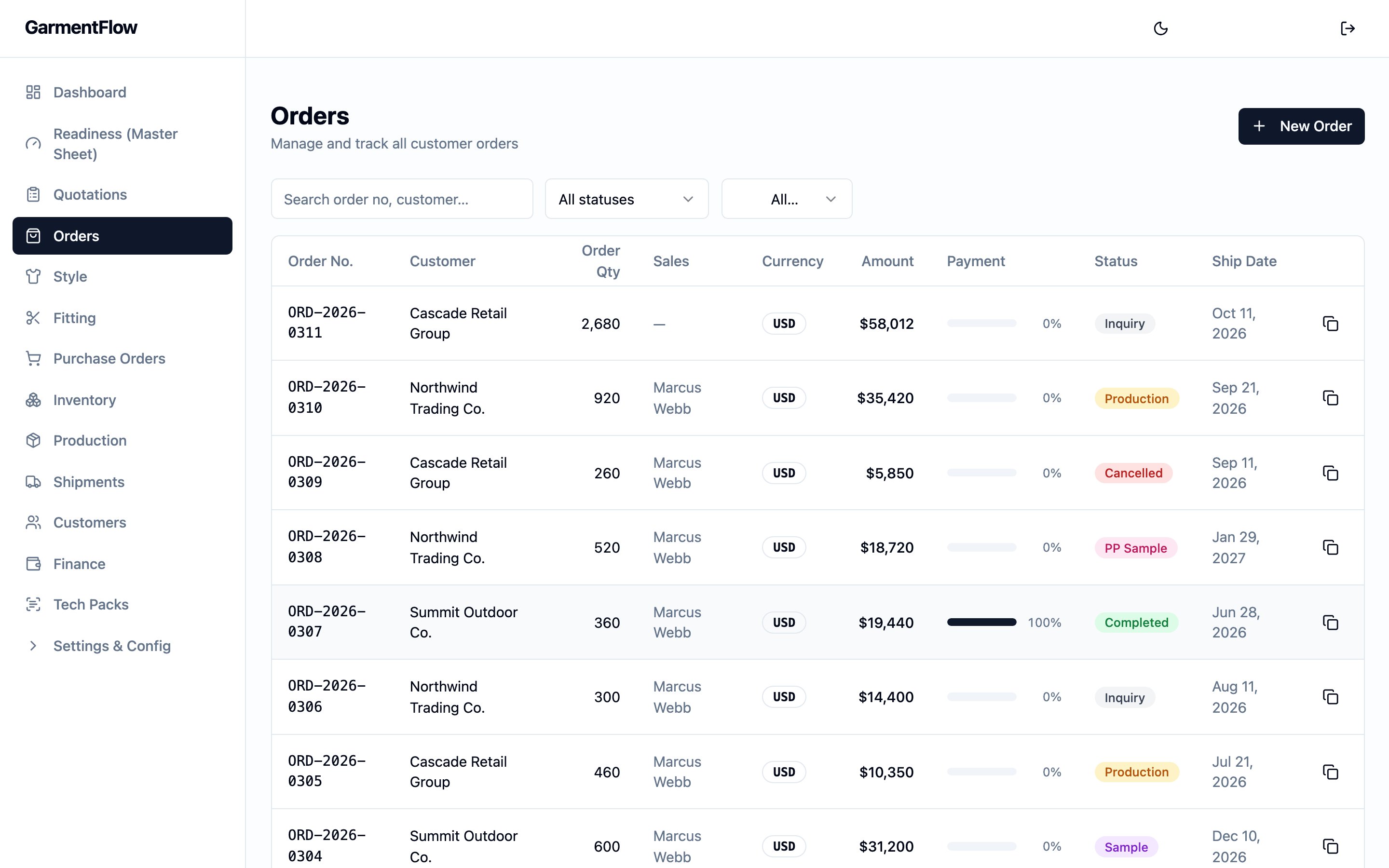
## The Orders list page
The **Orders** module opens to a tenant-wide list of every order a sales
user is assigned to (or, for administrator, owner, finance, and
merchandiser roles, every order in the tenant — see business rule 11).
The list is where new orders are opened from, and where the team scans
across orders for status, money, and shipping.
A **New order** action sits on the page header, top right — that is the
single way the team starts a new order; the platform does not carry a
global "new order" shortcut on the app header. The action takes you
straight into the order create form.
A filter strip across the top scopes the list by `Status`, `Currency`,
`Customer`, and the assigned sales rep, with a debounced search box
that searches order number and customer name. A **Clear filters**
control resets the strip. Filter changes restart pagination.
The list shows one row per order with the columns:
* **Order no.** — the order's permanent identifier.
* **Customer** — the buyer.
* **Order qty** — the total garment units on the order, summed across
every colorway × size on every style line. The same total is what
the order's calculations roll up (see [Calculations](#calculations)).
* **Sales** — the assigned sales user, if any.
* **Currency** — the order's commercial currency.
* **Amount** — the order's `Order amount` in its own currency.
* **Payment progress** — a horizontal received-vs-total bar showing
what fraction of the order's value the customer has paid; the
percentage sits to the right of the bar. The receipts the bar reads
are configured by your administrator on the order's Receipts sub-tab.
See [Finance](/modules/finance).
* **Status** — the order's commercial status badge.
* **Ship date** — the order's `Ship date`.
* A **Clone** action at the end of the row, gated by the clone
capability (see business rule 12).
When the customer's receipts against an order are recorded in a
**different currency** than the order's own, the payment-progress cell
shows a **Mixed currency** chip in place of the percentage. The chip
reads ` → ` so the reader sees which
two currencies are involved. The platform does **not** blend or
convert the two figures into a single percentage — multi-currency
figures stay separate on the order, in line with the platform's wider
rule that captured currency stays captured. The receipts are still
recorded; only the percentage is suppressed until the team reads them
on the order's Receipts sub-tab. See [Finance](/modules/finance).
The mobile view collapses each row into a single card with the same
fields stacked — order number and status on the first row, customer
and garment-unit total on the second, amount and currency on the third,
ship date and sales user on the fourth.
## How the order detail page is organized
The order's detail page groups the day-to-day work into four sections.
Each section has its own set of sub-tabs that you switch between as the
deal moves on.
### Overview
The default landing — the order at a glance, the readiness view, and the
backward schedule.
* **Overview.** Opens with a full-width **Style Summary** rollup of every
style on the order at the top, followed by a header rollup of the order
plus four summary cards covering the order's money, shipments, and
samples. See *Style line-up on the Overview tab* and *Overview tab
summary cards* below.
* **Readiness.** A green / yellow / red snapshot that combines how long
the order has been in its current work phase, how close it is to the
`Ship date`, what milestones have not landed yet, and what risks have
fired. Two clocks anchor it: a phase clock (time spent in the current
phase) and a ship-date clock (time remaining to the committed ship
date). The canonical model and the rule set behind it live on the
[readiness engine](/concepts/readiness-engine-and-ai) page.
* **Schedule.** A backward-scheduled timeline anchored on the order's
`Ship date` — once the BOM is approved, the platform draws the chain of
milestone targets back from the ship date and tracks the team's actual
progress against each one. The lead-time offsets are
tenant-configured, so the chain carries your own lead times rather
than generic assumptions. See *Backward scheduling from the ship date*
under [Date logic](#date-logic) and the
[readiness engine](/concepts/readiness-engine-and-ai) page for the
canonical mechanism.
### Style & Spec
Everything the team works on against the order's style line-up.
* **Styles & SKUs.** The order's line-up — every style line, with its
colorways and sizes underneath. Adding a style line links it to a
[style](/modules/styles) master by `Style master No.` and pulls the
customer-facing style number, name, gender, finish, and fabric
composition in as a snapshot on the order line (see Fields). Each
style line shows links that open the style **in the context of this
order**: the platform reads the order's pin and routes you to the
order's pinned
[BOM](/reference/glossary#bom-bill-of-materials),
[cost sheet](/modules/cost-sheet), or
[MO](/reference/glossary#mo-manufacturing-order)
version on the [style](/modules/styles) page. The per-order BOM,
cost-sheet, and MO work lives on the style page, not on the order
detail.
* **Grading.** The per-style size-and-tolerance reference for each style
on the order — a
[grading table](/reference/glossary#grading-table)
per style with points of measurement down the rows and sizes across
the columns, built from the workspace's [POM Library](/admin/pom-library)
plus any one-off points added on the grid, finalised one version at a
time. The deep behaviour lives on the [Grading module page](/modules/grading).
* **Production Spec.** The factory-facing production spec document for
the order's styles — the multi-page editor covering callouts, trim
sections, packaging, accessories, measurements, and images. PDF
export. The deep behaviour lives on a dedicated production-spec
module page (in preparation).
* **Product Cards.** Per-style customer-facing single-page product cards
— one per style or sample — capturing the brand, season, sample type,
size, colorway, country of origin, fabric A and B, trim notes,
remarks, and card date. Exportable as PDF.
* **Style Summary.** A single-page rollup of every style on the order
into one table — style number, name, sex, sample size, factory,
fabric, part, composition, finish, fabric price, and total quantity —
with one column per colorway sized to the order's widest style.
Exportable as PDF or Excel. The same rollup also appears at the top of
the **Overview** sub-tab (see [Style line-up on the Overview tab](#style-line-up-on-the-overview-tab)).
* **Samples.** The order's per-style samples — one card per lifecycle
Sample that carries a link to this order, each with the sample's
style, current Fitting stage, and stage status across the seven
stages. Two actions sit at the top: **"Link sample"** opens a
picker (defaulted to the order's customer) for an existing sample
to attach to this order, and **"New sample"** opens the Fitting
create form with this order pre-selected. A sample sits on at
most one order — linking a sample already on another order asks
to **move** it. This sub-tab does **not** drive the order's
advance to **bulk production**: that advance is fired by the
linked Fitting's pre-production approval, not by anything on this
sub-tab. See [samples and fitting](/modules/samples-and-fitting)
for the per-style Fitting record, the linking rules, and the
legacy Order Samples ledger; see
[order lifecycle](/concepts/order-lifecycle) for the work-phase
advance.
### Shipment & Documents
The order's production and shipment legs, and the files attached to the
deal.
* **Production.** The order's operational production record — opened
once the order is ready to be worked on the floor. Opening it flips
the order's commercial status to **production** automatically (see
[order lifecycle](/concepts/order-lifecycle)). This is the
operational production record on the order; it is distinct from the
style-versioned
[manufacturing order (MO)](/concepts/style-vs-order-vs-mo) — the
multi-tab factory workbook the team issues against the order's
approved BOM, finalised grading, sample measurements, and attached
brand-tab library items. See
[Build a manufacturing order (MO)](/modules/build-an-mo) and
[Production](/modules/production).
* **Purchase Orders.** Material purchase orders raised for the order —
by fabric, trim, packaging, or other category — with each PO's
issued, partially-received, received, or cancelled status. PO lines
link back to BOM lines via a picker. See [Production](/modules/production).
* **Subcontracts.** The order's
[factory orders](/reference/glossary#factory-order)
— the outsourcing documents covering work sent to a factory. One
factory order can span several orders; this sub-tab shows the factory
orders that touch the current order. See
[Production](/modules/production).
* **Shipments.** Customer-facing shipments cut against the order, with
each shipment's planned status (planned, booked, in transit,
delivered), transport mode, and per-size shipped quantities. A
shipment going in transit automatically advances the order's work
phase to **shipped**. See [Shipments](/modules/shipments).
* **Outbound.** A separate surface from **Shipments** — outbound
shipments cover the factory-to-warehouse legs (and any consolidation),
keyed on the factory, with planned and actual quantities split by
size. The order-level `Target ship date` — an internal planning hint
distinct from the customer's committed `Ship date` — is managed here.
* **Documents.** The files attached to the order — order-confirmation
document, factory contract, sample photos, or any other supporting
file. Uploading an order-confirmation document also prompts the team
to mark the order **confirmed** on the commercial status; see
[Create an order](/modules/create-an-order#step-by-step).
### Finance & Communication
The order's money and the order-scoped conversation.
* **Payment Plan.** The order's deposit and balance milestone plan —
each row a milestone with its basis (percent or fixed amount),
planned date, and notes. See [Finance](/modules/finance).
* **Receipts.** *Your administrator may enable receipts tracking,*
which adds a Receipts sub-tab where the team records the customer's
payments against the order — and a payment progress bar on the
**Overview** tab. The recorded receipts are what the progress bar
reads. See [Finance](/modules/finance).
* **Invoices.** Invoice records for the order — deposit, shipment,
final balance, credit note, adjustment, or sample — each with its
draft, sent, partially-paid, paid, overdue, or cancelled status.
Exportable as PDF per invoice. See [Finance](/modules/finance).
* **AP Summary.** A per-factory accounts-payable summary for the order
— destinations, milestones, and amounts the order owes outward (the
counterpart to the customer-facing **Invoices** sub-tab). Exportable
as PDF. See [Finance](/modules/finance).
* **Communication.** The order's internal-discussion and
customer-correspondence thread, combining comments and documents in
one timeline.
### Style line-up on the Overview tab
The **Overview** sub-tab opens with the order's full **Style Summary**
rollup at the top — the same single-page table that lives under
**Style & Spec → Style Summary**, rendered full-width so the team can
read the order's whole line-up before scanning the cards below.
The table has one row per style line and the following columns:
* Fixed columns: **No.**, **Photo**, **Style No.**, **Style Name**, **Sex**,
**Sample Size**, **Factory**, **Fabric**, **Part**, **Composition**,
**Finish**, **Fabric Price**, **Total Qty**.
* A repeating **Colorway** column for each colorway position, sized to
the widest style on the order. Each colorway cell shows the colour
image (when uploaded), the colour code or name, the **Pantone** code
(when set), and the colorway's quantity for that style.
* A trailing **Ex-Fty Date** column for each style's ex-factory date.
* A **TOTAL** footer row summing the order's units.
The fabric block (**Fabric**, **Part**, **Composition**, **Fabric Price**)
renders one line per BOM line on the style, aligned across the four
columns, so a multi-fabric style reads as a stacked block in one row
rather than spilling across rows.
Two export buttons sit in the rollup header — **Export Excel** and
**Export PDF** — that produce the same line-up as a workbook or a
single-page sheet for the customer or factory.
### Overview tab summary cards
Below the line-up, the **Overview** sub-tab carries four summary cards
alongside the page header rollup.
* **Order Details.** A read-only rollup of the order's header — order
date, ship date, season, currency, FX rate, deposit percentage,
deposit amount, and customer — plus the back-link to the source
[quotation](/modules/quotations) when the order was opened by
convert, and any header notes.
* **Payment Summary.** A header-level quick-glance of the order's money
— the order total and the deposit due. The live figures for what has
been invoiced, what the customer has paid, and what is still
outstanding live on the **Invoices** and **Receipts** sub-tabs and on
the payment progress bar; see [Finance](/modules/finance).
* **Shipment Progress.** A shipped-versus-ordered progress bar across
the whole order, with each shipment's number and status under the
bar. See [Shipments](/modules/shipments).
* **Sample Status.** A per-order rollup of the order's linked
lifecycle Samples — one row per sample carrying a link to this
order, with the sample's current Fitting stage and stage status.
See [Samples and fitting](/modules/samples-and-fitting).
*Your administrator may enable receipts tracking,* which adds a
**Payment Progress** bar on the Overview tab — a received-versus-total
bar that caps at 100% but still flags an overpayment when one happens,
and links through to the Receipts sub-tab.
## Calculations
The order's math is computed at write time from the size grid and the
deposit percentage. Both numbers are saved on the order so reporting can
read them directly.
Per colorway × size cell:
* **Line value** = `Qty × Unit price`. Empty when either input is unset.
Per order:
* **`Order amount`** = sum of every colorway × size's `Line value` across
every style line on the order.
* **`Deposit amount`** = `Order amount × Deposit % / 100`, rounded to the
currency's smallest unit.
Both refresh on the same write as any change to the size grid (add, edit,
or delete a colorway, a size, a quantity, or a unit price), and `Deposit
amount` also refreshes whenever `Deposit %` changes.
The reporting layer also reads the order's saved `FX rate` to translate the
order's totals into the reporting currency where needed; the rate itself is
captured at create from the [FX Rates](/admin/fx-rates) page against
`Order date`.
## Effect of changes
* **Convert a quotation to an order.** A new order opens carrying the
source quotation's customer, currency, style lines (linked to their style
masters where the quote was linked), colorways, sizes, and unit prices.
The order's `FX rate` is captured at convert against the order's `Order
date`. `Order amount` and `Deposit amount` are set from the quote's
pricing. The new order's `Quoted from` carries the back-link, and the
source quotation is marked **Converted**. The order opens in the
**inquiry** commercial status; its work phase begins when the team takes
the first advance.
* **Direct-create an order.** A new order opens in the **inquiry** status
and the **inquiry** work phase, with the `Order no.` assigned by your
tenant's numbering scheme and the `FX rate` captured at create.
* **Clone an existing order.** A fresh order opens in **inquiry** on both
dimensions, with the source order's styles, colorways, and sizes copied
in, quantities reset to zero, and a fresh `Order no.`. Whether the source
order's BOM and cost-sheet versions are cloned alongside is set by your
administrator on the tenant. Samples, factory orders, purchase orders,
shipments, invoices, and the source order's payment plan are **not**
cloned.
* **Edit a size cell (qty or unit price).** `Order amount` and
`Deposit amount` refresh on the same write.
* **Add or remove a colorway, size, or style line.** Same as a size-cell
edit — the order's totals refresh on the same write.
* **Edit `Deposit %`.** `Deposit amount` refreshes on the same write;
`Order amount` is unaffected.
* **Edit the trade term or destination.** The new values apply to
documents and shipments raised from this point on; the platform saves a
freshly-typed destination to the tenant lookup so the same value is one
pick on the next order.
* **Edit `Ship date`.** The backward-scheduled milestone target dates
recompute against the new ship date.
* **Advance the work phase.** The order moves to the next stage on the
spine and the readiness view re-evaluates what is now in scope for that
stage. The advance leaves the commercial status alone. See
[order lifecycle](/concepts/order-lifecycle).
* **Change the commercial status.** The order's label updates and any
downstream surface that filters by status re-evaluates. The work phase is
unaffected. See [order lifecycle](/concepts/order-lifecycle).
* **Cancel the order (status → cancelled).** Header and line edits are
refused from this point on. The record stays on file with a clear label
that nothing further should be done against it; downstream documents that
already reference the order continue to read from it.
* **Mark the order complete (status → completed).** Header and line edits
are refused from this point on. The order is the closed audit record of
the deal.
## Best practices
* **Open every order against a real customer and a real style master.** The
customer cannot be changed after create, and the per-order line carries
much more weight when it is linked to a [style](/modules/styles) — the
line's pin onto the BOM, cost sheet, and MO versions, the readiness view,
and the production hand-off all read off that link.
* **Convert approved quotations rather than retyping.** The convert path
carries the customer, currency, styles, colorways, sizes, and unit prices
forward in one step and leaves a clean back-link to the source quote.
* **Approve the BOM and finalise the grading before issuing the MO.**
The MO workbook renders only from an approved BOM and a finalised
grading; leaving either in draft leaves the matching tab header-only
on the file the factory receives. See
[Build a manufacturing order (MO)](/modules/build-an-mo).
* **Set the `Ship date` as accurately as you can.** It is the date the
backward-scheduled production timeline counts back from, so an
optimistic ship date pulls every milestone with it.
* **Set the trade term and destination together.** The destination depends
on the trade term — a **port** for `FOB` or `CIF`, a **full delivery
address** for `DDP` — and the customer's defaults pre-fill where you
leave them blank.
* **Cancel rather than try to delete.** Orders cannot be removed once
opened; cancellation leaves a clear, auditable record that the deal is
off and stops further work without breaking downstream references.
## Related pages
* [Create an order](/modules/create-an-order)
* [Order lifecycle](/concepts/order-lifecycle)
* [Style vs. order vs. MO](/concepts/style-vs-order-vs-mo)
* [Styles](/modules/styles)
* [Quotations](/modules/quotations)
* [Production](/modules/production)
* [Shipments](/modules/shipments)
* [Finance](/modules/finance)
## What it is
An order is **per-customer, per-currency**. One order is one customer's deal in
one currency, and it runs one or more style lines — each style line carries the
colorways, sizes, quantities, and unit prices that together make up the order.
The order is the **hub**, not a container for product specs. A
[style](/modules/styles) is the reusable product; the order *runs* the style
for one customer commitment, and keeps the order-specific quantities,
colorways, sizes, dates, and terms on top. The same style can run on many
orders without losing its identity, and each order keeps its own pin onto the
[BOM, cost sheet, and MO versions](/concepts/bom-cost-sheet-artifact-versions)
it is working from.
The order moves along [two parallel lifecycle dimensions at once](/concepts/order-lifecycle) —
a **work phase** spine that tracks the operational work, and a **commercial
status** that tracks the deal itself. The two are tracked independently; the
concept page is the canonical reference for how they relate.
## Why it exists
An order is the moment the deal stops being a conversation and starts being a
commitment: styles, colorways, sizes, quantities, unit prices, currency, ship
date, and trade terms all written down on one record everyone in the business
can read. Sales, merchandising, production, purchasing, shipping, and finance
all need a single anchor that says "this is what the customer bought, on which
terms, for which delivery" — and the order is that anchor.
Because the order *runs* the style rather than copying it, the platform can
preserve the style's reusable identity while still letting each order carry its
own quantities, line-up, dates, and price basis. The per-order pin onto the
style's BOM, cost sheet, and MO versions is what makes one customer's run
unambiguous even when several customers buy the same style in the same season.
## When it is used
* **When a customer commits to buy**, opened from scratch with the customer,
styles, colorways, sizes, quantities, prices, and ship date.
* **When an approved [quotation](/modules/quotations) is converted** — the new
order opens carrying the quote's customer, currency, style lines, colorways,
sizes, and unit prices, with a back-link to the source quotation.
* **When a previous order needs to be re-run**, cloned to seed a fresh order
from the same styles, colorways, and sizes.
* **Throughout the deal**, as the record sample, production, factory order,
purchase order, shipment, invoice, and payment work all read from.
The order lives in the **Orders** module. To open and work one end-to-end, see
[Create an order](/modules/create-an-order).
## Dependencies
* A **customer record** for the buyer. Required on the order header and not
editable after create. Your administrator manages the customer master.
* At least one **style to run**. A line links to a
[style](/modules/styles) master via `Style master No.`; the per-order line
carries its own snapshot of the style's customer-facing number, name, gender,
finish, and fabric composition.
* The relevant **per-tenant lookup lists** the header pulls from — currency,
trade-term defaults, and destination options — set up by your administrator.
* **An approved [quotation](/modules/quotations)** when the order is being
opened by convert. Direct create has no quotation prerequisite.
* **Order write permission**, for the user creating, editing, advancing a
phase, or changing the commercial status. Clone is restricted to a separate
capability (see business rules).
## What depends on it
* The **line-up of [styles](/modules/styles) the order runs**, and each
line's own pin onto the style's BOM, cost sheet, and MO versions.
* The order's
[BOM](/reference/glossary#bom-bill-of-materials)
and [cost sheet](/modules/cost-sheet) — reached through the order's pinned
style version. The first BOM approval at version 1 automatically advances
the order's work phase to **procurement** (see
[order lifecycle](/concepts/order-lifecycle)).
* The
[manufacturing orders (MOs)](/reference/glossary#mo-manufacturing-order)
issued for the order's styles — one order can carry one or more MOs, each
per-(order, style, MO version) and pinned to the order's BOM, cost sheet,
packing, and QC at issue.
* The
[factory orders](/reference/glossary#factory-order)
raised against the order's styles. One factory order can span several
orders, so the order keeps a clear link to each factory order producing it.
* The
[purchase orders](/reference/glossary#po-purchase-order)
raised through the factory order — material buying traces back through the
factory order to the order it serves.
* The order's **production record**. Opening it flips the order's commercial
status to **production** automatically (see
[order lifecycle](/concepts/order-lifecycle)). See
[Production](/modules/production).
* The order's
[shipments](/reference/glossary#shipment).
A shipment going in transit automatically advances the order's work phase
to **shipped**. See [Shipments](/modules/shipments).
* The order's **finance side** — proforma invoice, deposit and balance
invoices, the payment plan, and the customer receipts recorded against the
order. The PI side automatically advances the order's work phase to
**PI sent** when a PI is created. See [Finance](/modules/finance).
* The order's
[readiness](/reference/glossary#readiness-engine)
view, which layers on top of the work phase and tells you what inside each
stage is still missing.
## Fields
Group the order's fields by purpose. The header carries identity, parties,
commercial framing, dates, references, and notes; each style line carries one
style the order runs, with its own colorways and sizes underneath.
### Header — identity
* `Order no.` — the order's permanent business identifier. Assigned by the
platform when the order is created and never changes afterwards. The format
is a tenant-configurable scheme your administrator sets up (a prefix plus a
running serial); the platform falls back to a year-based serial when no
tenant scheme is configured, or on a converted order.
* `Custom order no.` — an optional display override of the order number that
prints on customer-facing exports of the order (such as the
order-confirmation document). It does not replace `Order no.` as the
identifier the platform indexes; it is what the customer reads on the
document.
* `Customer work-order no.` — the customer's own work-order reference for the
deal. Optional. Pulled onto the factory order when the order is linked to
one, prints on the order-confirmation document, and is one of the readiness
checks for a complete order.
### Header — parties
* `Customer` — the buyer. **Required**. Picked from the customer master at
create and cannot be changed afterwards — every reference downstream
assumes the order's customer is the one the deal was opened against.
* `Brand` — the customer's brand the order is for. Optional. Filtered to the
customer's brands on the form.
* `Assigned sales` — the sales user the order is assigned to. Optional. The
platform uses this to scope visibility for sales-role users: a sales user
sees only the orders they are assigned to, while administrator, owner,
finance, and merchandiser roles see every order in the tenant. On a
converted order, the source quotation's preparer is set as the new order's
assigned sales user.
### Header — commercial framing
* `Currency` — the order's commercial currency. **Required**. One order is
one currency from end to end; the unit prices on every line are in this
currency.
* `FX rate` — the exchange rate used for the order's reporting currency,
captured by the platform when the order is created. The rate is read from
your workspace's
[FX Rates](/admin/fx-rates)
page against the `Order date` (or today, when no order date is set), and
saved on the order from that moment on. The base currency is fixed at
`1.000000`; any other currency uses the most recent rate on or before the
lookup date. Updating a rate on FX Rates after the order is created does
**not** change the rate saved on the order.
* `Deposit %` — the percentage of the order total the customer is expected
to pay as a deposit. Set on the header; the platform pre-fills a tenant
default and accepts any value from 0 to 100.
* `Deposit amount` — the deposit value in the order's currency. **Computed,
not entered.** The platform refreshes it from `Order amount` and
`Deposit %` whenever the size grid or the deposit percentage changes.
* `Order amount` — the order's total value in the order's currency.
**Computed, not entered.** The platform refreshes it from the sum of
`Qty × Unit price` across every colorway × size on every style line, on
the same write as any change to the size grid. A converted order also has
this set explicitly from the source quotation's pricing on convert.
* `Trade term` — the commercial term that governs delivery (e.g. `FOB`,
`CIF`, `DDP`). Picked from the form's defaults or typed in; auto-fills
from the customer's defaults when left blank on create.
* `Destination` — the shipping destination the trade term applies to: a
**port** for `FOB` or `CIF`, a **full delivery address** for `DDP`.
Auto-fills from the customer's defaults when left blank on create. A new
destination you type is saved to the tenant lookup for reuse.
### Header — dates
* `Order date` — the date the order is opened with the customer. Optional.
Used to look up the order's `FX rate` snapshot at create.
* `Ship date` — the committed delivery date the customer expects goods to
leave by. Optional but the date downstream scheduling counts back from.
Editable after create.
### Header — references
* `Season` — the selling season the order belongs to. Free-text label.
* `Quoted from` — the back-link to the source
[quotation](/reference/glossary#quotation)
when the order was opened by convert. Set by the platform on convert; not
set on a direct-create or cloned order.
### Header — notes
* `Notes` — free text. Internal-facing.
* `AI confirmation note` — an optional cover note drafted with AI assistance,
saved on the order for use on the order-confirmation email or document.
* `AI payment note` — an optional payment-reminder note drafted with AI
assistance, saved on the order for use when chasing the deposit or balance.
### Header — audit
* `Created`, `Last updated` — set by the platform.
### Style line — identity
Each style line is one style the order runs. The line links to the
[style](/modules/styles) master and carries its own snapshot of the
style's customer-facing details, plus the colorways and sizes underneath.
* `Style master No.` — the link to the
[style](/reference/glossary#style)
master the order is running. **Required.** Picked from the style-master
picker in the Add-Style step; selecting a master pulls the customer-facing
style number, name, gender, finish, and fabric composition into the line
as a snapshot, and links the line to the master so the order's BOM, cost
sheet, and MO work scopes to the right style record.
* `Style No.` — the customer-facing style number on this order line. Carried
forward from the style master at create; can be edited on the line.
* `Style Name` — the style's name on this order line. Carried forward from
the style master at create.
* `Fabric composition`, `Gender`, `Finish`, `Sample size` — descriptive
detail. Carried forward from the style master at create; the line keeps
its own copy so a later edit to the master does not silently change the
live order line.
### Colorway × size — quantities and prices
Under each style line, the order carries one row per colorway × one size.
* `Colorway` — the colorway name on this order line. Picked from the style
master's defined colors at create.
* `Color code` — an optional colorway code, typically a hex value.
* `Size` — the size label for the row (e.g. `S`, `M`, `38`). Picked from the
applied size template (such as standard apparel or numeric sizing).
* `Qty` — the quantity ordered for this colorway × size. Integer, zero or
more.
* `Unit price` — the per-piece price for this colorway × size, in the
order's `Currency`. Zero or more. Pricing is per-size — a single colorway
can carry different prices across sizes.
## Business rules
1. **One order is per-customer and per-currency.** The customer and the
currency are set on the header and stay set across the order's lifecycle.
A deal for a different customer, or in a different currency, is a
separate order.
2. **The customer cannot be changed after create.** The order's customer is
set at create and not editable afterwards; every downstream reference
assumes the order belongs to that customer.
3. **`Order no.` is assigned at create and never changes.** A tenant
numbering scheme assigns the number when the order is opened; a converted
order's number follows the same convention used by the system's default
order numbering rather than the tenant scheme.
4. **`Currency` and `FX rate` are captured at create.** The exchange rate is
read at create against the `Order date` (or today, when no order date is
set), and saved on the order. The order's reporting math uses this saved
rate.
5. **The order's totals are derived from the size grid, not entered.**
`Order amount` is the sum of `Qty × Unit price` across every colorway ×
size on every style line. `Deposit amount` is `Order amount × Deposit
% / 100`. Both refresh on the same write as any change to the size grid
or the deposit percentage; neither can be set directly.
6. **An order starts in the inquiry work phase.** Both direct create and
clone open a fresh order in **inquiry**; a converted order takes its
first work-phase advance when the team is ready. See
[order lifecycle](/concepts/order-lifecycle) for the spine of stages and
how each advance is triggered.
7. **The work phase advances one stage at a time and does not rewind.**
Some advances are taken manually by the team; others happen
automatically when the platform sees a triggering event (PI created,
first BOM approval, pre-production sample approved, shipment in transit).
The
[order lifecycle](/concepts/order-lifecycle) page is the canonical
reference; the order page does not restate it.
8. **The commercial status follows a fixed transition matrix.** From
**inquiry** through **quotation**, **confirmed**, **sample**,
**pre-production sample**, **production**, **shipping**, to **completed**
or **cancelled**; only the moves the matrix allows are accepted. See
[order lifecycle](/concepts/order-lifecycle). The one place the platform
writes status itself is when an order's production record is opened —
the status flips to **production** in the same write.
9. **The two lifecycle dimensions do not gate each other.** Phase advances
do not touch the commercial status, and status transitions do not touch
the phase; the team's discipline keeps them aligned. See
[order lifecycle](/concepts/order-lifecycle).
10. **Edits are refused on a terminal status.** Once an order is
**completed** or **cancelled**, header and line edits are refused; the
record stays on file as the audit trail for the deal.
11. **A sales user sees only their own orders.** Visibility for sales-role
users is scoped to the orders they are the assigned sales on. The
administrator, owner, finance, and merchandiser roles see every order
in the tenant.
12. **Write actions are gated by capability.** Creating, editing,
advancing a phase, and changing the commercial status require order
write permission. The order detail's clone action is restricted to a
separate capability — typically administrator or merchandiser — that
your administrator configures.
13. **The order does not own its BOM, cost sheet, or MO.** Those live on
the [style](/modules/styles); each order keeps its own
[version pin](/concepts/bom-cost-sheet-artifact-versions) onto the BOM,
cost sheet, and MO versions it is working from. Opening a style "in the
context of this order" scopes edits to that order's version, never to
another order running the same style.
14. **Orders are not deleted.** There is no delete action on an order — the
canonical way to stop work on a deal that is no longer happening is to
move the commercial status to **cancelled**, which leaves the record on
file. See [order lifecycle](/concepts/order-lifecycle).
## Validations
| When | Check | What happens if it fails |
| ------------------------------------------------------ | ------------------------------------------------------------------------------------------------------------------------- | ------------------------------------------------------------------------------------------------ |
| Create the order | `Customer` is set | The save is rejected. |
| Create the order | `Currency` is one of the configured currencies | The save is rejected. |
| Create the order | `Deposit %` is between 0 and 100 | The save is rejected. |
| Create the order | An `FX rate` exists on the [FX Rates](/admin/fx-rates) page for the chosen currency at the chosen `Order date` (or today) | The save is rejected as "no exchange rate found for this currency and date". |
| Edit the header or line | The order's commercial status is not terminal (**completed** or **cancelled**) | The save is rejected. |
| Advance the work phase manually | The phase is one the team is expected to advance manually | The advance is rejected; an event-driven phase only advances when the platform sees its trigger. |
| Change the commercial status | The transition is one the matrix allows from the current status | The change is rejected. |
| Convert a [quotation](/modules/quotations) to an order | The quotation is **Approved** and not already **Converted** | The convert is refused. |
## Date logic
The order carries two business-meaningful dates and the platform's audit
timestamps.
* **`Order date`** — the date the order was opened with the customer. Set by
the user on the header; optional. Used to look up the `FX rate` snapshot at
create, and printed on the order's documents as the order's date.
* **`Ship date`** — the committed delivery date the customer expects goods to
leave by. Set by the user on the header; optional. The date the order's
upcoming-shipments report reads, the per-style sample-size auto-fill reads,
and the order's production schedule counts **backward** from to derive
the milestone target dates (see *Backward scheduling* below). Editable
after create.
Audit timestamps:
* **`Created`** — when the order was opened.
* **`Last updated`** — when the order was last written to.
### Backward scheduling from the ship date
The order's production schedule is computed **backward from `Ship date`**.
The platform reads your tenant's configured lead-time offsets and works out
a target date for each production and material milestone so the shipment
lands on time. A typical chain counts back from the ship date through
inspection, materials received, documents issued, fabric shipped, and order
confirmation; the actual chain reflects the offsets your administrator has
set up, so it carries your own lead times rather than generic assumptions.
A milestone's target date is the latest the step can happen and still hit
the ship date. The [readiness engine](/concepts/readiness-engine-and-ai)
compares actual progress against these targets and flags anything slipping.
## Status and transitions
An order moves along [two parallel lifecycle dimensions](/concepts/order-lifecycle)
at once — a **work phase** spine and a **commercial status**. The two are
tracked independently; the concept page is the canonical reference for the
mental model, the stages, the manual/automatic split on phase advances, and
how the status matrix works. This page does not restate it.
In summary:
* **Work phase** — the operational spine, from **inquiry** through to
**shipped**, advanced one stage at a time and never rewound. Some advances
are taken manually by the team; others happen automatically when the
platform sees a triggering event.
* **Commercial status** — the deal's commercial label, from **inquiry**
through **confirmed** and on to **completed** or **cancelled**. Set by
the team on the order, except for one place the platform writes it
itself: opening the order's production record flips the status to
**production**.
A new order opens in **inquiry** on both dimensions. **Cancelled** and
**completed** are terminal — once an order lands on either, edits are
refused and the record stays on file as the audit trail.
## The Orders list page
The **Orders** module opens to a tenant-wide list of every order a sales
user is assigned to (or, for administrator, owner, finance, and
merchandiser roles, every order in the tenant — see business rule 11).
The list is where new orders are opened from, and where the team scans
across orders for status, money, and shipping.
A **New order** action sits on the page header, top right — that is the
single way the team starts a new order; the platform does not carry a
global "new order" shortcut on the app header. The action takes you
straight into the order create form.
A filter strip across the top scopes the list by `Status`, `Currency`,
`Customer`, and the assigned sales rep, with a debounced search box
that searches order number and customer name. A **Clear filters**
control resets the strip. Filter changes restart pagination.
The list shows one row per order with the columns:
* **Order no.** — the order's permanent identifier.
* **Customer** — the buyer.
* **Order qty** — the total garment units on the order, summed across
every colorway × size on every style line. The same total is what
the order's calculations roll up (see [Calculations](#calculations)).
* **Sales** — the assigned sales user, if any.
* **Currency** — the order's commercial currency.
* **Amount** — the order's `Order amount` in its own currency.
* **Payment progress** — a horizontal received-vs-total bar showing
what fraction of the order's value the customer has paid; the
percentage sits to the right of the bar. The receipts the bar reads
are configured by your administrator on the order's Receipts sub-tab.
See [Finance](/modules/finance).
* **Status** — the order's commercial status badge.
* **Ship date** — the order's `Ship date`.
* A **Clone** action at the end of the row, gated by the clone
capability (see business rule 12).
When the customer's receipts against an order are recorded in a
**different currency** than the order's own, the payment-progress cell
shows a **Mixed currency** chip in place of the percentage. The chip
reads ` → ` so the reader sees which
two currencies are involved. The platform does **not** blend or
convert the two figures into a single percentage — multi-currency
figures stay separate on the order, in line with the platform's wider
rule that captured currency stays captured. The receipts are still
recorded; only the percentage is suppressed until the team reads them
on the order's Receipts sub-tab. See [Finance](/modules/finance).
The mobile view collapses each row into a single card with the same
fields stacked — order number and status on the first row, customer
and garment-unit total on the second, amount and currency on the third,
ship date and sales user on the fourth.
## How the order detail page is organized
The order's detail page groups the day-to-day work into four sections.
Each section has its own set of sub-tabs that you switch between as the
deal moves on.
### Overview
The default landing — the order at a glance, the readiness view, and the
backward schedule.
* **Overview.** Opens with a full-width **Style Summary** rollup of every
style on the order at the top, followed by a header rollup of the order
plus four summary cards covering the order's money, shipments, and
samples. See *Style line-up on the Overview tab* and *Overview tab
summary cards* below.
* **Readiness.** A green / yellow / red snapshot that combines how long
the order has been in its current work phase, how close it is to the
`Ship date`, what milestones have not landed yet, and what risks have
fired. Two clocks anchor it: a phase clock (time spent in the current
phase) and a ship-date clock (time remaining to the committed ship
date). The canonical model and the rule set behind it live on the
[readiness engine](/concepts/readiness-engine-and-ai) page.
* **Schedule.** A backward-scheduled timeline anchored on the order's
`Ship date` — once the BOM is approved, the platform draws the chain of
milestone targets back from the ship date and tracks the team's actual
progress against each one. The lead-time offsets are
tenant-configured, so the chain carries your own lead times rather
than generic assumptions. See *Backward scheduling from the ship date*
under [Date logic](#date-logic) and the
[readiness engine](/concepts/readiness-engine-and-ai) page for the
canonical mechanism.
### Style & Spec
Everything the team works on against the order's style line-up.
* **Styles & SKUs.** The order's line-up — every style line, with its
colorways and sizes underneath. Adding a style line links it to a
[style](/modules/styles) master by `Style master No.` and pulls the
customer-facing style number, name, gender, finish, and fabric
composition in as a snapshot on the order line (see Fields). Each
style line shows links that open the style **in the context of this
order**: the platform reads the order's pin and routes you to the
order's pinned
[BOM](/reference/glossary#bom-bill-of-materials),
[cost sheet](/modules/cost-sheet), or
[MO](/reference/glossary#mo-manufacturing-order)
version on the [style](/modules/styles) page. The per-order BOM,
cost-sheet, and MO work lives on the style page, not on the order
detail.
* **Grading.** The per-style size-and-tolerance reference for each style
on the order — a
[grading table](/reference/glossary#grading-table)
per style with points of measurement down the rows and sizes across
the columns, built from the workspace's [POM Library](/admin/pom-library)
plus any one-off points added on the grid, finalised one version at a
time. The deep behaviour lives on the [Grading module page](/modules/grading).
* **Production Spec.** The factory-facing production spec document for
the order's styles — the multi-page editor covering callouts, trim
sections, packaging, accessories, measurements, and images. PDF
export. The deep behaviour lives on a dedicated production-spec
module page (in preparation).
* **Product Cards.** Per-style customer-facing single-page product cards
— one per style or sample — capturing the brand, season, sample type,
size, colorway, country of origin, fabric A and B, trim notes,
remarks, and card date. Exportable as PDF.
* **Style Summary.** A single-page rollup of every style on the order
into one table — style number, name, sex, sample size, factory,
fabric, part, composition, finish, fabric price, and total quantity —
with one column per colorway sized to the order's widest style.
Exportable as PDF or Excel. The same rollup also appears at the top of
the **Overview** sub-tab (see [Style line-up on the Overview tab](#style-line-up-on-the-overview-tab)).
* **Samples.** The order's per-style samples — one card per lifecycle
Sample that carries a link to this order, each with the sample's
style, current Fitting stage, and stage status across the seven
stages. Two actions sit at the top: **"Link sample"** opens a
picker (defaulted to the order's customer) for an existing sample
to attach to this order, and **"New sample"** opens the Fitting
create form with this order pre-selected. A sample sits on at
most one order — linking a sample already on another order asks
to **move** it. This sub-tab does **not** drive the order's
advance to **bulk production**: that advance is fired by the
linked Fitting's pre-production approval, not by anything on this
sub-tab. See [samples and fitting](/modules/samples-and-fitting)
for the per-style Fitting record, the linking rules, and the
legacy Order Samples ledger; see
[order lifecycle](/concepts/order-lifecycle) for the work-phase
advance.
### Shipment & Documents
The order's production and shipment legs, and the files attached to the
deal.
* **Production.** The order's operational production record — opened
once the order is ready to be worked on the floor. Opening it flips
the order's commercial status to **production** automatically (see
[order lifecycle](/concepts/order-lifecycle)). This is the
operational production record on the order; it is distinct from the
style-versioned
[manufacturing order (MO)](/concepts/style-vs-order-vs-mo) — the
multi-tab factory workbook the team issues against the order's
approved BOM, finalised grading, sample measurements, and attached
brand-tab library items. See
[Build a manufacturing order (MO)](/modules/build-an-mo) and
[Production](/modules/production).
* **Purchase Orders.** Material purchase orders raised for the order —
by fabric, trim, packaging, or other category — with each PO's
issued, partially-received, received, or cancelled status. PO lines
link back to BOM lines via a picker. See [Production](/modules/production).
* **Subcontracts.** The order's
[factory orders](/reference/glossary#factory-order)
— the outsourcing documents covering work sent to a factory. One
factory order can span several orders; this sub-tab shows the factory
orders that touch the current order. See
[Production](/modules/production).
* **Shipments.** Customer-facing shipments cut against the order, with
each shipment's planned status (planned, booked, in transit,
delivered), transport mode, and per-size shipped quantities. A
shipment going in transit automatically advances the order's work
phase to **shipped**. See [Shipments](/modules/shipments).
* **Outbound.** A separate surface from **Shipments** — outbound
shipments cover the factory-to-warehouse legs (and any consolidation),
keyed on the factory, with planned and actual quantities split by
size. The order-level `Target ship date` — an internal planning hint
distinct from the customer's committed `Ship date` — is managed here.
* **Documents.** The files attached to the order — order-confirmation
document, factory contract, sample photos, or any other supporting
file. Uploading an order-confirmation document also prompts the team
to mark the order **confirmed** on the commercial status; see
[Create an order](/modules/create-an-order#step-by-step).
### Finance & Communication
The order's money and the order-scoped conversation.
* **Payment Plan.** The order's deposit and balance milestone plan —
each row a milestone with its basis (percent or fixed amount),
planned date, and notes. See [Finance](/modules/finance).
* **Receipts.** *Your administrator may enable receipts tracking,*
which adds a Receipts sub-tab where the team records the customer's
payments against the order — and a payment progress bar on the
**Overview** tab. The recorded receipts are what the progress bar
reads. See [Finance](/modules/finance).
* **Invoices.** Invoice records for the order — deposit, shipment,
final balance, credit note, adjustment, or sample — each with its
draft, sent, partially-paid, paid, overdue, or cancelled status.
Exportable as PDF per invoice. See [Finance](/modules/finance).
* **AP Summary.** A per-factory accounts-payable summary for the order
— destinations, milestones, and amounts the order owes outward (the
counterpart to the customer-facing **Invoices** sub-tab). Exportable
as PDF. See [Finance](/modules/finance).
* **Communication.** The order's internal-discussion and
customer-correspondence thread, combining comments and documents in
one timeline.
### Style line-up on the Overview tab
The **Overview** sub-tab opens with the order's full **Style Summary**
rollup at the top — the same single-page table that lives under
**Style & Spec → Style Summary**, rendered full-width so the team can
read the order's whole line-up before scanning the cards below.
The table has one row per style line and the following columns:
* Fixed columns: **No.**, **Photo**, **Style No.**, **Style Name**, **Sex**,
**Sample Size**, **Factory**, **Fabric**, **Part**, **Composition**,
**Finish**, **Fabric Price**, **Total Qty**.
* A repeating **Colorway** column for each colorway position, sized to
the widest style on the order. Each colorway cell shows the colour
image (when uploaded), the colour code or name, the **Pantone** code
(when set), and the colorway's quantity for that style.
* A trailing **Ex-Fty Date** column for each style's ex-factory date.
* A **TOTAL** footer row summing the order's units.
The fabric block (**Fabric**, **Part**, **Composition**, **Fabric Price**)
renders one line per BOM line on the style, aligned across the four
columns, so a multi-fabric style reads as a stacked block in one row
rather than spilling across rows.
Two export buttons sit in the rollup header — **Export Excel** and
**Export PDF** — that produce the same line-up as a workbook or a
single-page sheet for the customer or factory.
### Overview tab summary cards
Below the line-up, the **Overview** sub-tab carries four summary cards
alongside the page header rollup.
* **Order Details.** A read-only rollup of the order's header — order
date, ship date, season, currency, FX rate, deposit percentage,
deposit amount, and customer — plus the back-link to the source
[quotation](/modules/quotations) when the order was opened by
convert, and any header notes.
* **Payment Summary.** A header-level quick-glance of the order's money
— the order total and the deposit due. The live figures for what has
been invoiced, what the customer has paid, and what is still
outstanding live on the **Invoices** and **Receipts** sub-tabs and on
the payment progress bar; see [Finance](/modules/finance).
* **Shipment Progress.** A shipped-versus-ordered progress bar across
the whole order, with each shipment's number and status under the
bar. See [Shipments](/modules/shipments).
* **Sample Status.** A per-order rollup of the order's linked
lifecycle Samples — one row per sample carrying a link to this
order, with the sample's current Fitting stage and stage status.
See [Samples and fitting](/modules/samples-and-fitting).
*Your administrator may enable receipts tracking,* which adds a
**Payment Progress** bar on the Overview tab — a received-versus-total
bar that caps at 100% but still flags an overpayment when one happens,
and links through to the Receipts sub-tab.
## Calculations
The order's math is computed at write time from the size grid and the
deposit percentage. Both numbers are saved on the order so reporting can
read them directly.
Per colorway × size cell:
* **Line value** = `Qty × Unit price`. Empty when either input is unset.
Per order:
* **`Order amount`** = sum of every colorway × size's `Line value` across
every style line on the order.
* **`Deposit amount`** = `Order amount × Deposit % / 100`, rounded to the
currency's smallest unit.
Both refresh on the same write as any change to the size grid (add, edit,
or delete a colorway, a size, a quantity, or a unit price), and `Deposit
amount` also refreshes whenever `Deposit %` changes.
The reporting layer also reads the order's saved `FX rate` to translate the
order's totals into the reporting currency where needed; the rate itself is
captured at create from the [FX Rates](/admin/fx-rates) page against
`Order date`.
## Effect of changes
* **Convert a quotation to an order.** A new order opens carrying the
source quotation's customer, currency, style lines (linked to their style
masters where the quote was linked), colorways, sizes, and unit prices.
The order's `FX rate` is captured at convert against the order's `Order
date`. `Order amount` and `Deposit amount` are set from the quote's
pricing. The new order's `Quoted from` carries the back-link, and the
source quotation is marked **Converted**. The order opens in the
**inquiry** commercial status; its work phase begins when the team takes
the first advance.
* **Direct-create an order.** A new order opens in the **inquiry** status
and the **inquiry** work phase, with the `Order no.` assigned by your
tenant's numbering scheme and the `FX rate` captured at create.
* **Clone an existing order.** A fresh order opens in **inquiry** on both
dimensions, with the source order's styles, colorways, and sizes copied
in, quantities reset to zero, and a fresh `Order no.`. Whether the source
order's BOM and cost-sheet versions are cloned alongside is set by your
administrator on the tenant. Samples, factory orders, purchase orders,
shipments, invoices, and the source order's payment plan are **not**
cloned.
* **Edit a size cell (qty or unit price).** `Order amount` and
`Deposit amount` refresh on the same write.
* **Add or remove a colorway, size, or style line.** Same as a size-cell
edit — the order's totals refresh on the same write.
* **Edit `Deposit %`.** `Deposit amount` refreshes on the same write;
`Order amount` is unaffected.
* **Edit the trade term or destination.** The new values apply to
documents and shipments raised from this point on; the platform saves a
freshly-typed destination to the tenant lookup so the same value is one
pick on the next order.
* **Edit `Ship date`.** The backward-scheduled milestone target dates
recompute against the new ship date.
* **Advance the work phase.** The order moves to the next stage on the
spine and the readiness view re-evaluates what is now in scope for that
stage. The advance leaves the commercial status alone. See
[order lifecycle](/concepts/order-lifecycle).
* **Change the commercial status.** The order's label updates and any
downstream surface that filters by status re-evaluates. The work phase is
unaffected. See [order lifecycle](/concepts/order-lifecycle).
* **Cancel the order (status → cancelled).** Header and line edits are
refused from this point on. The record stays on file with a clear label
that nothing further should be done against it; downstream documents that
already reference the order continue to read from it.
* **Mark the order complete (status → completed).** Header and line edits
are refused from this point on. The order is the closed audit record of
the deal.
## Best practices
* **Open every order against a real customer and a real style master.** The
customer cannot be changed after create, and the per-order line carries
much more weight when it is linked to a [style](/modules/styles) — the
line's pin onto the BOM, cost sheet, and MO versions, the readiness view,
and the production hand-off all read off that link.
* **Convert approved quotations rather than retyping.** The convert path
carries the customer, currency, styles, colorways, sizes, and unit prices
forward in one step and leaves a clean back-link to the source quote.
* **Approve the BOM and finalise the grading before issuing the MO.**
The MO workbook renders only from an approved BOM and a finalised
grading; leaving either in draft leaves the matching tab header-only
on the file the factory receives. See
[Build a manufacturing order (MO)](/modules/build-an-mo).
* **Set the `Ship date` as accurately as you can.** It is the date the
backward-scheduled production timeline counts back from, so an
optimistic ship date pulls every milestone with it.
* **Set the trade term and destination together.** The destination depends
on the trade term — a **port** for `FOB` or `CIF`, a **full delivery
address** for `DDP` — and the customer's defaults pre-fill where you
leave them blank.
* **Cancel rather than try to delete.** Orders cannot be removed once
opened; cancellation leaves a clear, auditable record that the deal is
off and stops further work without breaking downstream references.
## Related pages
* [Create an order](/modules/create-an-order)
* [Order lifecycle](/concepts/order-lifecycle)
* [Style vs. order vs. MO](/concepts/style-vs-order-vs-mo)
* [Styles](/modules/styles)
* [Quotations](/modules/quotations)
* [Production](/modules/production)
* [Shipments](/modules/shipments)
* [Finance](/modules/finance)