> ## Documentation Index
> Fetch the complete documentation index at: https://docs.garmentflow.ai/llms.txt
> Use this file to discover all available pages before exploring further.
# Finance reports
> The Reports (報表) tab on the Finance module — the cost-sheet view, the AP summary, the gross-margin and expense-analysis reports, the Order Profit and Customer Profit rollups, and the order PDF. What each report is for, who can see it, and how each one exports.
The **Reports (報表)** tab on the [Finance module](/modules/finance) is where
the team reads the cross-cutting figures the workspace produces from its
order, payables, and ledger data — the cost build-up of an order, the
payables aging, the gross margin and the expense analysis, and the loaded-
cost profitability roll-ups by order and by customer. Each report is one
sub-tab; the tab opens on the cost-sheet view and the team picks the report
they need.
This page enumerates the reports that ship today, in the order the tab shows
them. The behavior the reports read from — the
[finance ledger](/concepts/finance-ledger), the
[receivables](/modules/receivables) and [payables](/modules/payables)
boards, the
[cost allocation](/concepts/cost-allocation) overlay — is described in full on
its own page; this page is the canonical place for what the Reports tab
itself offers.
 ## What this tab is not
The Reports tab is one of several Finance surfaces. A reader who is looking
for an everyday Finance figure usually wants a different surface:
* The **AR / AP aging boards** — what is owed today and what is overdue —
are not on the Reports tab. See
[Receivables](/modules/receivables) and [Payables](/modules/payables).
* The **customer statement** (對帳單 / 請款單) is generated from the action
button at the top of the Finance module, not from the Reports tab. See
[Statement of Account](/modules/statement-of-account).
* **AR Detail** (應收明細) — a per-customer drill-down on open receivables —
is its own tab on the Finance module.
* **Recording a receipt or applying a deposit** happens on the **Receipts
(收款)** and **Offset (沖帳)** tabs, not on Reports.
The Reports tab is the place the team goes to read figures that
*combine* finance data — across orders, across vendors, across periods —
rather than to record a new movement or to read a single counterparty's
balance.
## The reports that ship
The Reports tab carries seven reports, in this order.
### Cost Sheet
A per-order cost build-up — for one order chosen by its order number, the
detailed production-cost breakdown the workspace has recorded against the
order's styles, with the same line structure the
[cost sheet](/modules/cost-sheet) module uses. The report is the same view a
finance reader needs to validate the cost basis of an order before settling
its invoices.
The team picks an order; the report renders the cost build-up and offers an
Excel download. The report does not include the workspace's profit or
margin figures — it is a cost view, not a profit view.
**Who can see it.** Every Finance role and Administrator and Supervisor.
**Merchandiser** and **Read-only** users do not reach this report (the cost
view is restricted from those roles in the same way it is on the cost-sheet
module).
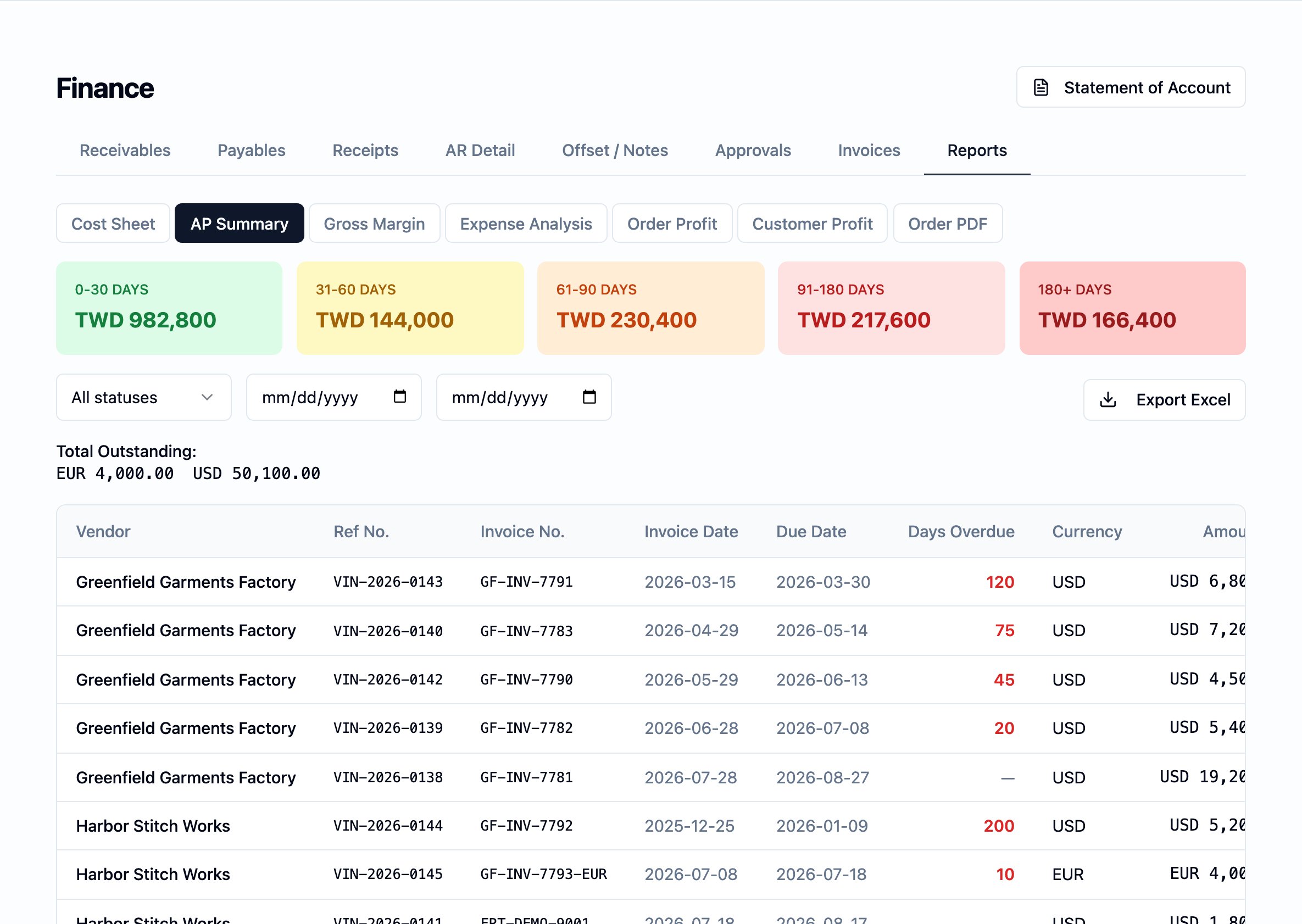
### AP Summary
A vendor-payables aging report — the workspace's open payables, grouped by
vendor, with the same age-band treatment the
[Payables board](/modules/payables) carries. The report exposes filters by
date range, vendor, payment status, and shipping mode, so a reader can pull
the slice they need (for example: a single freight forwarder's open invoices
in a specific month) without drilling into the board.
The report exports to Excel.
### Gross Margin
A per-order revenue-vs.-direct-cost report — the order's revenue alongside
its production-cost basis, and the gross margin that falls out of the two.
This is the **direct-cost** profit view: it does not apply the
[cost allocation](/concepts/cost-allocation) overlay (no freight, inspection,
or other non-production costs are loaded in), and is the right view when the
question is purely "are we making margin on the goods themselves."
Filters cover date range, customer, and sales rep. The report exports to
Excel.
**Who can see it.** Restricted to **Administrator**, **Supervisor**,
**Finance**, and **Finance checker**. **Sales** and **Merchandiser** users
do not reach this report — it carries margin figures.
### Expense Analysis
A workspace-wide view of the non-production expense pool — the freight,
inspection, customs, packaging, and testing costs the workspace has
recorded — aggregated for analysis. The reader picks the grouping:
* **By cost type** (default) — totals per category, so the team can see how
much of the period's expense went to freight versus inspection versus
customs.
* **By supplier** — totals per vendor, so the team can see who the
workspace's largest expense suppliers were in the period.
* **By period** — totals per month, so the team can see the run-rate over
time.
Filters cover date range. The report exports to Excel or CSV.
**Who can see it.** Restricted to the same set as Gross Margin —
**Administrator**, **Supervisor**, **Finance**, and **Finance checker**.
### Order Profit and Customer Profit
The two **profitability roll-ups** the workspace produces from the
[cost allocation](/concepts/cost-allocation) overlay.
* **Order Profit.** One row per order — the order's revenue, direct
production cost, allocated non-production cost, loaded cost (direct +
allocated), profit, and the margin percentage off revenue. Limited to
**revenue-bearing orders** (Confirmed and further along, excluding
Cancelled).
* **Customer Profit.** One row per customer, aggregated from each
customer's revenue-bearing orders — the same figures rolled up.
Both reports read the allocation fresh from the source pool — a non-production
cost added to an order this morning shows up in the loaded cost when the
report is opened.
**Who can see them.** Restricted to **Administrator**, **Supervisor**,
**Finance**, and **Finance checker**. **Sales** and **Merchandiser** users
do not reach these reports. The same restriction applies to every figure
read from the cost allocation — see
[Cost allocation → Who can see it](/concepts/cost-allocation#who-can-see-it).
### Order PDF
A PDF rendering of an order's cost sheet, for sharing or filing. The report
is the PDF form of the Cost Sheet sub-tab and is restricted to the same set
of roles.
## How exports work
Every report on this tab offers an Excel download; Expense Analysis offers
CSV as well. The download is what the report shows on screen, in the same
order and the same filtering — no separate export shape and no figures the
on-screen view does not also carry.
The downloaded file is intended for the team's own use. The customer-facing
[Statement of Account](/modules/statement-of-account) is produced from its
own action and has its own download set (PDF, Excel, CSV); the Reports tab
exports are the workspace's internal reading.
For workspaces that hand off finance movements to an external bookkeeping
system, the platform also produces the
[正航 / ChengHang T357 voucher export](/reference/t357-voucher-export) — a
separate, back-office handoff that is not part of the Reports tab.
## Roles and visibility
The Reports tab itself is reachable wherever the Finance module is — by the
roles that reach the module: **Administrator**, **Supervisor**, **Finance**,
and **Finance checker**. The reports inside the tab apply the role rules
named above:
* **Cost Sheet** and **Order PDF** — Administrator, Supervisor, Finance,
Finance checker. Not available to Merchandiser or Read-only.
* **Gross Margin**, **Expense Analysis**, **Order Profit**, and
**Customer Profit** — Administrator, Supervisor, Finance, Finance checker
only. Sales and Merchandiser users do not reach these reports.
* **AP Summary** — available to the Finance-module roles above.
See [User management → Roles](/admin/user-management#roles) for the full
role rules.
## Related pages
* [Finance module](/modules/finance)
* [Cost allocation](/concepts/cost-allocation)
* [The finance ledger](/concepts/finance-ledger)
* [Receivables](/modules/receivables)
* [Payables](/modules/payables)
* [Statement of Account](/modules/statement-of-account)
* [Aging buckets](/reference/aging-buckets)
* [Cost sheet](/modules/cost-sheet)
* [正航 / ChengHang T357 voucher export](/reference/t357-voucher-export)
* [User management](/admin/user-management)
## What this tab is not
The Reports tab is one of several Finance surfaces. A reader who is looking
for an everyday Finance figure usually wants a different surface:
* The **AR / AP aging boards** — what is owed today and what is overdue —
are not on the Reports tab. See
[Receivables](/modules/receivables) and [Payables](/modules/payables).
* The **customer statement** (對帳單 / 請款單) is generated from the action
button at the top of the Finance module, not from the Reports tab. See
[Statement of Account](/modules/statement-of-account).
* **AR Detail** (應收明細) — a per-customer drill-down on open receivables —
is its own tab on the Finance module.
* **Recording a receipt or applying a deposit** happens on the **Receipts
(收款)** and **Offset (沖帳)** tabs, not on Reports.
The Reports tab is the place the team goes to read figures that
*combine* finance data — across orders, across vendors, across periods —
rather than to record a new movement or to read a single counterparty's
balance.
## The reports that ship
The Reports tab carries seven reports, in this order.
### Cost Sheet
A per-order cost build-up — for one order chosen by its order number, the
detailed production-cost breakdown the workspace has recorded against the
order's styles, with the same line structure the
[cost sheet](/modules/cost-sheet) module uses. The report is the same view a
finance reader needs to validate the cost basis of an order before settling
its invoices.
The team picks an order; the report renders the cost build-up and offers an
Excel download. The report does not include the workspace's profit or
margin figures — it is a cost view, not a profit view.
**Who can see it.** Every Finance role and Administrator and Supervisor.
**Merchandiser** and **Read-only** users do not reach this report (the cost
view is restricted from those roles in the same way it is on the cost-sheet
module).
### AP Summary
A vendor-payables aging report — the workspace's open payables, grouped by
vendor, with the same age-band treatment the
[Payables board](/modules/payables) carries. The report exposes filters by
date range, vendor, payment status, and shipping mode, so a reader can pull
the slice they need (for example: a single freight forwarder's open invoices
in a specific month) without drilling into the board.
The report exports to Excel.
### Gross Margin
A per-order revenue-vs.-direct-cost report — the order's revenue alongside
its production-cost basis, and the gross margin that falls out of the two.
This is the **direct-cost** profit view: it does not apply the
[cost allocation](/concepts/cost-allocation) overlay (no freight, inspection,
or other non-production costs are loaded in), and is the right view when the
question is purely "are we making margin on the goods themselves."
Filters cover date range, customer, and sales rep. The report exports to
Excel.
**Who can see it.** Restricted to **Administrator**, **Supervisor**,
**Finance**, and **Finance checker**. **Sales** and **Merchandiser** users
do not reach this report — it carries margin figures.
### Expense Analysis
A workspace-wide view of the non-production expense pool — the freight,
inspection, customs, packaging, and testing costs the workspace has
recorded — aggregated for analysis. The reader picks the grouping:
* **By cost type** (default) — totals per category, so the team can see how
much of the period's expense went to freight versus inspection versus
customs.
* **By supplier** — totals per vendor, so the team can see who the
workspace's largest expense suppliers were in the period.
* **By period** — totals per month, so the team can see the run-rate over
time.
Filters cover date range. The report exports to Excel or CSV.
**Who can see it.** Restricted to the same set as Gross Margin —
**Administrator**, **Supervisor**, **Finance**, and **Finance checker**.
### Order Profit and Customer Profit
The two **profitability roll-ups** the workspace produces from the
[cost allocation](/concepts/cost-allocation) overlay.
* **Order Profit.** One row per order — the order's revenue, direct
production cost, allocated non-production cost, loaded cost (direct +
allocated), profit, and the margin percentage off revenue. Limited to
**revenue-bearing orders** (Confirmed and further along, excluding
Cancelled).
* **Customer Profit.** One row per customer, aggregated from each
customer's revenue-bearing orders — the same figures rolled up.
Both reports read the allocation fresh from the source pool — a non-production
cost added to an order this morning shows up in the loaded cost when the
report is opened.
**Who can see them.** Restricted to **Administrator**, **Supervisor**,
**Finance**, and **Finance checker**. **Sales** and **Merchandiser** users
do not reach these reports. The same restriction applies to every figure
read from the cost allocation — see
[Cost allocation → Who can see it](/concepts/cost-allocation#who-can-see-it).
### Order PDF
A PDF rendering of an order's cost sheet, for sharing or filing. The report
is the PDF form of the Cost Sheet sub-tab and is restricted to the same set
of roles.
## How exports work
Every report on this tab offers an Excel download; Expense Analysis offers
CSV as well. The download is what the report shows on screen, in the same
order and the same filtering — no separate export shape and no figures the
on-screen view does not also carry.
The downloaded file is intended for the team's own use. The customer-facing
[Statement of Account](/modules/statement-of-account) is produced from its
own action and has its own download set (PDF, Excel, CSV); the Reports tab
exports are the workspace's internal reading.
For workspaces that hand off finance movements to an external bookkeeping
system, the platform also produces the
[正航 / ChengHang T357 voucher export](/reference/t357-voucher-export) — a
separate, back-office handoff that is not part of the Reports tab.
## Roles and visibility
The Reports tab itself is reachable wherever the Finance module is — by the
roles that reach the module: **Administrator**, **Supervisor**, **Finance**,
and **Finance checker**. The reports inside the tab apply the role rules
named above:
* **Cost Sheet** and **Order PDF** — Administrator, Supervisor, Finance,
Finance checker. Not available to Merchandiser or Read-only.
* **Gross Margin**, **Expense Analysis**, **Order Profit**, and
**Customer Profit** — Administrator, Supervisor, Finance, Finance checker
only. Sales and Merchandiser users do not reach these reports.
* **AP Summary** — available to the Finance-module roles above.
See [User management → Roles](/admin/user-management#roles) for the full
role rules.
## Related pages
* [Finance module](/modules/finance)
* [Cost allocation](/concepts/cost-allocation)
* [The finance ledger](/concepts/finance-ledger)
* [Receivables](/modules/receivables)
* [Payables](/modules/payables)
* [Statement of Account](/modules/statement-of-account)
* [Aging buckets](/reference/aging-buckets)
* [Cost sheet](/modules/cost-sheet)
* [正航 / ChengHang T357 voucher export](/reference/t357-voucher-export)
* [User management](/admin/user-management)